
Guides & Comparisons
A growing collection of guides, comparisons, and explainers — distraction-free writing devices, digital typewriters, Studio workflows, and the questions writers ask when choosing how they write.
Studio 1.0: Now on Your Desktop
Studio is now on Mac and Windows, free to use offline, with the biggest update yet: a new outline, wiki, grid and dashboard, Markdown, the command palette and more. Includes a step-by-step guide to every new feature.
Read more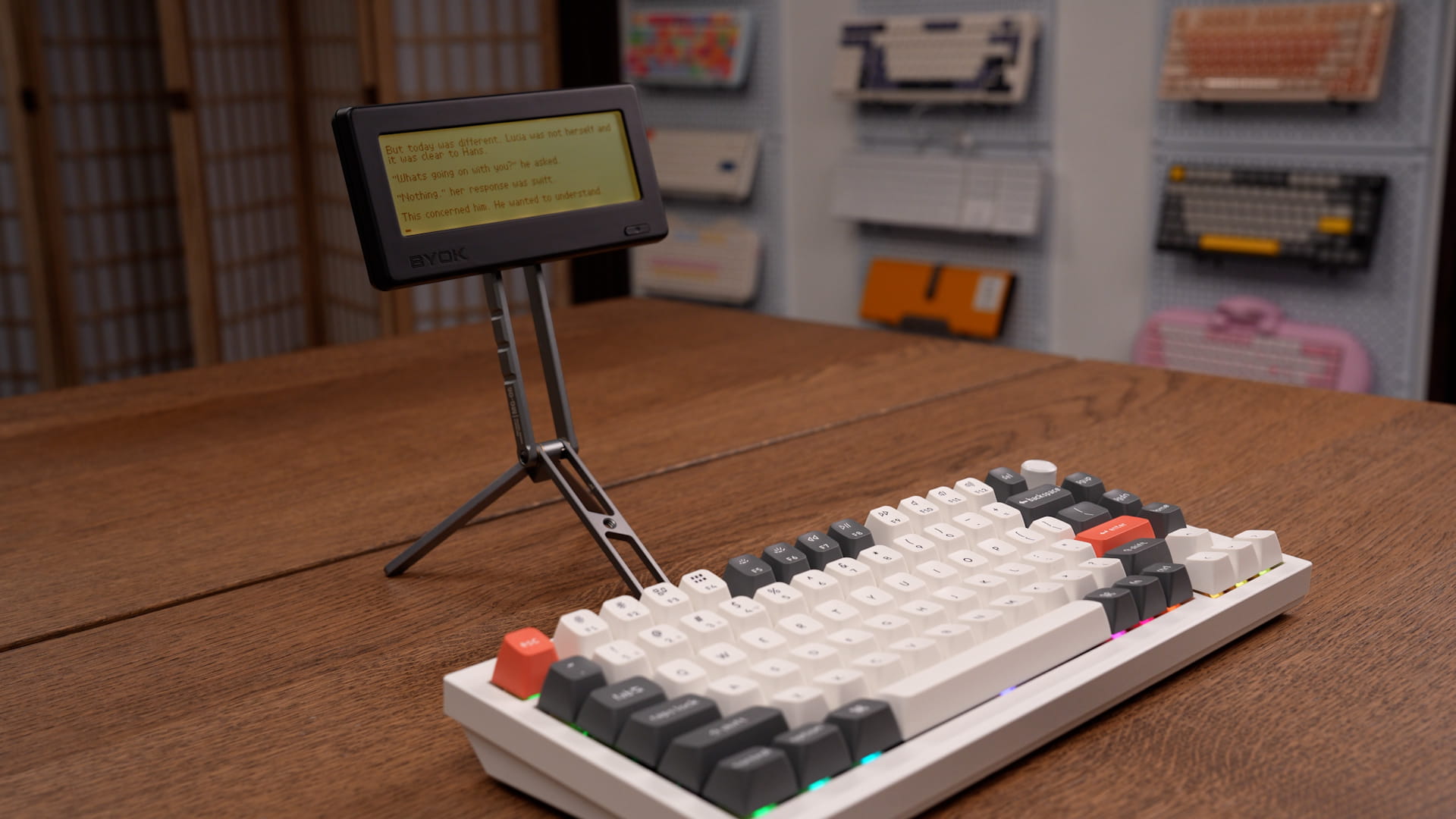
25 BYOK Setups
Twenty-five real ways to pair the BYOK with keyboards, stands, and mounts — from an eye-level desk arm to a kit that fits in a pocket — with photos and the gear used in each.
Read more
Scratch Pad & Captures
Write simple :: commands on your BYOK and turn them into Studio cards, wiki entries, outlines, notes, tasks, and comments when you sync.
Read more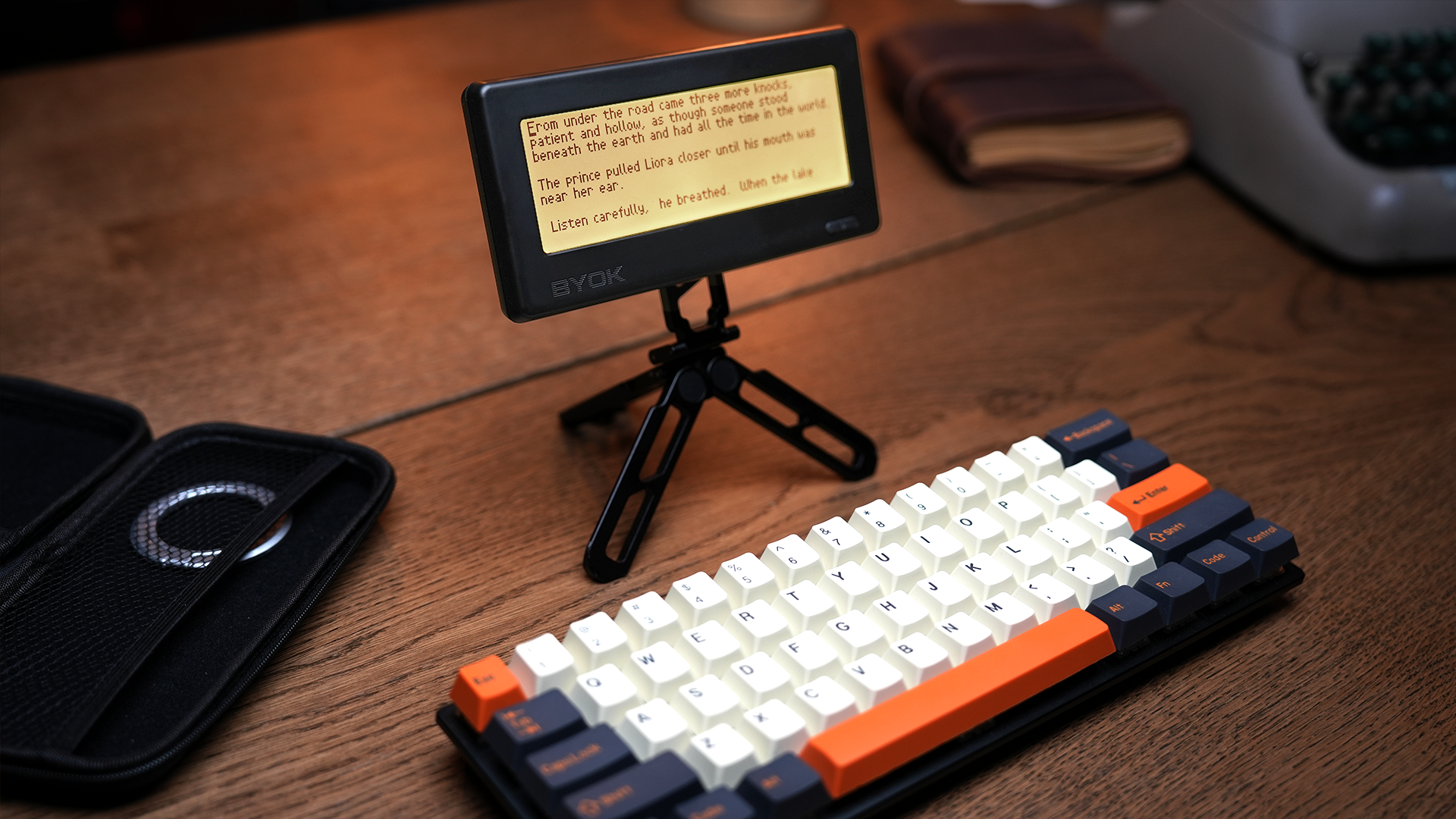
How I Write a Novel with the BYOK and Studio
A step-by-step walk through a full novel-writing workflow: drafting scenes on the BYOK, syncing into Studio, and shaping four drafts into a finished manuscript.
Read more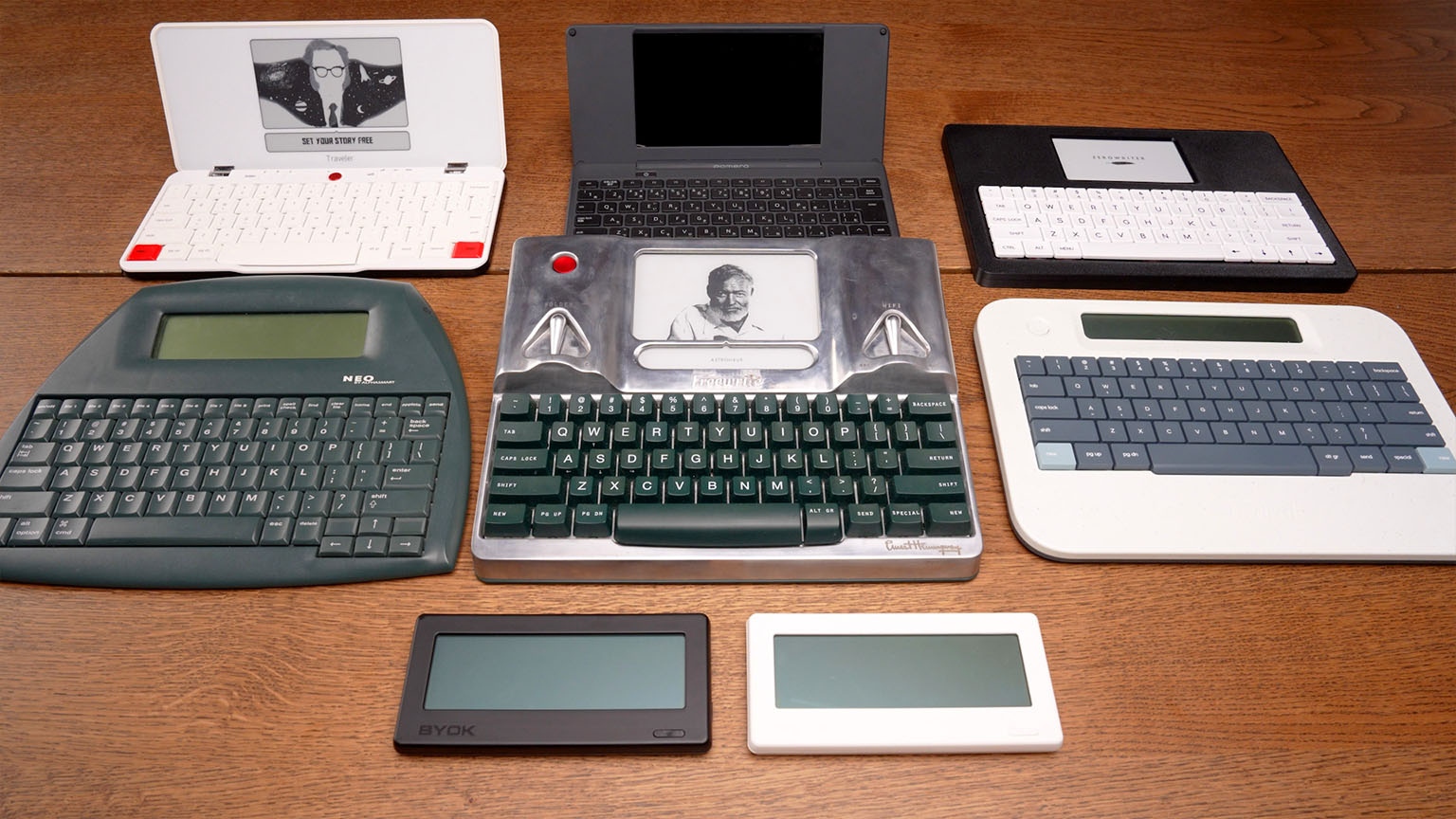
Best Distraction-Free Writing Devices, Compared
A side-by-side look at seven dedicated writing devices — Freewrite, Pomera, AlphaSmart, BYOK, and more — with specs, pricing, and honest evaluations.
Read more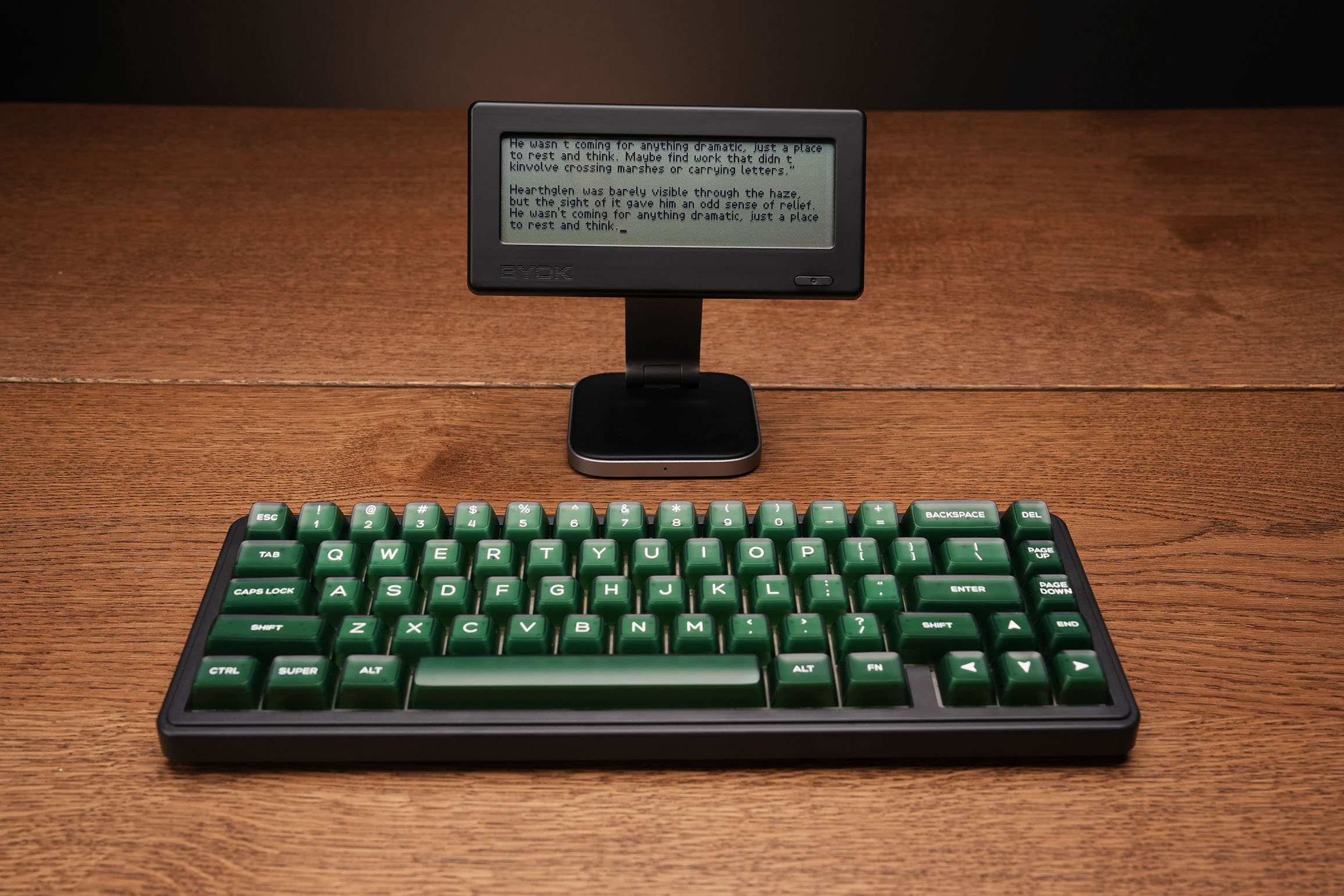
What Is a Digital Typewriter?
A modern tool for focused drafting that keeps the single-purpose feel of a typewriter while storing your work digitally so you can edit, sync, and export.
Read more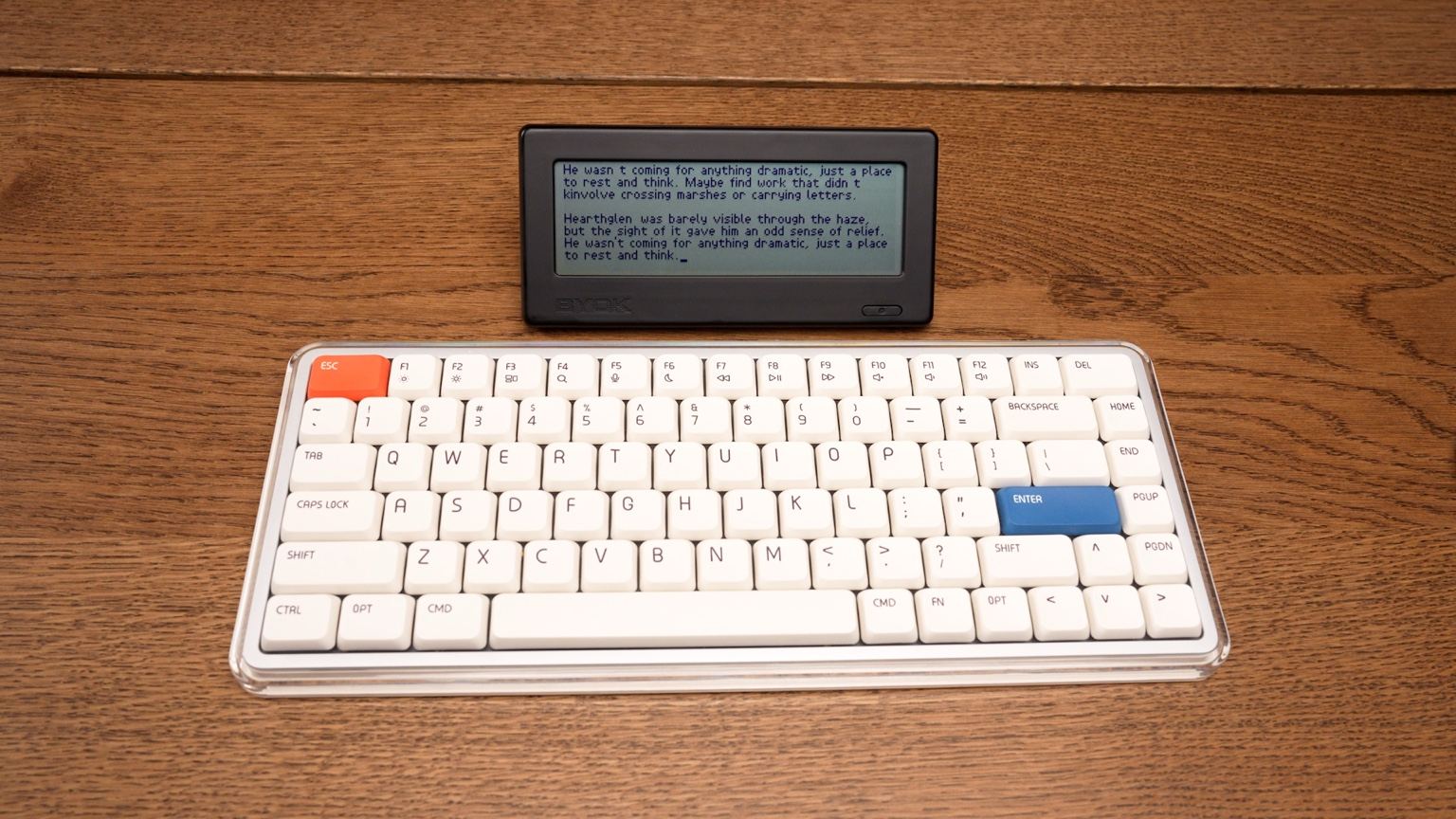
Best Freewrite Alternatives
Looking for a Freewrite alternative? Compare BYOK, Zerowriter Ink, AlphaSmart Neo, Pomera DM250, and more, with honest pricing, tradeoffs, and a decision guide.
Read more