
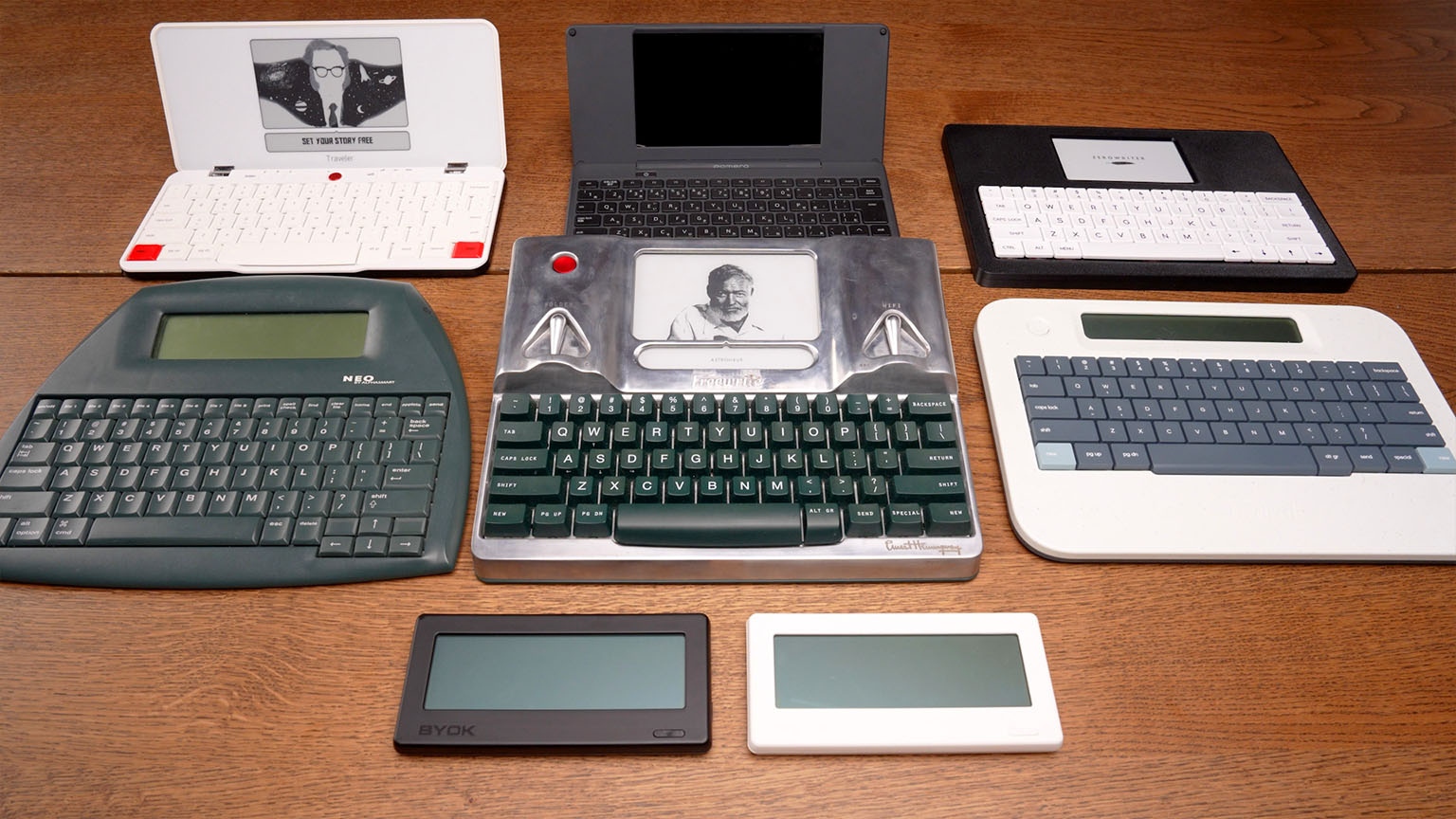
Quick Comparison
All seven devices at a glance, including three Freewrite models. Click any row to jump to the full review or see our Freewrite alternatives guide.
| Device | ●Portability | ●Keyboard | ●Display | ●Workflow | Price |
|---|---|---|---|---|---|
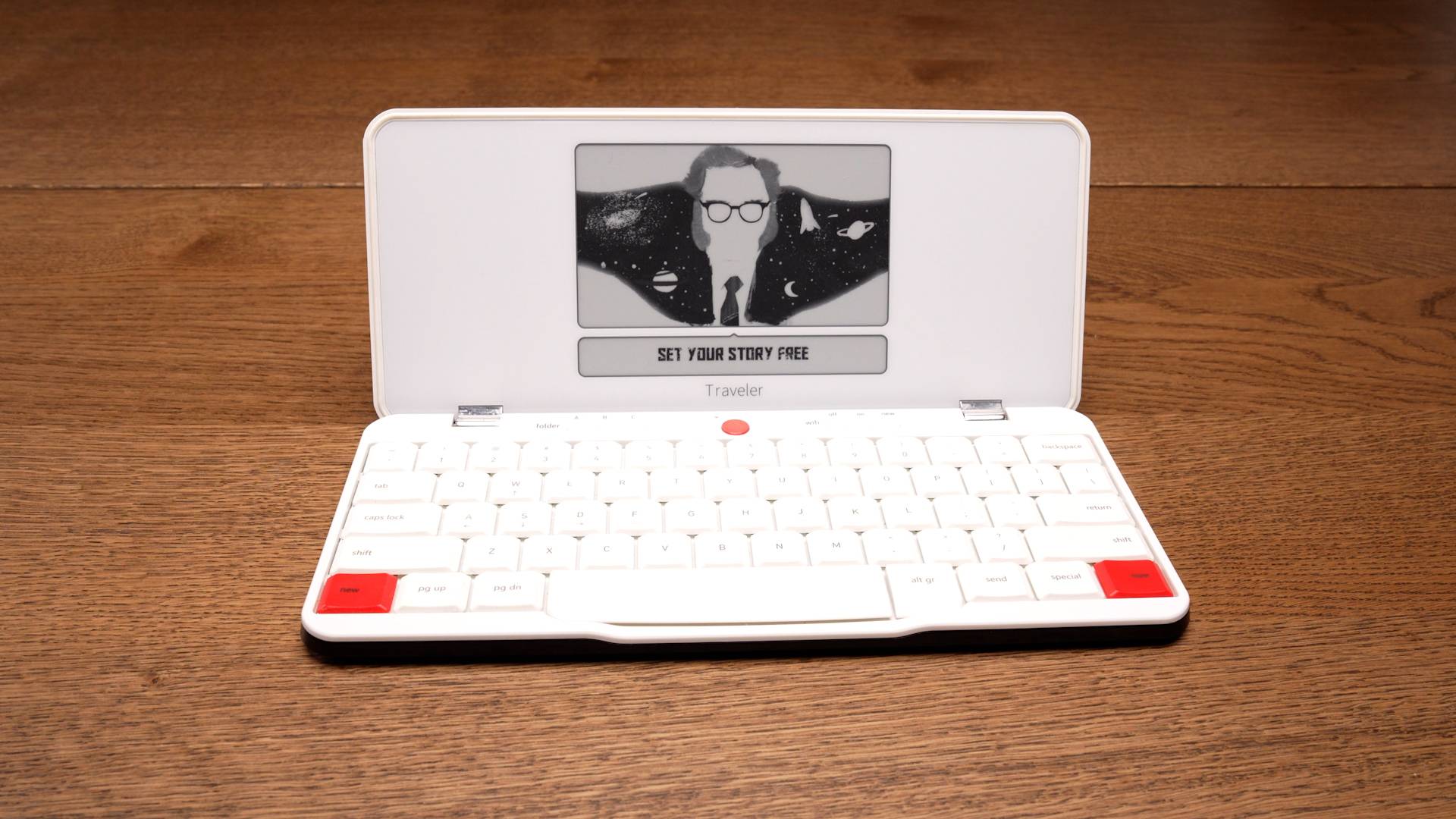 Freewrite Traveler | Roughly half a laptop size, clamshell designDesk, café, tray table, or lap | Scissor-switch—between membrane and mechanicalBuilt-in; strong typing for the size | Crisp E Ink, strong contrast, roomy screenInput lag; firmware updates have helped | USB transfer + Send key (email)Postbox cloud sync; handoff can feel clunky | $549 |
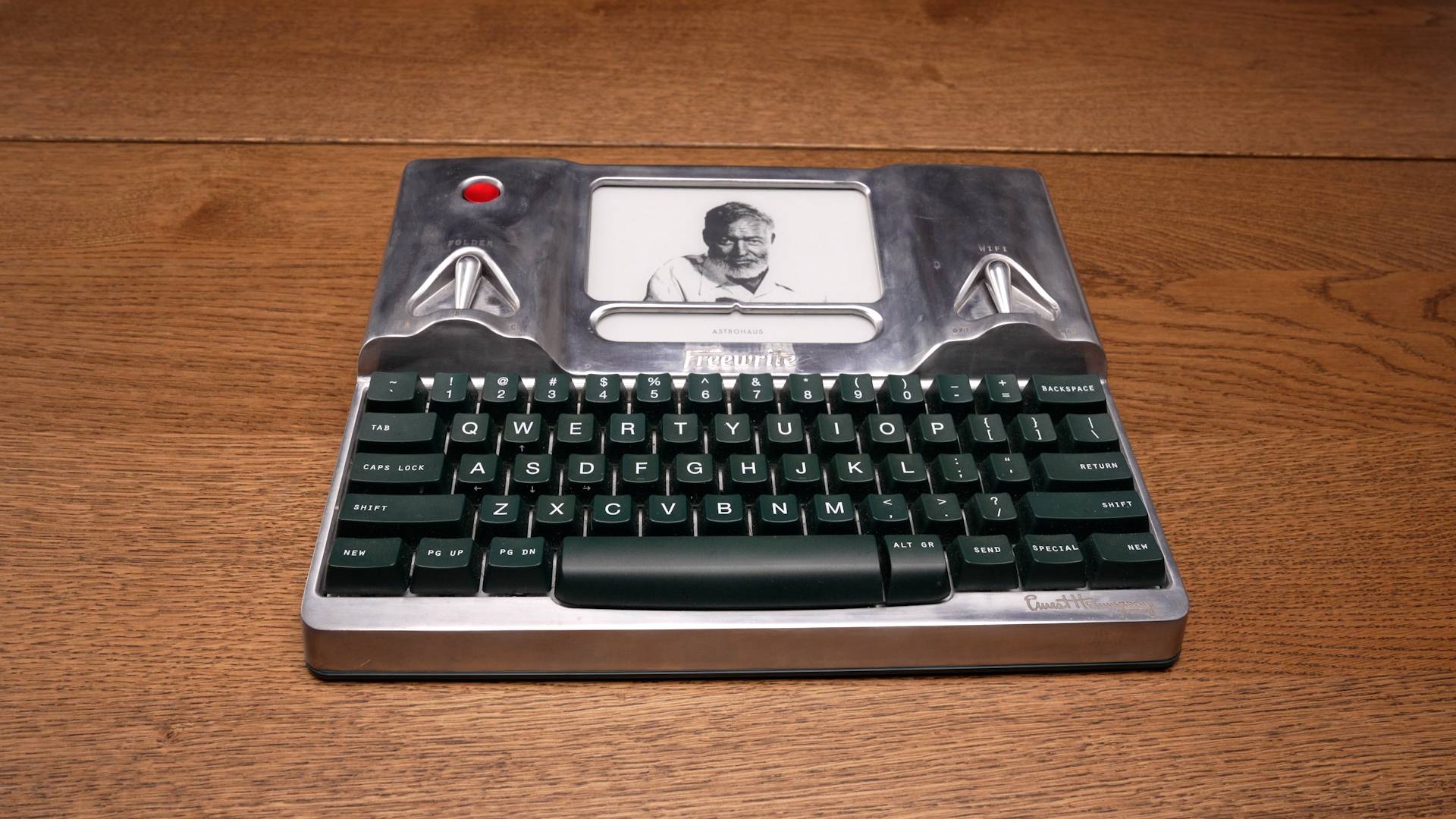 Freewrite Smart Typewriter | Large; needs a full backpack to carryBest left at home on a desk or lap | Built-in mechanical; step up from laptop keyboardsCan feel plasticky vs higher-end mechs at this price | Crisp E Ink; input lag improved via firmwareFrontlight for dim rooms and night use | USB, Send key, Postbox cloudSame workflow as the Traveler | $699 |
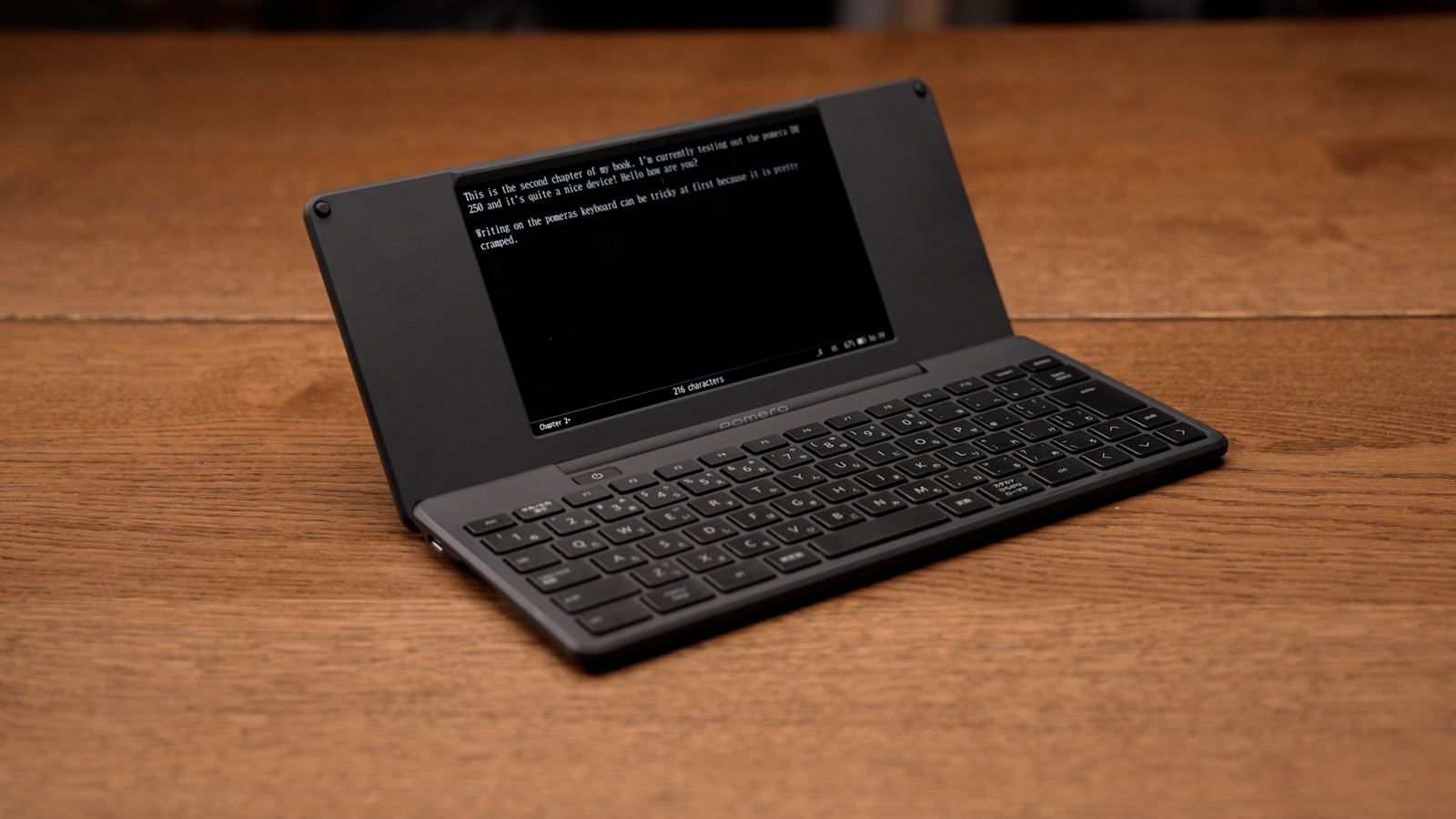 Pomera DM250 | Sleek and easy to carry; folds small enough for most bagsDiscreet in public; lap use feels unbalanced | Laptop-like short travel; cramped layoutUsable but a trade-off for the slim folding design | Large backlit LCD; fast and responsiveAlways-on backlight; cooler tone, marathon comfort TBD | Built-in storage + SD; USB or card readerQR code to mobile app; no cloud sync | $549 |
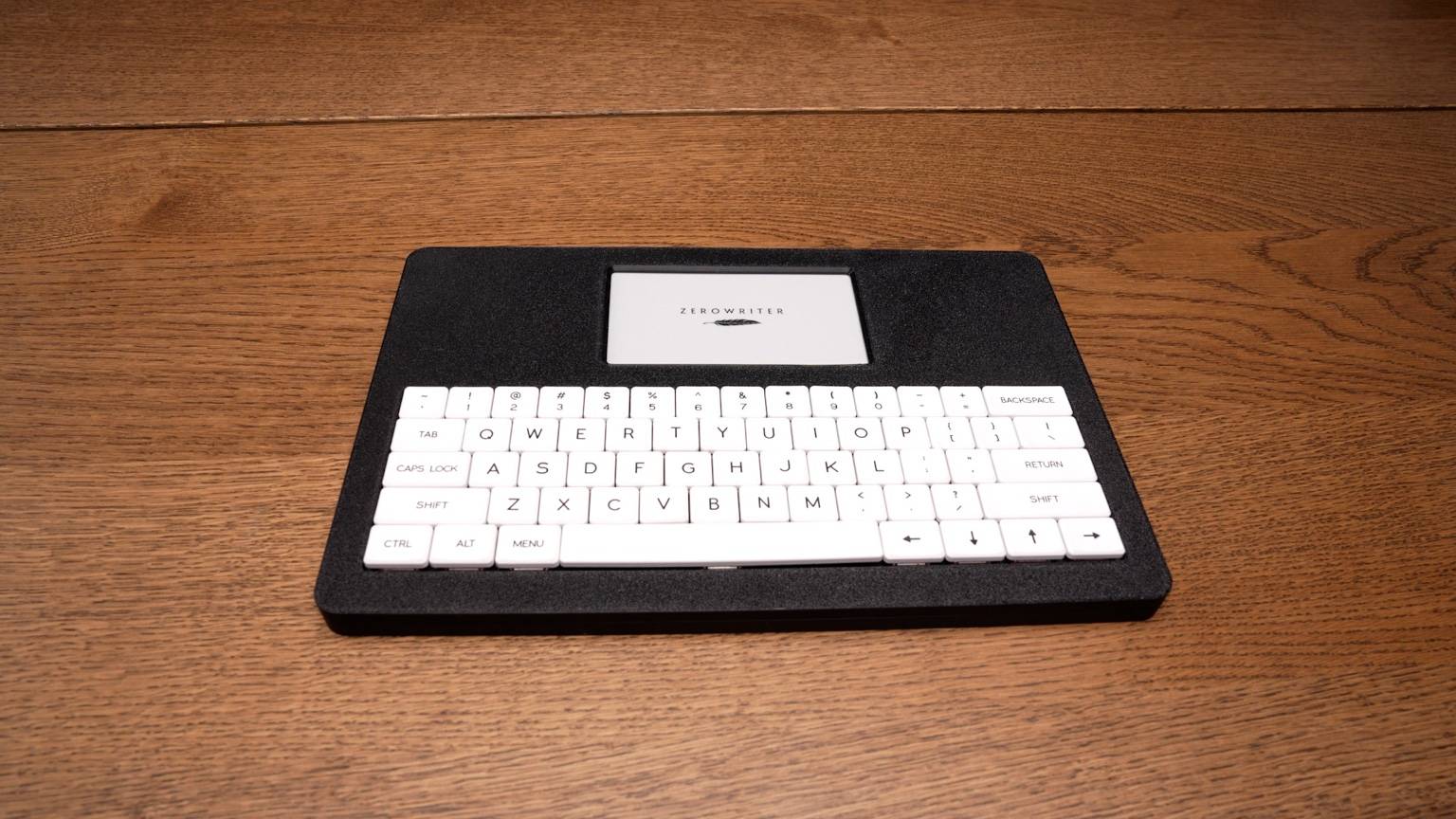 Zerowriter Ink | Small laptop–sized slab; slips into most bagsBuild feels less bump-proof; discreet in use | Keycaps ship uninstalled; snap-in assemblyBackspace can stick; wobbly spacebar; keycaps feel nice | Crisp E Ink; strong contrast; competitive with FreewriteHeavy input lag; no built-in light | No cloud or wireless transfer—microSD or USB onlySimple but more manual than Freewrite, BYOK, etc. | $279 |
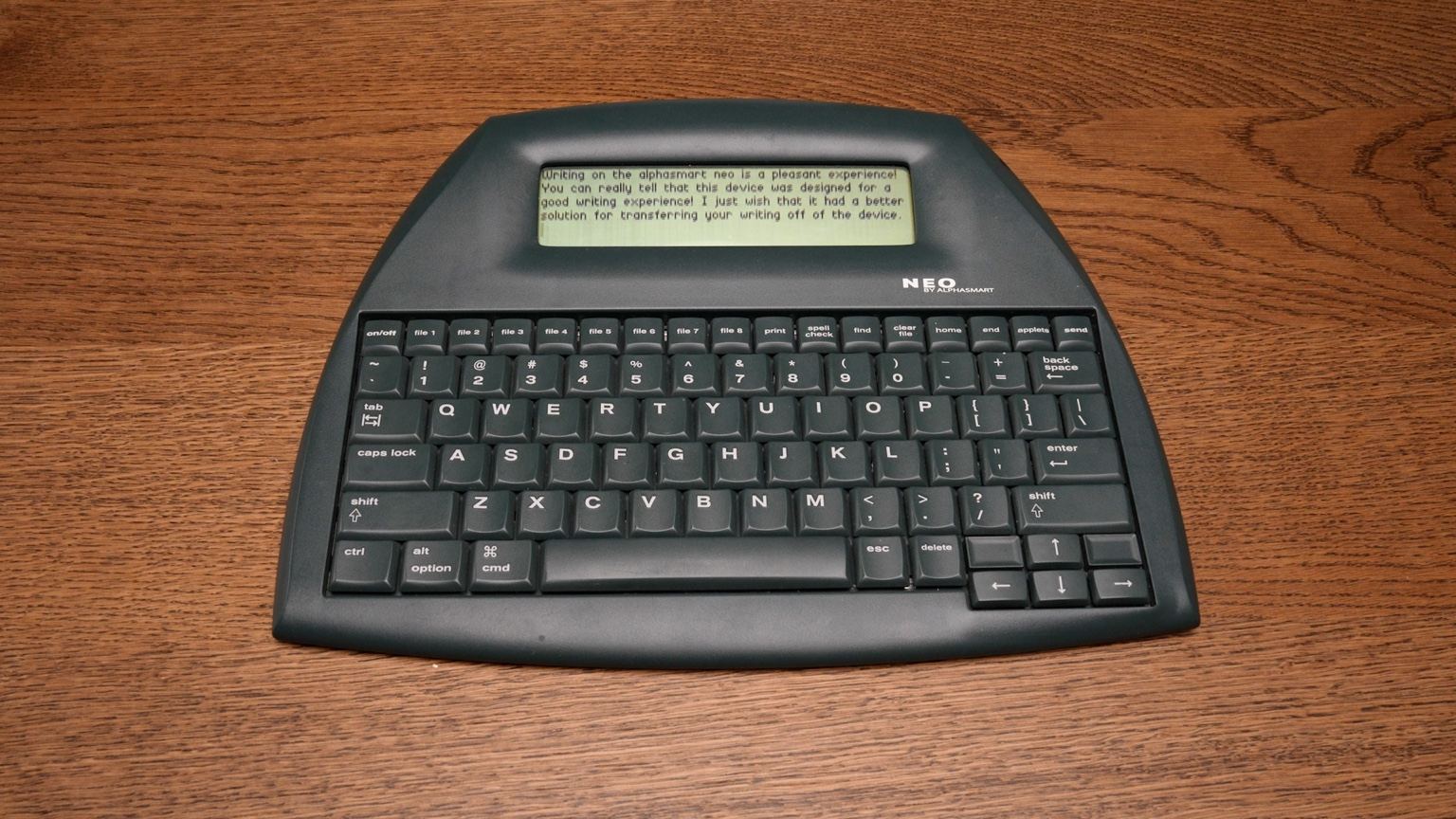 AlphaSmart Neo | Flat slab; easy to bag; durableComfortable on a desk, table, or lap | Full-size layout; soft membrane feel with generous travel20+ year units often still fully responsive | Reflective LCD; no backlight; wide anglesNear-instant response; mild ghosting | Legacy software "types" text into your PCSlow for long docs; community workarounds exist | $80–200 |
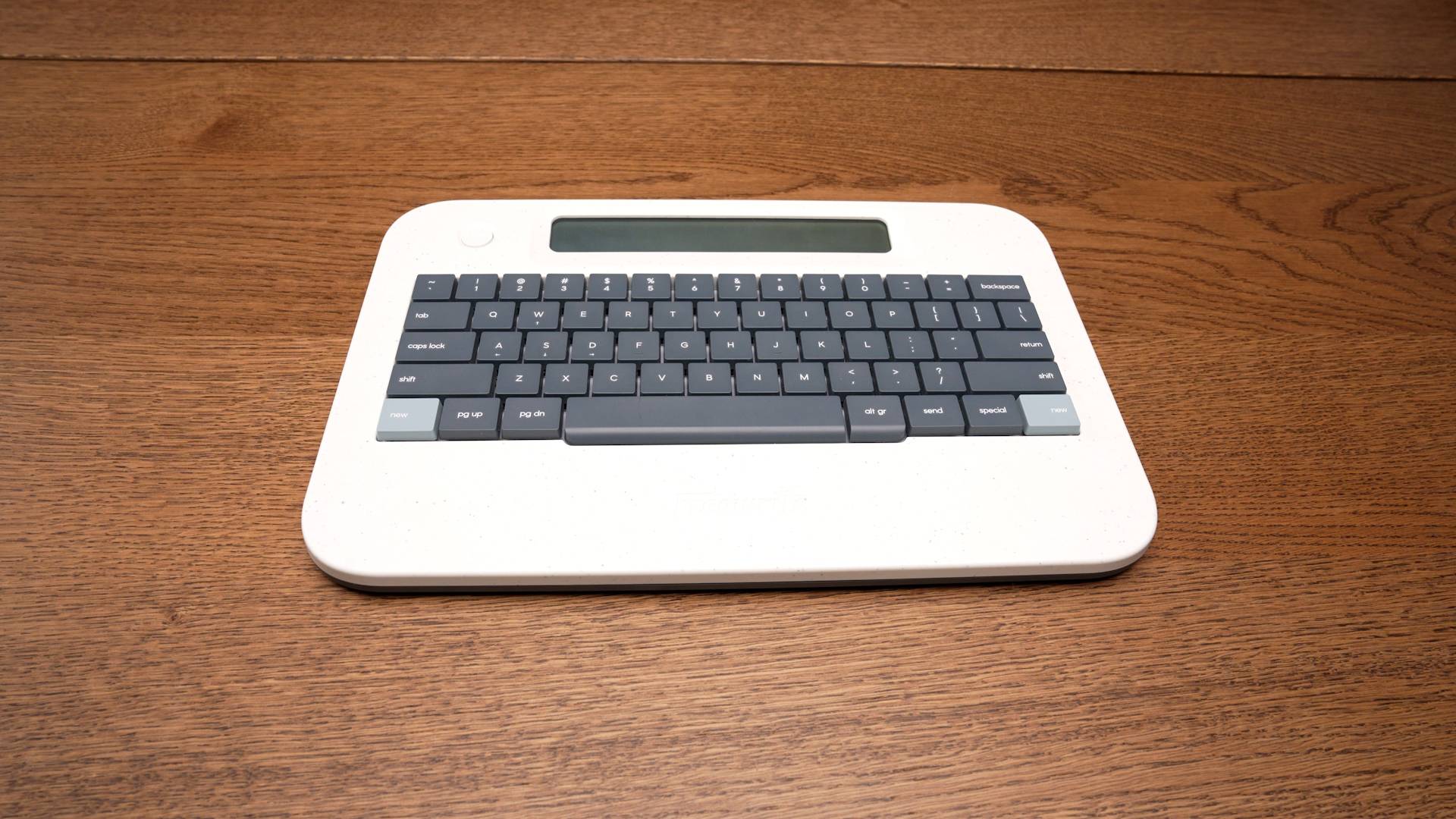 Freewrite Alpha | Similar form to the Zerowriter but feels more durableSlips into a bag easily; works well on a desk, table, or lap | Fully mechanical; unconventional feelSquare, flat-topped keys; usable after adjustment | LCD with retro quality; shorter than Neo, widerNewer versions add backlight; instant response | USB, Send key, Postbox cloudSame workflow as other Freewrites | $349 |
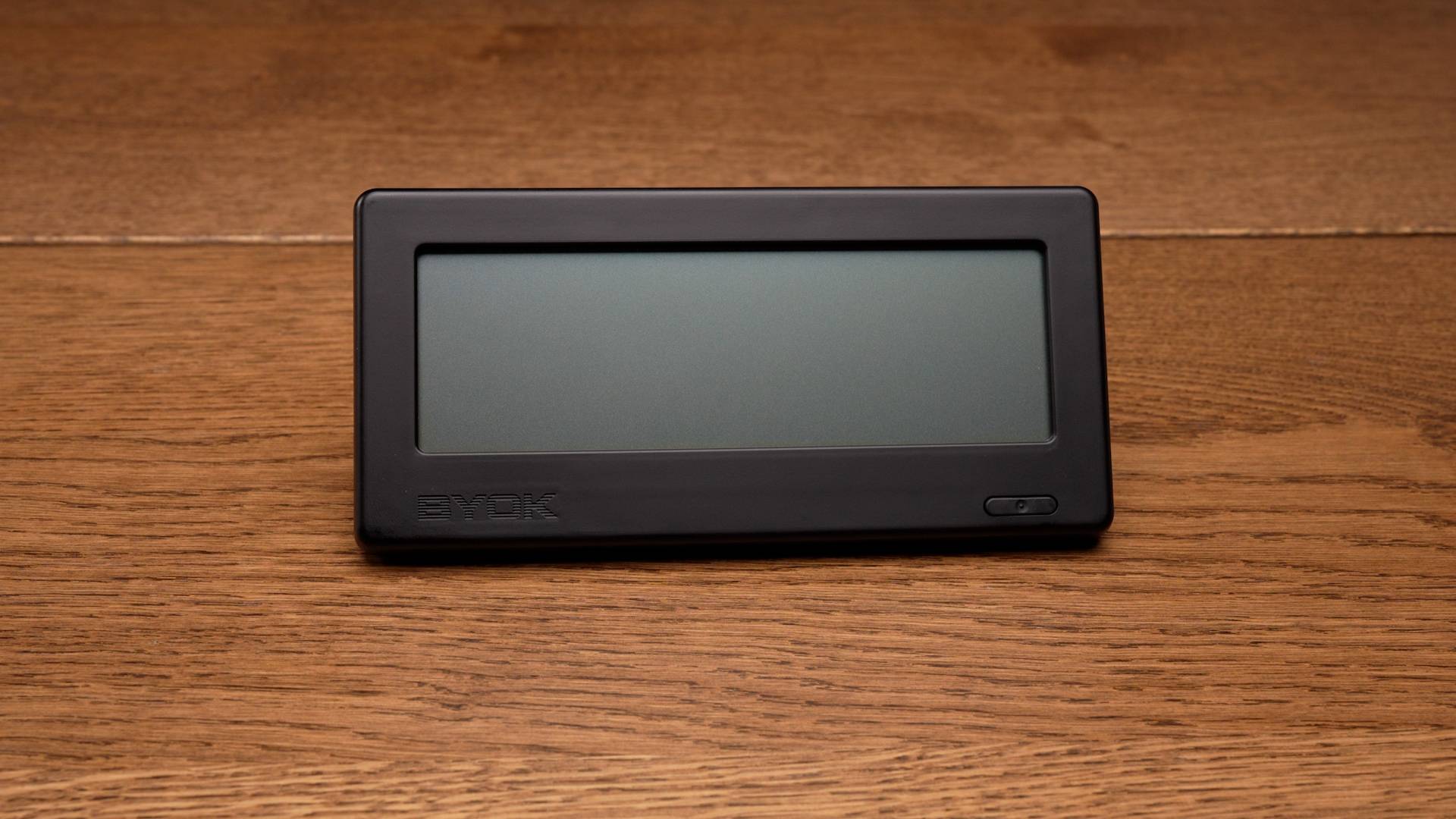 BYOK Ours | Pocket-sized on its own; very portableTotal bulk depends on keyboard choice | Most wireless and wired keyboards supportedMechanical, compact, handheld — your choice | FSTN LCD; reflective, adjustable amber backlightFast response; up to ~15 lines with smaller font | microSD, USB, and Studio writing environmentCore Studio features free; fully offline capable | $199 |
Want to write with fewer distractions?
Get practical writing workflow ideas, focused setup inspiration, and occasional updates from BYOK and Studio.
See Them in Action
A 28-minute hands-on look at all seven devices. For the full written breakdown, keep scrolling.
What Is a Distraction-Free Writing Device?
In the totality of history, the vast majority of written work was produced with a singular, focused tool, often by hand on paper. These tools, though not glamorous and even boring at times, allowed writers to create work that still shapes the world today.
Today, we'll look at seven devices created solely for the purpose of writing. None of these devices claim to be better than a computer or other modern technology. Instead, they offer something different, tools designed to serve the writer in the act of writing alone. In most cases, these are drafting devices, where the focus is simply getting down your raw words, whether for a book, a journal entry, or just some notes, and then editing them elsewhere once complete, if desired.
There aren't many devices like this available, as this is a space that's only just beginning to re-emerge. This guide covers most of what's out there. We're focusing only on devices dedicated to writing, nothing with app stores or additional software. No social media, no email, no alerts, and no browsing.
Freewrite Traveler
A portable clamshell writing device with a solid keyboard and crisp E Ink display.
Quick Take
Best for: Writers who want a compact, portable E Ink drafting device with a comfortable built-in keyboard.
Strengths
- Clamshell design folds flat and works well at a desk, in a coffee shop, or on a tray table
- Satisfying scissor-switch keyboard
- Crisp E Ink display with strong contrast and generous screen size
- Multiple ways to transfer work: USB, email via Send key, or Postbox cloud sync
Limitations
- E Ink input lag is noticeable, though firmware updates have improved it
- No backlight, so it needs ambient light to use
- Limited ergonomics: you're looking down at the screen in most setups
- Minimal organization with only three folder slots
- Premium price at $549
The Freewrite Traveler is Astrohaus's second writing device in their lineup of three writing devices. What immediately stands out about this device is its clamshell design, accompanied by a truly likable keyboard. Pack in the portability that comes with the design, as well as the crisp e-ink display, and you've got a solid option for a writing tool.
Portability
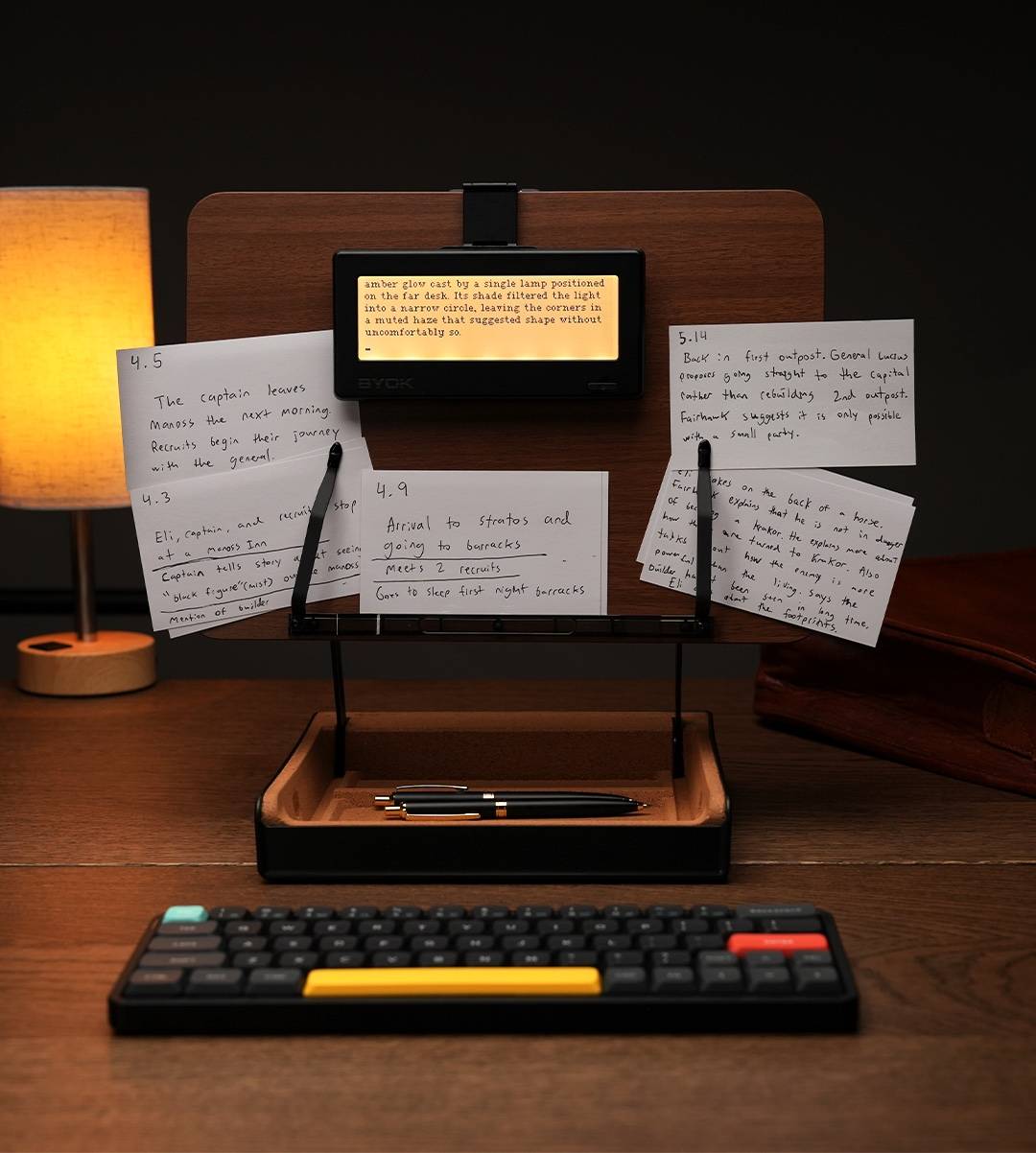
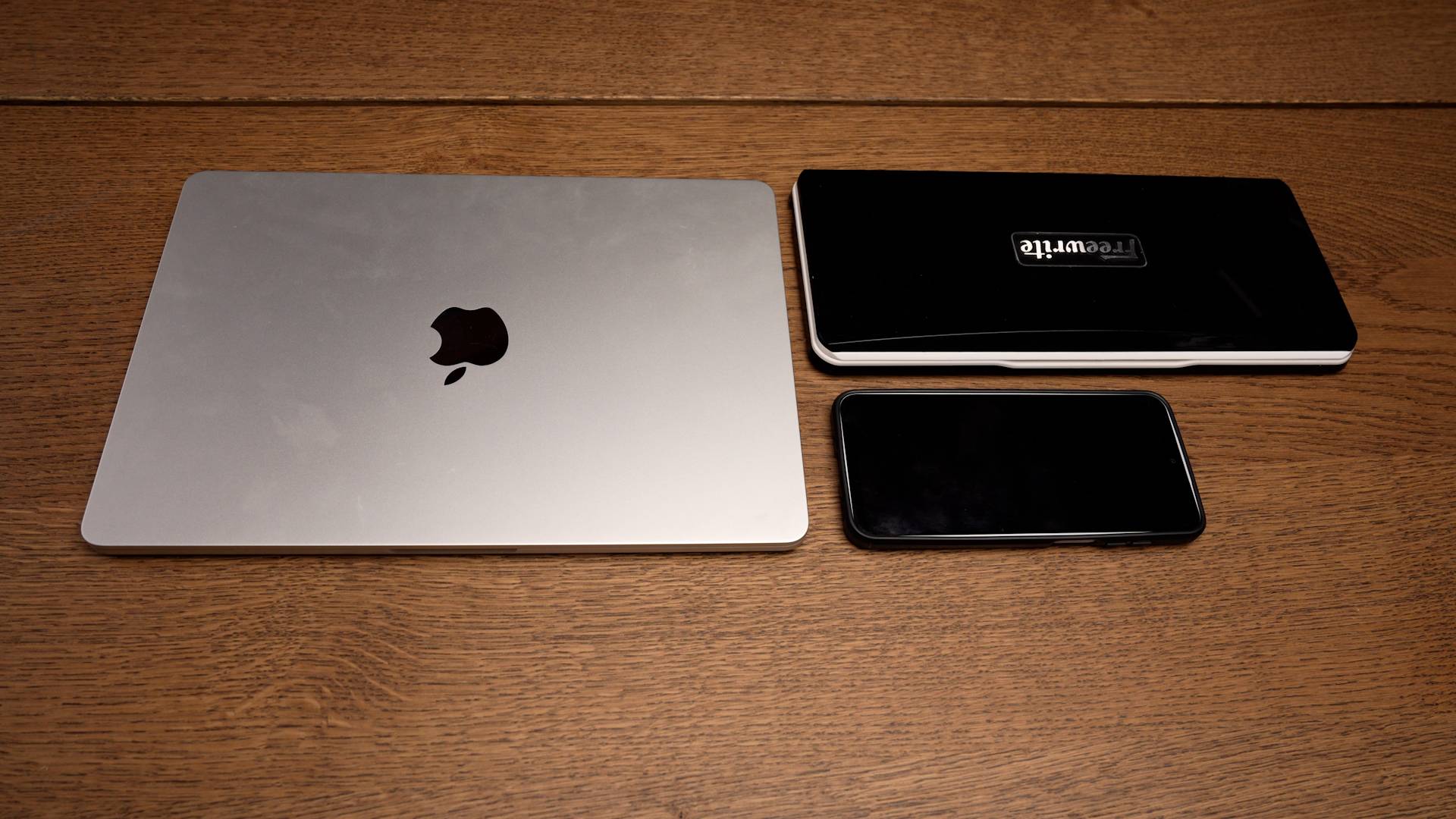
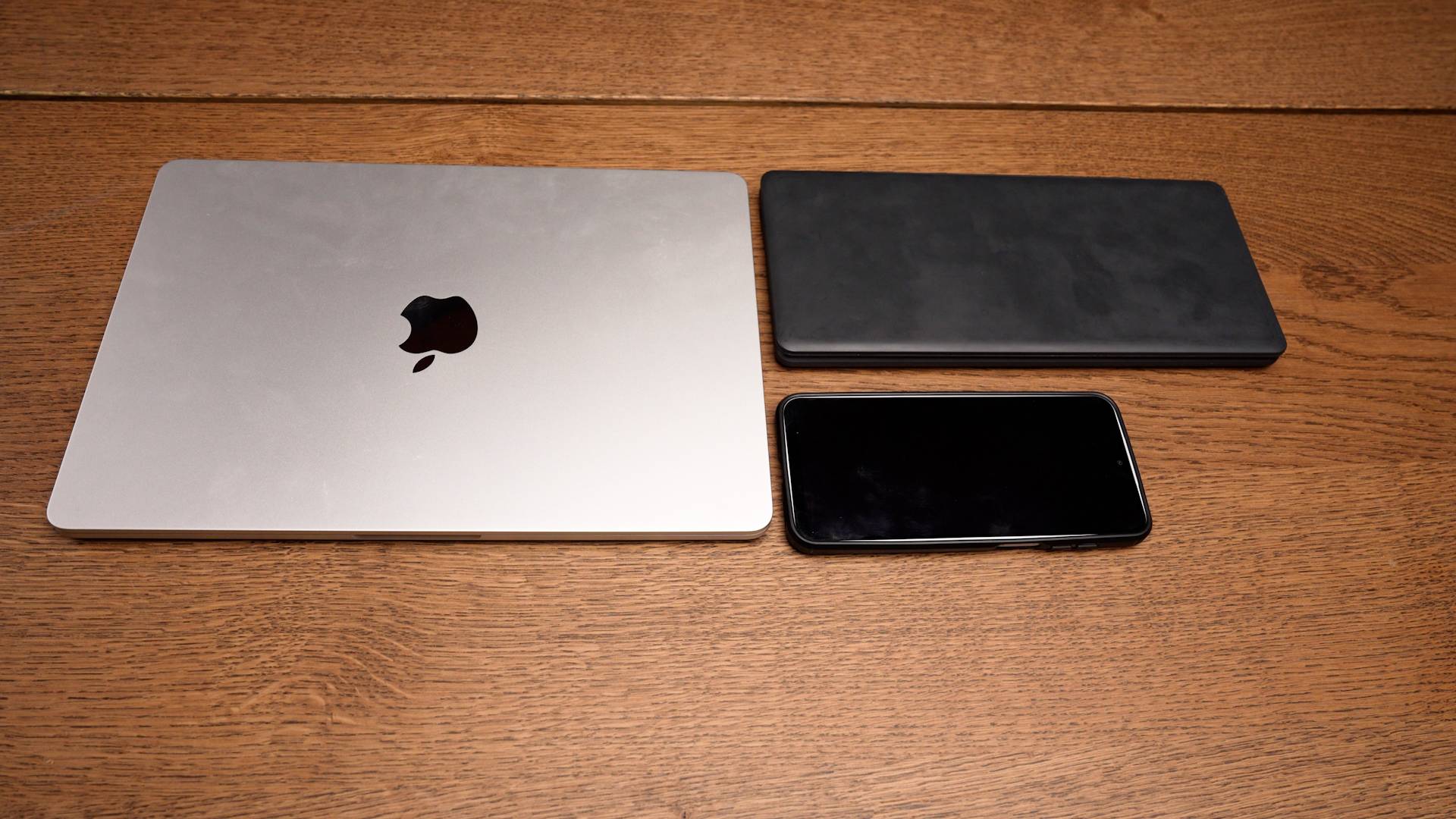
The size of the Freewrite Traveler, roughly half that of a laptop, along with its clamshell design, makes it well-suited as a portable writing tool. It works just as well at home on a desk as it does out and about, whether in a coffee shop or on a surface like a plane or train tray table. You can even use it directly on your lap, although its size makes it slightly less natural in that position compared to a typical laptop.
While the Traveler is compact, I wouldn't necessarily describe it as sleek. It's still fairly thick, and the top surface isn't flat. Instead, it has a noticeable curve that gives it a bit more presence than you might expect.
Keyboard
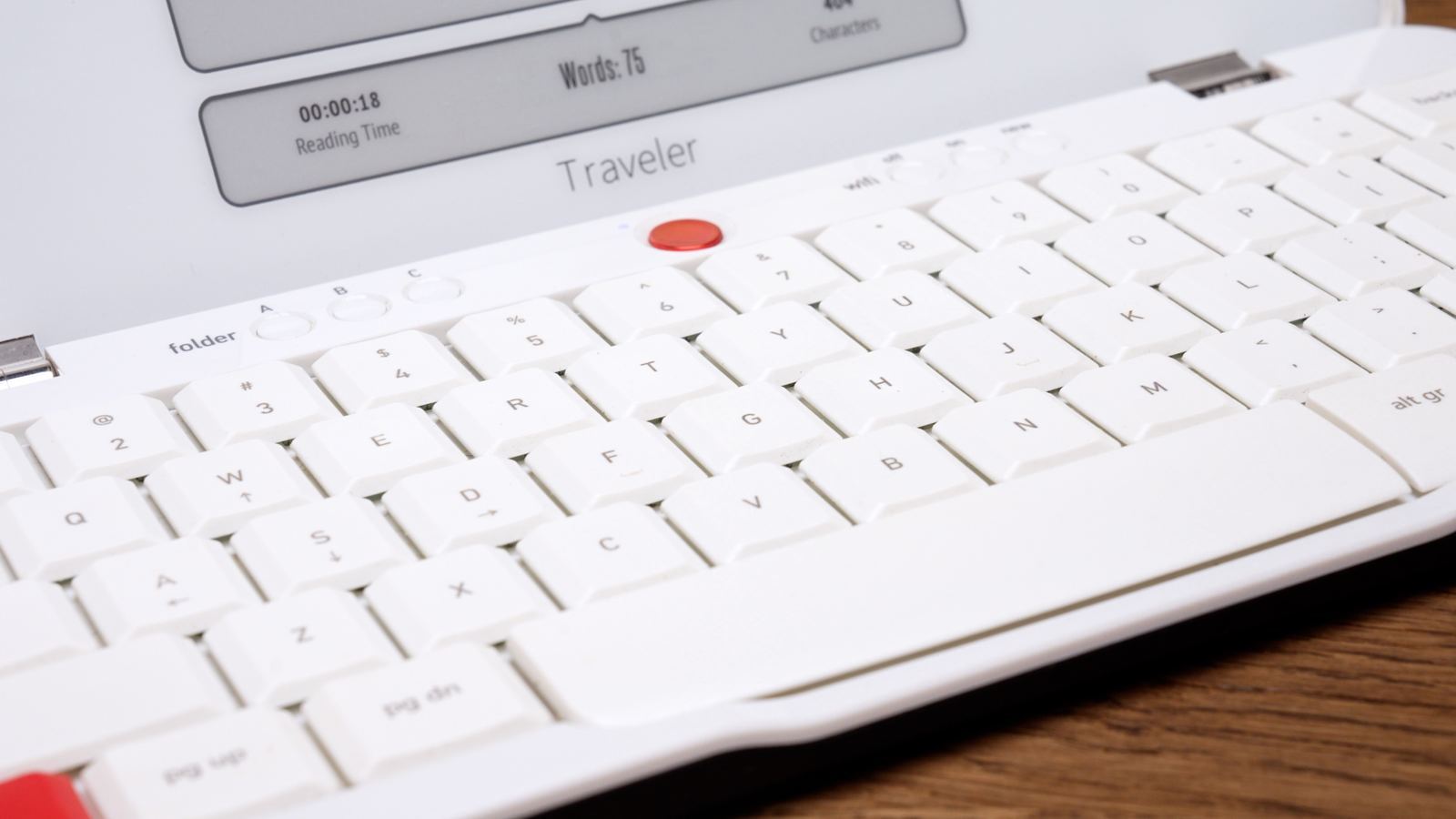
The Traveler uses a scissor-switch keyboard, which sits somewhere between a typical laptop membrane keyboard and a full mechanical setup. The feel is solid, with a satisfying amount of travel and a clear effort to provide a comfortable typing experience. For the size of the device, this is likely about as good as it gets, as fitting a true mechanical keyboard into this form factor would be difficult.
I'm now over 130,000 words deep on this keyboard and haven't run into any major issues. The only minor note is that the white keys have begun to discolor slightly over time, now leaning more toward an off-white.
Display
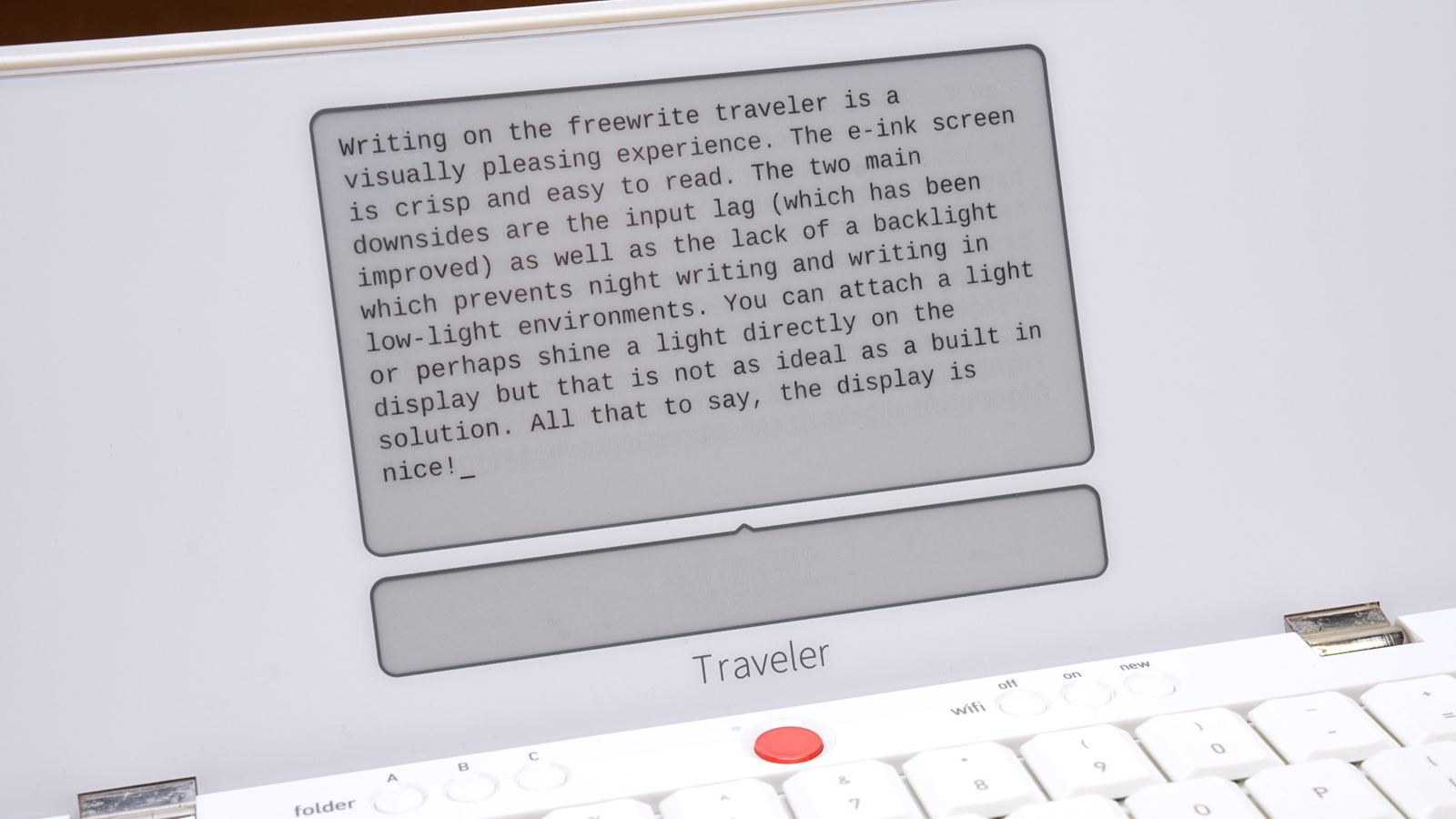
The Traveler's E Ink display is a pleasing viewing experience. The text is crisp, with strong contrast against the white background, and the screen size provides enough space to see a good portion of your writing at once. This gives you helpful context as you work. Personally, I don't find myself needing quite this much context when drafting. I prefer a writing-forward mindset, where the focus is on getting your thoughts down, no matter how rough, and reviewing them later. It certainly doesn't hurt to have the extra screen real estate, though, and I know many writers prefer being able to see more of what they've written.
My biggest gripe with the device has been the input lag, which was honestly a bit startling on first use. This is a well-documented limitation of E Ink displays, but it's worth noting that recent firmware updates have improved it quite a bit. The lag is still present, but it no longer reaches that almost unbearable territory.
There's no backlight, either, which nudges the Traveler a little more toward daylight and lamp use than true anywhere-anytime portability. Dim rooms and late-night writing in the dark aren't really its thing.
Ergonomics
For whatever reason, devices in this category tend to show very little regard for ergonomics. In other fields, especially for those working in other career fields, there are countless solutions designed to improve posture and support long working sessions. Writing is no different. For many writers, particularly those working more professionally, long sessions are a necessity, and any tool built specifically for writing should at least allow for a reasonably comfortable and sustainable setup.
With that in mind, the Traveler doesn't offer much in the way of ergonomics. As with most devices in this guide, you'll find yourself looking down at the screen in most setups, which means your neck is angled downward for extended periods unless you're someone who doesn't need to look at your writing while typing. On the positive side, the clamshell design does allow you to adjust the screen angle, which helps alleviate this somewhat, but it doesn't fully solve the issue.
Interface & Performance
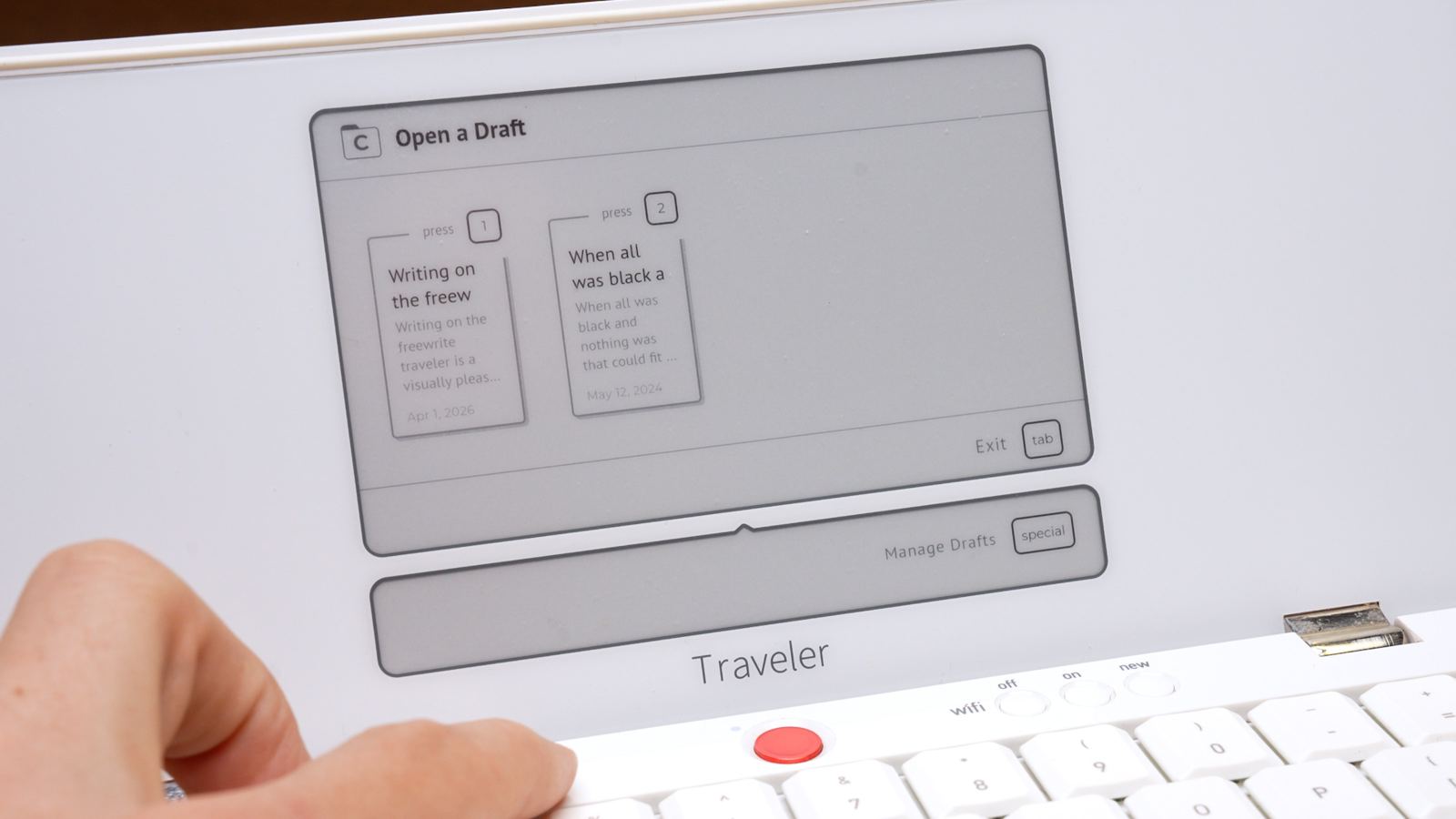
The Traveler uses Freewrite's familiar folder system, shared with the Smart Typewriter. You're given three folders to work with, A, B, or C, which offers some, albeit limited, organization. This aligns with their philosophy of focusing on drafting and removing anything deemed unnecessary. For some writers, myself included, this can feel liberating, as the lack of options becomes one less thing competing for your attention. For others, these limitations may feel restrictive.
You won't be spending much time in the menus, but when you do, they can feel a bit slow and clunky, likely an artifact of the E Ink technology. In practice, most of my interaction outside of writing was limited to occasional tasks like setting up Wi-Fi.
The boot time is noticeably slow. That said, once the device is on, you can leave it in sleep mode and quickly wake it with a tap of the power button. If you're using the Traveler regularly, you'll rarely find yourself fully powering it down.
One thing worth noting is battery life. While I didn't go out of my way to track it precisely, I found myself charging the device more often than I expected for an E Ink device. It's not something that requires daily charging, but it did become a somewhat regular part of use.
Workflow Adaptability
When using a distraction-free writing device, it’s important to consider how it fits into your overall workflow. While the idea of these devices is appealing, there still needs to be a practical side to them so they can realistically be used in your day-to-day writing. A classic example would be a typewriter. It’s a wonderful experience to write on, but it introduces a laborious step of transferring everything into a digital format before you can continue working on later drafts. For most writers, that becomes a barrier—though of course, there are exceptions.
With the Freewrite Traveler, you have a few different options. The most straightforward is connecting it to a computer via USB and transferring your text files directly. You can also use the “send” function on the keyboard, which emails your draft—useful both for backup and for quickly getting your work into another writing environment.
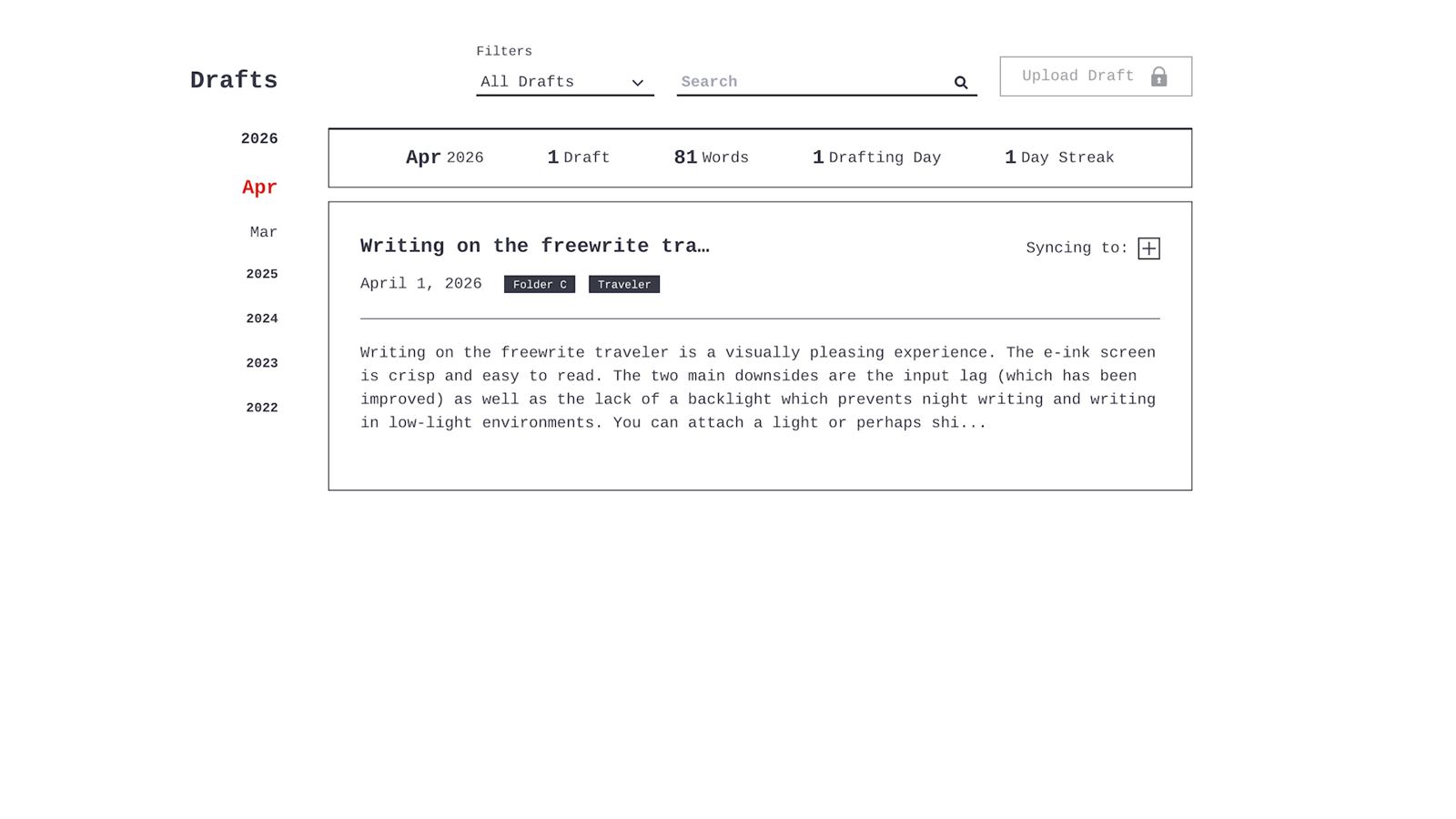
Freewrite also offers their own cloud-based system called Postbox, where your drafts can be stored and accessed later. This works well as a central hub for your writing, especially if you’re using multiple Freewrite devices. That said, moving files between devices isn’t always seamless and can feel a bit clunky at times.
Price
$549
The Traveler commands a premium price, which occasionally drops down to around $500 during sales.
Freewrite Smart Typewriter
Freewrite's flagship device, now in its third generation, designed to stay on your desk.
Quick Take
Best for: Writers who want a desk-first E Ink drafting device with a mechanical keyboard and frontlit display.
Strengths
- Built-in mechanical keyboard, a clear step up from laptop keyboards
- Crisp E Ink display with a frontlight for dim rooms and night use
- Physical switches for folder and Wi-Fi navigation
- Same workflow options as the Traveler: USB, Send key, and Postbox cloud
Limitations
- Large and conspicuous; not practical to take out of the house
- Mechanical keys may feel plasticky compared to mid–high-end keyboards
- Fixed display with no angle adjustment; worse for neck posture than the Traveler
- Most expensive device in this guide at $699
The Smart Typewriter is Freewrite's original, and what many would consider their flagship writing device. First released nearly 10 years ago, it has since gone through multiple revisions and is now on its third generation. It's by far the largest device in this lineup, taking clear design cues from a traditional typewriter. In essence, it's a digital typewriter built around an E Ink display.
Portability
Perhaps the weakest part of the Smart Typewriter experience is its portability. The device is large and likely won't fit into most work bags outside of a full backpack. It does include a fold-out handle, but I've never really felt compelled to use it. It's also a fairly conspicuous device and tends to draw attention from those around you. That may not bother some, but for me, especially in a coffee shop setting, I prefer to stay focused on my writing rather than on what others might be thinking.
In practice, this is a device I tend to leave at home, where it excels on a desk or even on my lap.
Keyboard
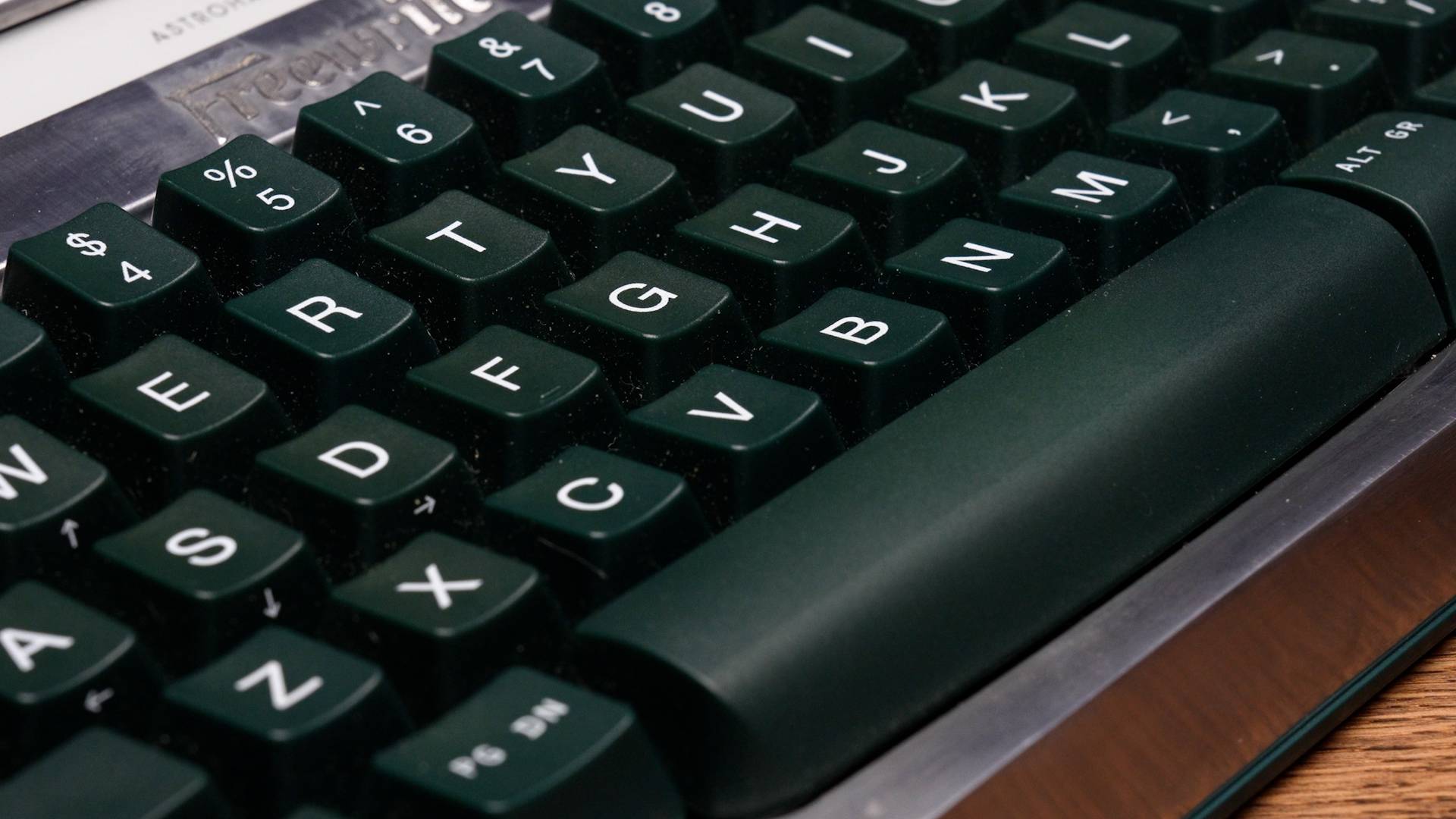
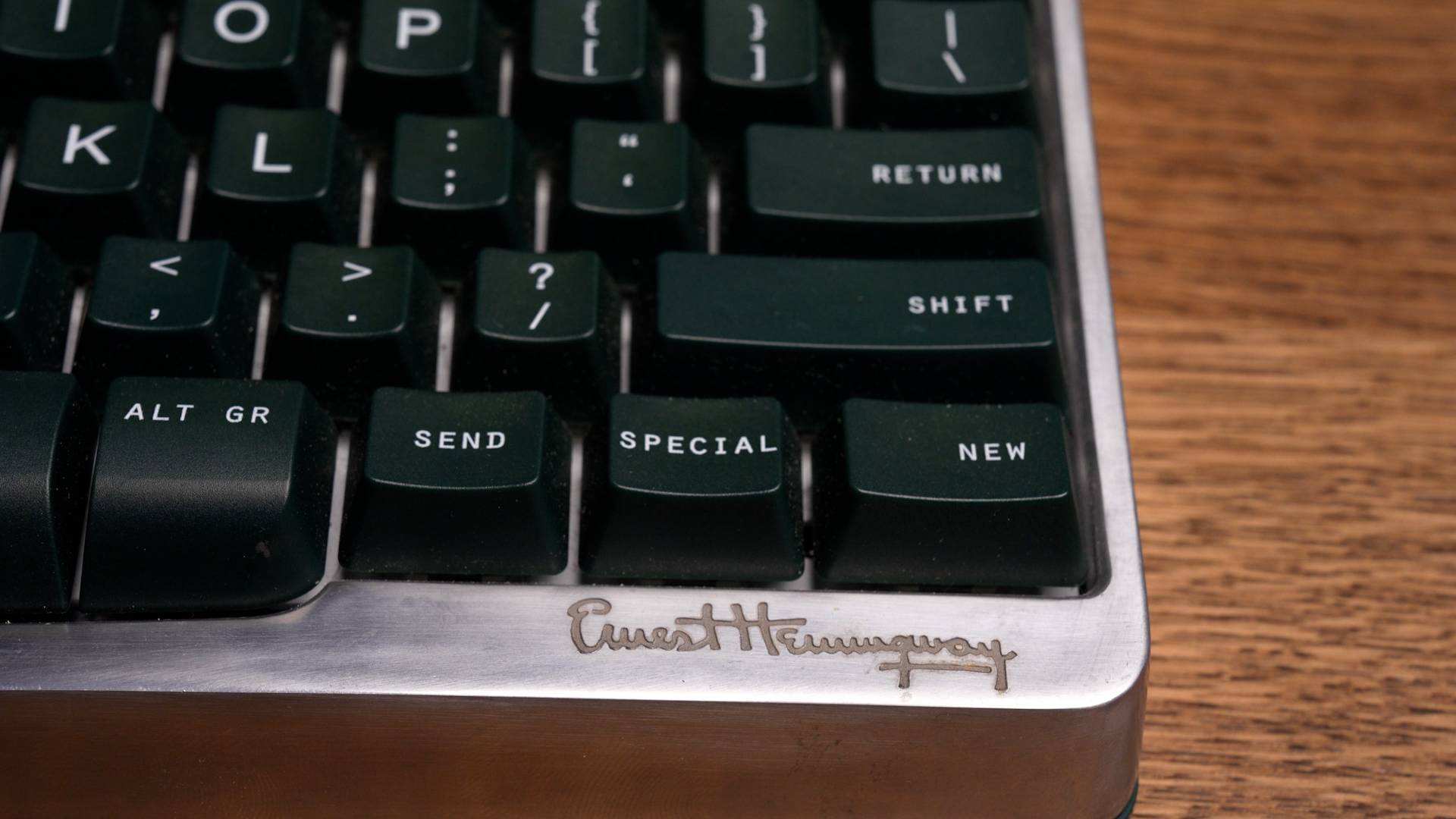
The Smart Typewriter comes with a built-in mechanical keyboard. Overall, it's a pleasant experience to use, with a clear step up from typical laptop keyboards. If you're coming from that baseline, it will likely feel great.
However, when considering the price of the device, you may find yourself wishing it went a bit further. If you're already familiar with mechanical keyboards, especially those in the mid to higher-end range, this one can feel a bit underwhelming. The keys have a somewhat plasticky, hollow quality when compared to what you might expect from a more refined mechanical setup, where a more solid and "thocky" feel is often part of the appeal.
Display
The display on the Smart Typewriter feels very similar to that of the Traveler. It's a crisp E Ink display with a comparable level of input lag, which, as mentioned before, has been reduced with recent firmware updates. The lag is still present, but it's much more manageable than it used to be.
The main difference here is the addition of a frontlight. This makes a noticeable difference in day-to-day use, as it allows you to work comfortably in dim environments or at night—something the Traveler doesn't support.
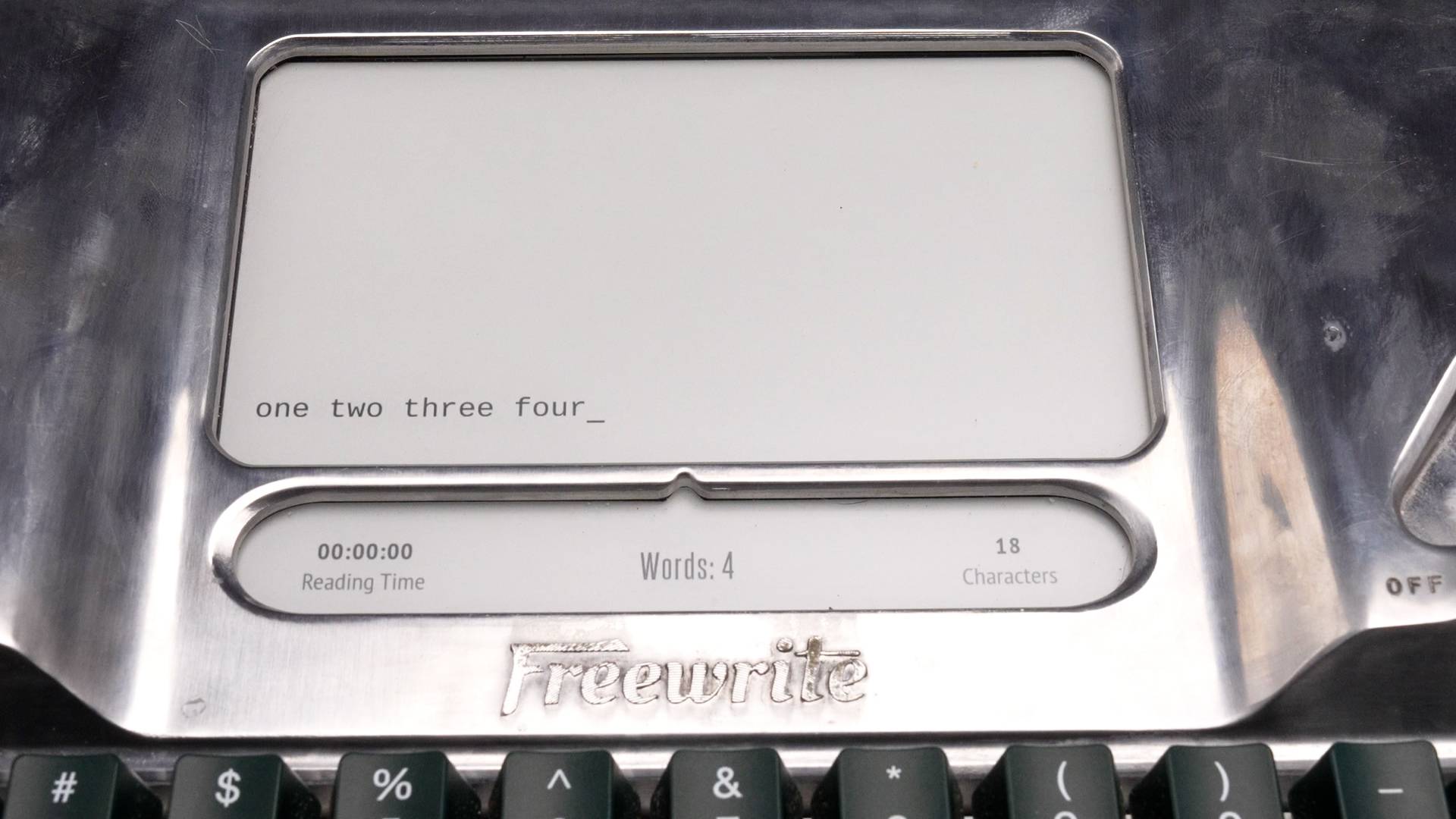
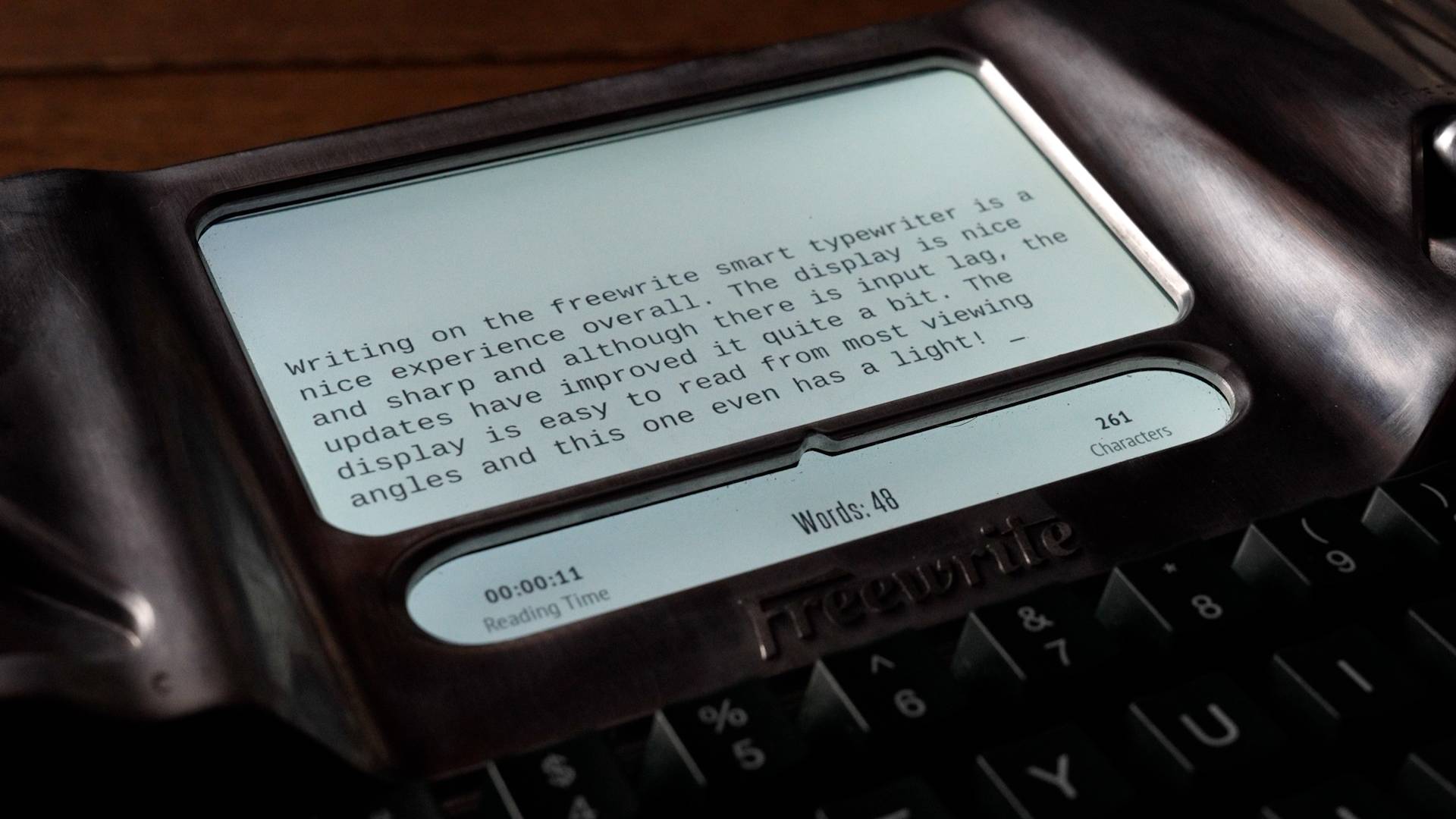
The markings seen on the metal part of the device are a result of the patina. Freewrite made a deliberate decision to keep the aluminum exposed in order to allow it to develop a patina over time.
Ergonomics
Like most devices in this category, the Smart Typewriter struggles when it comes to ergonomics. Because of the fixed display, you'll find yourself angling your neck downward during writing sessions if you're someone who needs to see your text as you type. In this regard, it fares a bit worse than the Traveler, as there's no way to adjust the screen angle.
On top of that, the keyboard sits relatively high. This means you either need to hold your wrists elevated to stay aligned with your hands, or rest them on the surface below, which can become uncomfortable over longer sessions.
Interface & Performance
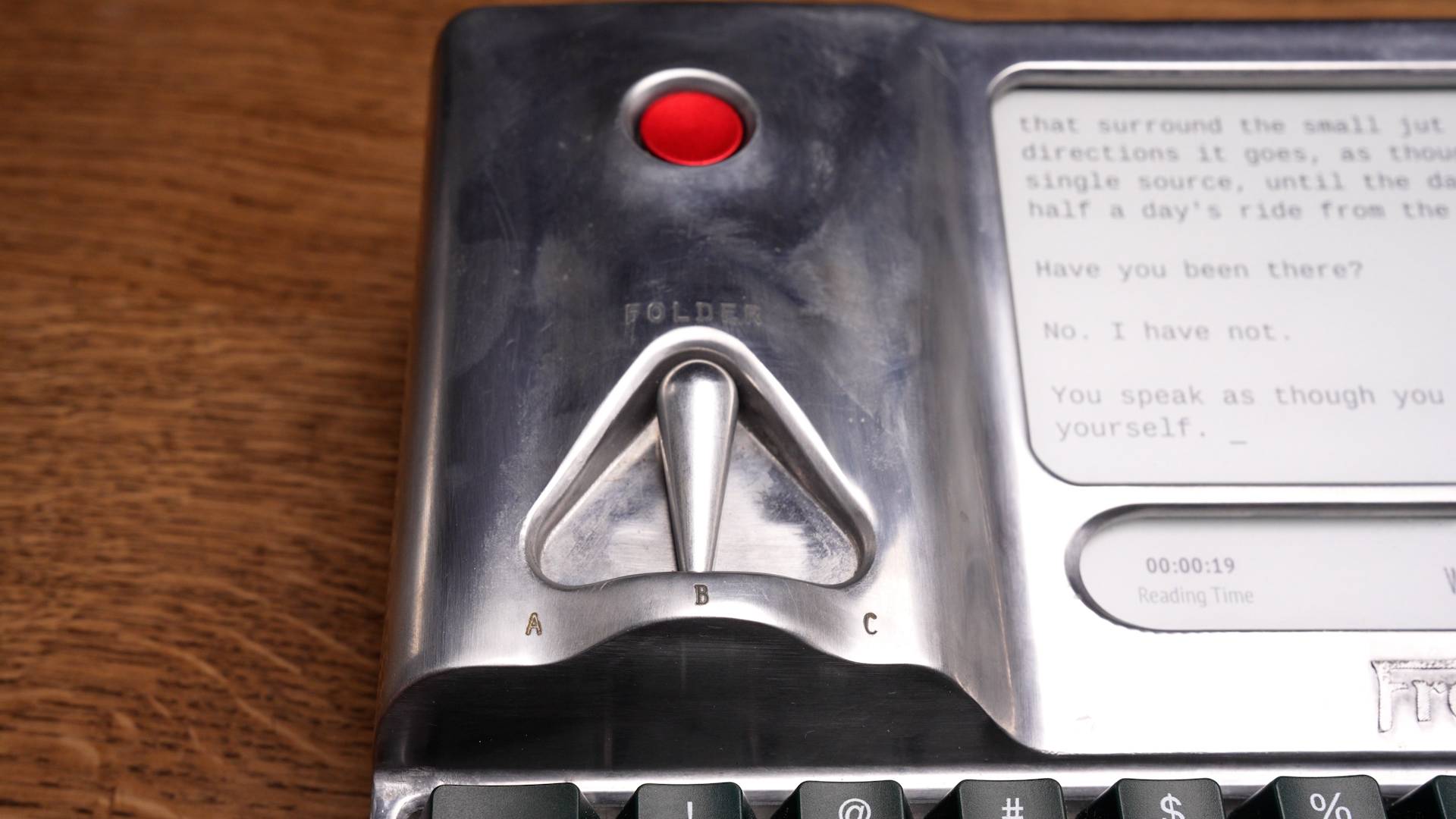
The interface on the Smart Typewriter follows the same framework as the Traveler. Freewrite uses a minimal and stripped-down system across their devices, which aligns with their focus on drafting and removing distractions. That simplicity is intentional, but it can also feel a bit sparse at times. You're limited to just three folders, for example, which some writers may find restrictive depending on how they like to organize their work.
The main difference is in how you interact with it. Instead of small buttons, the Smart Typewriter uses physical switches to navigate folders and adjust Wi-Fi settings.
In practice, you won't spend much time in these menus once everything is set up. Most interaction outside of writing tends to revolve around the secondary display, where you can switch between things like timers and word count.
Like the Traveler, the Smart Typewriter is slow to boot. Once it's on, though, you'll likely leave it that way, using the power button to put it to sleep and wake it as needed.
Workflow Adaptability
The Smart Typewriter offers the same workflow options as the Traveler. You can transfer your work directly via USB, send drafts to your email using the dedicated key, or back them up to the cloud through Freewrite's Postbox service.
Price
$699
The Smart Typewriter is the most expensive device in this guide. The listed price is for the standard version, while the model shown here is the Hemingwrite special edition, priced at $1,099.
Pomera DM250
A sleek, portable writing device from Japan with a responsive backlit display.
Quick Take
Best for: Writers who prioritize portability and want a sleek, discreet device with a fast, responsive display.
Strengths
- Extremely portable: folds small, fits in almost any bag, discreet in public
- Generously sized backlit screen with zero input lag
- Snappy interface with useful tools like outline mode, search & replace, and dark mode
- Excellent battery life and standby charge retention
- Multiple transfer options: USB, SD card, or QR code
Limitations
- Cramped keyboard layout; short travel, especially noticeable with larger hands
- Always-on backlight has a blue-light quality that may fatigue over longer sessions
- No cloud sync; file transfer is manual
- Feels unbalanced on your lap compared to a laptop
- High price, with lower-cost import options involving trade-offs
King Jim's Pomera DM250 comes to us from Japan, now with a recently available US version. It stands out for its portability and sleek design, paired with a generously sized and responsive display.
Portability
Without a doubt, the main reason I like the Pomera is its portability. The device is sleek and easy to carry, and when folded up, it fits into just about any bag thanks to its small profile. It's also very discreet, which makes it comfortable to use in public without drawing much attention.
One small downside is that it doesn't perform as well on your lap. The compact size can make it feel a bit unbalanced, and it doesn't sit as naturally as something like a laptop.
Keyboard
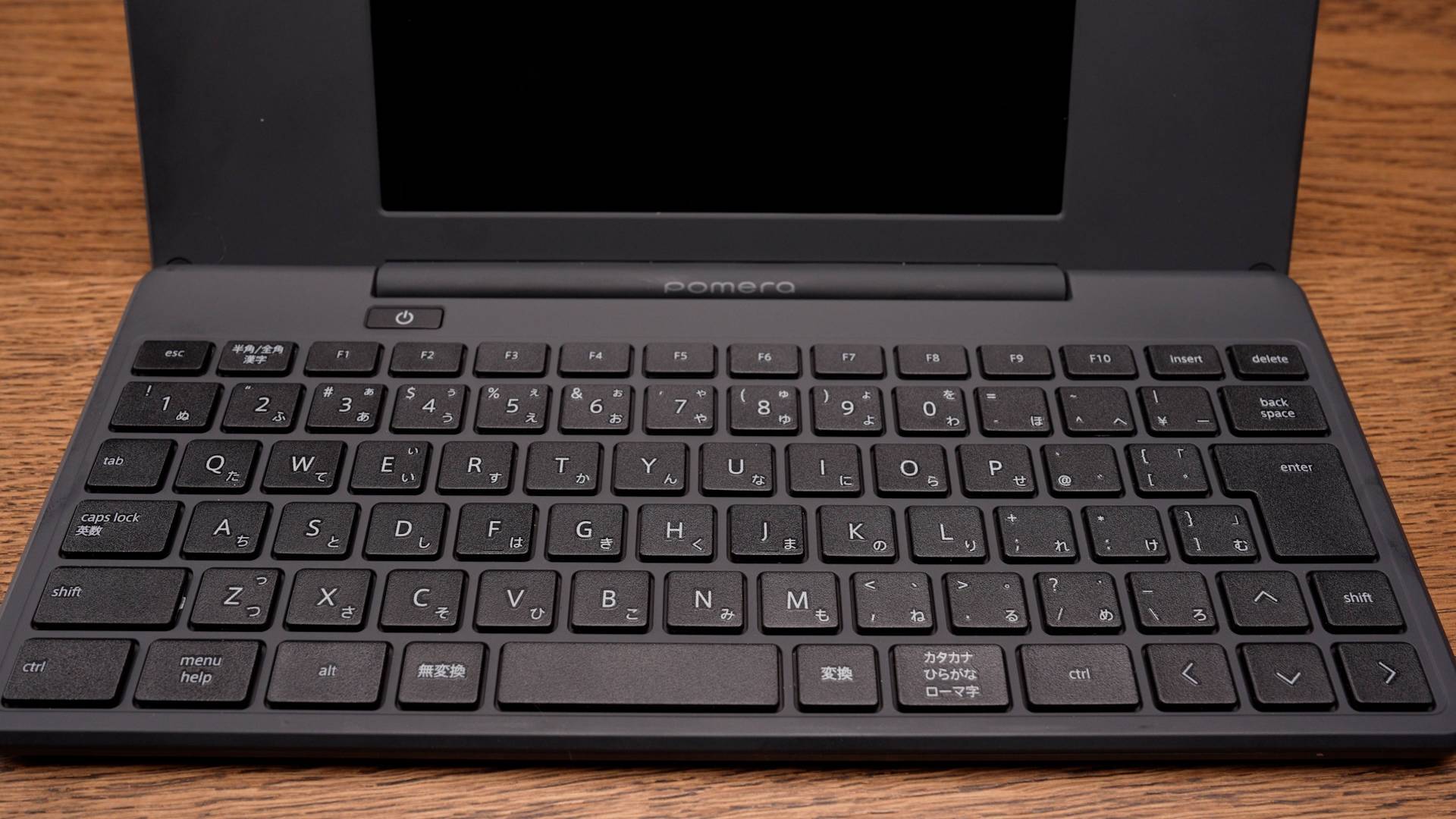
The Pomera's weakest point is its keyboard. It feels similar to a typical laptop keyboard, with relatively short key travel, but the experience is further impacted by how cramped the layout is. It's by no means unusable, and you can adjust to it over time, but it does take away from the feeling of being well-suited for longer writing sessions.
In my case, having larger hands likely makes this more noticeable. That said, it's also clear this is a trade-off made in favor of the device's portability and slim form factor. It ultimately comes down to what you value more as a writer.
Display
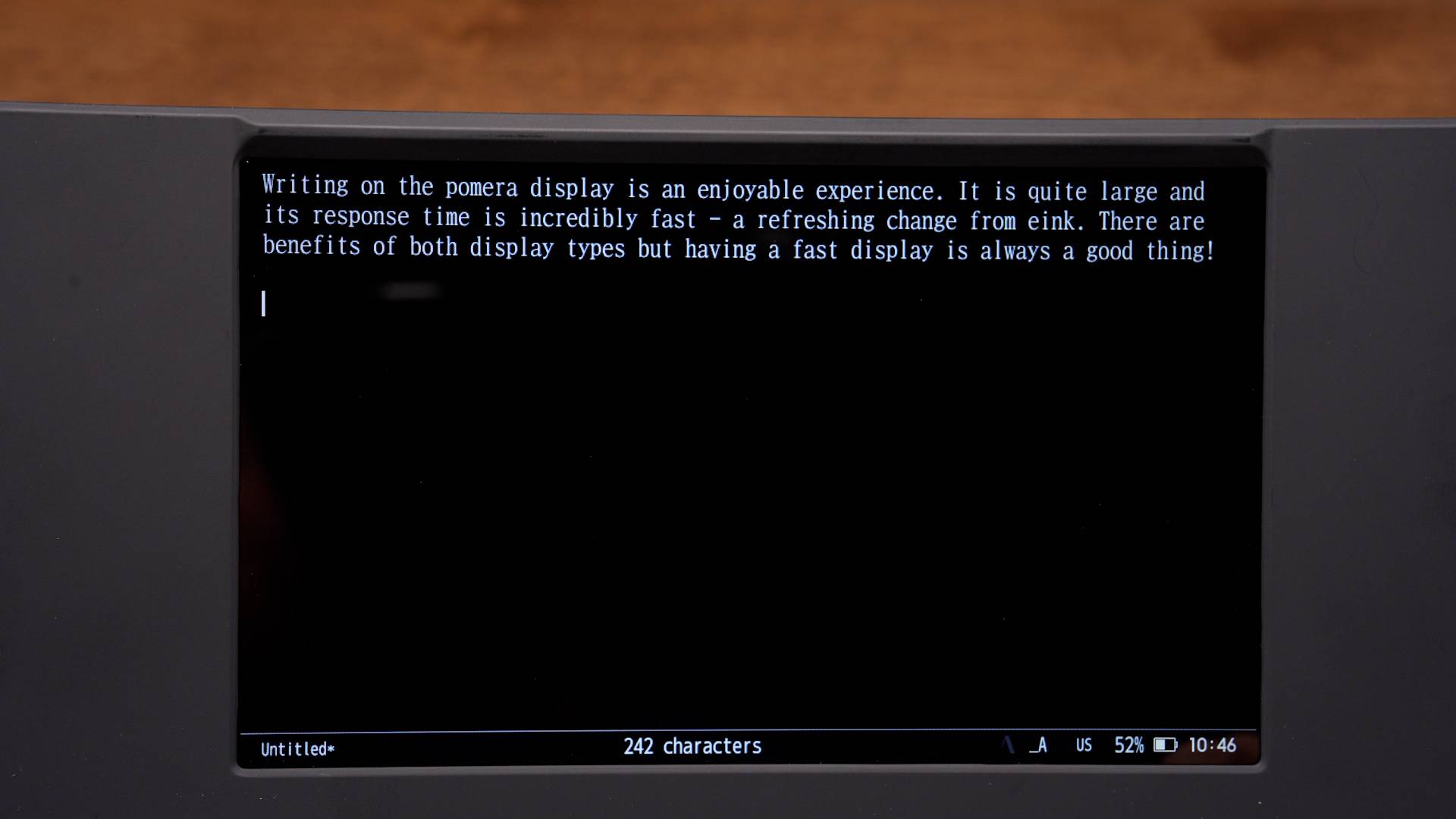
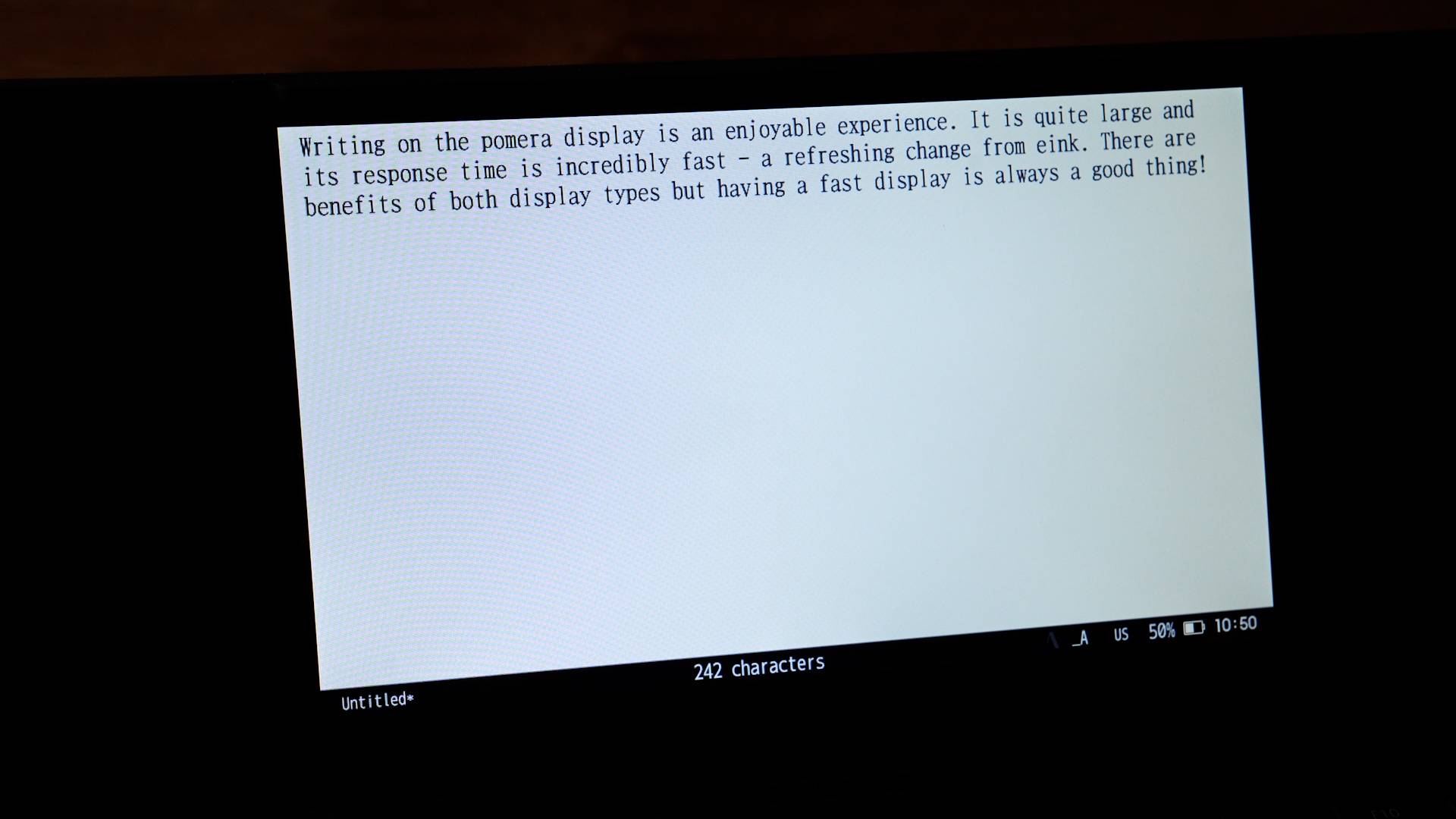
The Pomera's display is the most distinct among the devices in this lineup. It uses a generously sized, fully backlit screen, much closer to what you'd find on a traditional laptop. As a result, everything feels fast and responsive, with no noticeable lag, and you can see a large portion of your writing at once if that's something you prefer while drafting.
The main downside to this approach is the backlight. It's always on, and like most modern displays, it has a typical blue-light quality that can feel a bit harsh compared to something like E Ink or a monochrome LCD. I haven't found it to be particularly uncomfortable in my own use, but I do wonder how it holds up over longer sessions, especially in darker environments.
Ergonomics
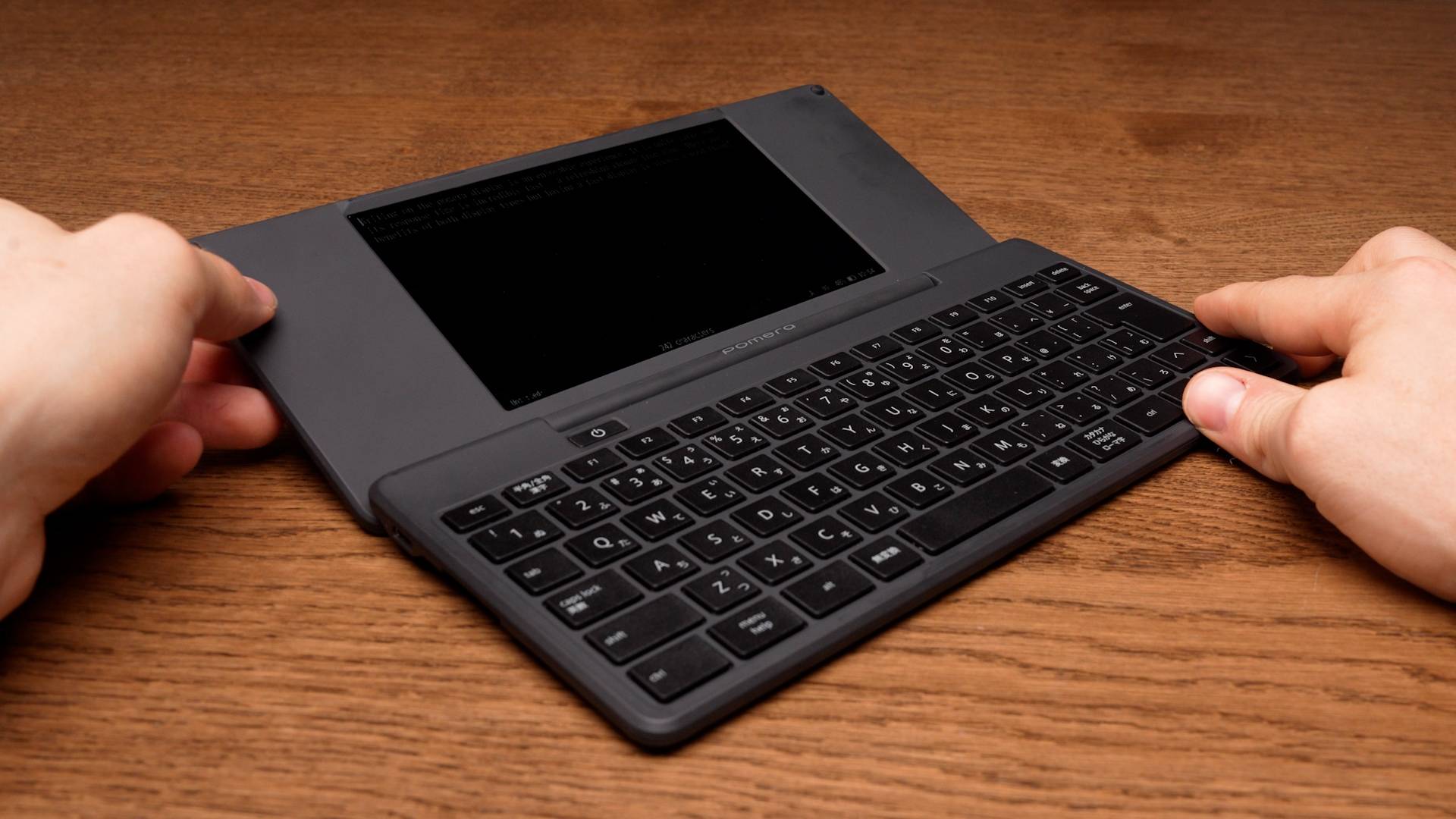
The ergonomics of the Pomera are fairly similar to those of the Traveler. The main benefit is the ability to tilt the screen and adjust your viewing angle, which does help to some degree. That said, you'll still be looking down at your writing in most setups, so it doesn't fully address the underlying issue.
It's worth noting that the screen on the Pomera tilts more than the Traveler, which gives you a bit more flexibility, but the overall experience remains largely the same.
Interface & Performance
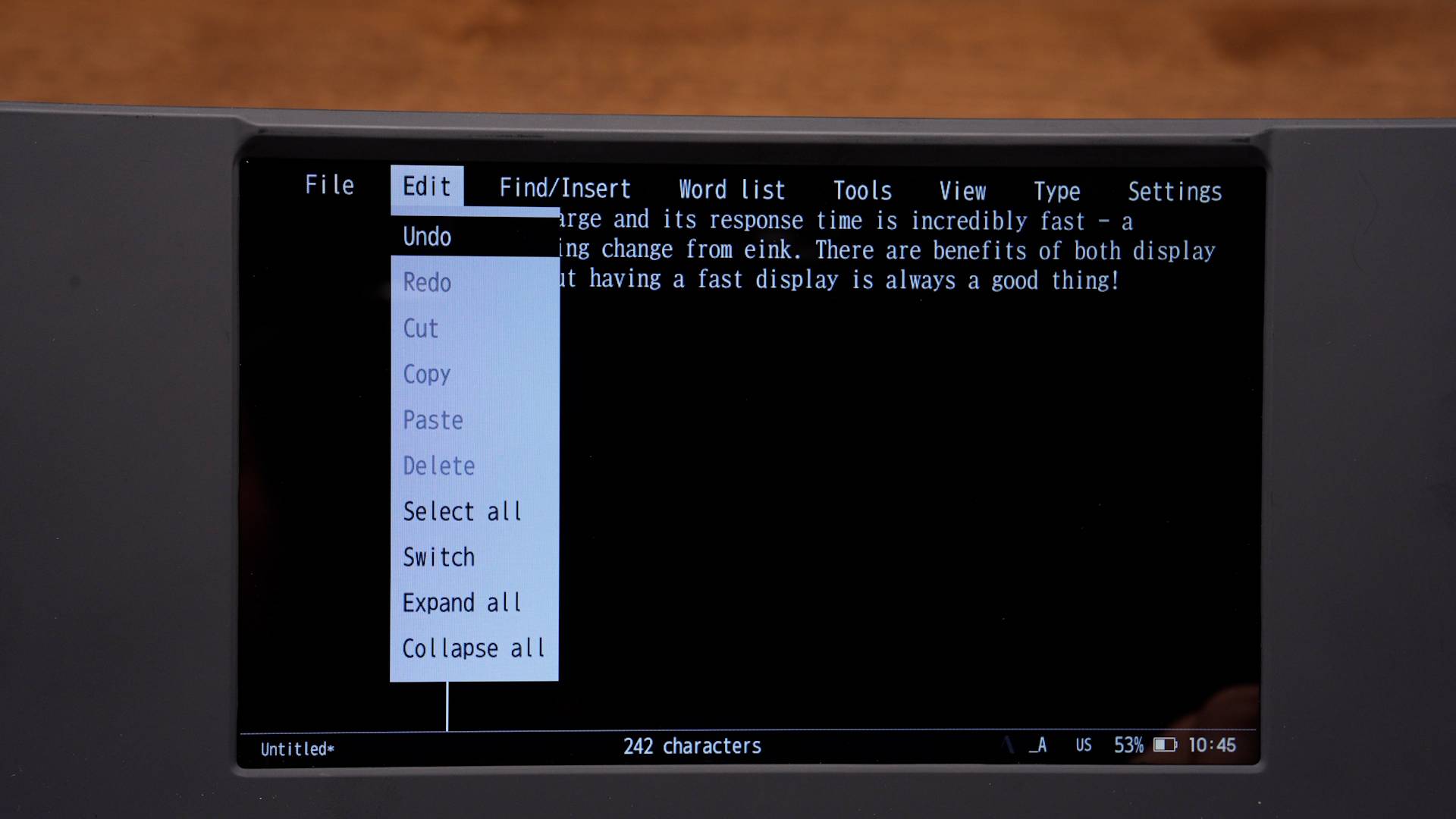
The Pomera has a snappy interface and menu system, accessed through a simple menu button on the keyboard. It offers a wide range of features, many of which I haven't even explored fully. Some of the more notable ones include an outline mode, a built-in calendar, and tools like search and replace for editing. You can also adjust the display brightness or switch to an inverted mode similar to dark mode.
For my purposes, many of these options feel unnecessary, but for writers who prefer to do more editing directly on the device, they could prove useful.
The battery life on the Pomera is also quite good, especially considering the fully backlit display. Where it really stands out is in how well it holds its charge when not in use. I've had it sit on a shelf for weeks at a time, only to come back and find that it has barely lost any battery. Even during active use, it drains more slowly than you might expect.
Workflow Adaptability
The Pomera offers a few different options when it comes to integrating your work into your workflow. It includes built-in storage, and you can also expand that with an SD card if needed. From there, you can transfer your files either by connecting the device via USB or by removing the SD card and accessing them that way.
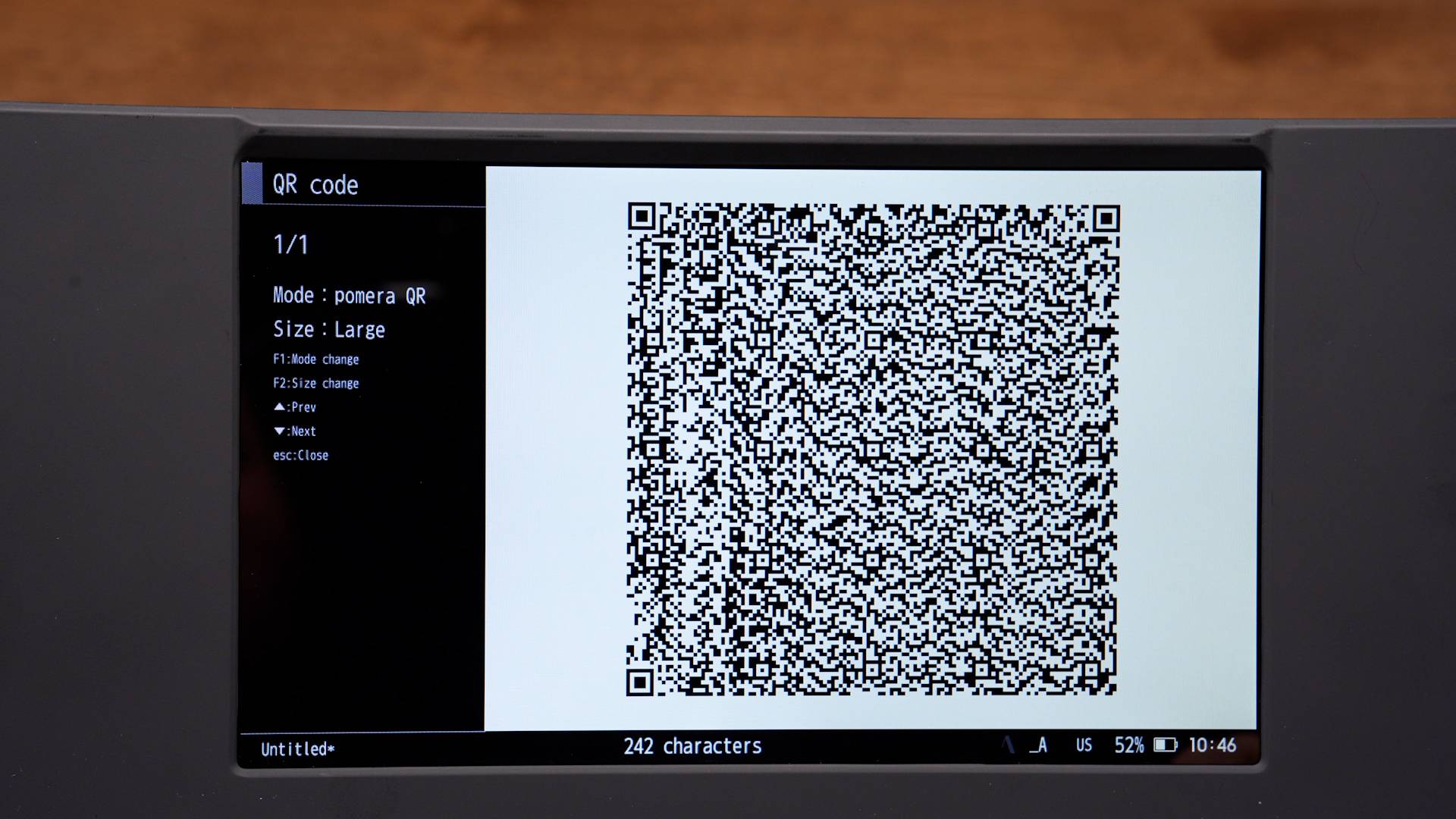
It also has a more unconventional option in the form of QR code transfer. I haven't used this myself, but the idea is that you can generate a QR code on the device, scan it with a mobile app, and pull your writing off that way. It's a bit of a quirky approach, but an interesting one nonetheless.
Price
$549
The Pomera DM250 comes in at a relatively high price. There are some roundabout ways to get it for less by importing the Japanese version, though this comes with trade-offs such as Japanese key legends and longer delivery times.
Zerowriter Ink
A crowdfunded E Ink writing device with a competitive price and some rough edges.
Quick Take
Best for: Writers who want an E Ink display at a lower price point and can live with less polish.
Strengths
- Crisp E Ink display with strong contrast and viewing angles competitive with Freewrite
- Compact slab design that slips into most bags and stays discreet in use
- Competitive price for an E Ink writing device
- Physical power switch for easy on/off; creator actively ships updates
Limitations
- Heavier input lag than Freewrite—text can appear in chunks
- 3D-printed build feels less durable; not bump-proof for travel
- Backspace can stick; spacebar feels wobbly—raises durability questions
- Flat screen with no angle adjustment; among the weakest ergonomics here
- No cloud or wireless transfer—microSD or USB only
The Zerowriter Ink is a new entrant to the market, created by a Reddit user who successfully funded the project through crowdfunding. It features a flat, deck-like form factor paired with an E Ink display at a relatively competitive price, with some trade-offs in overall polish due to its 3D-printed construction.
Portability
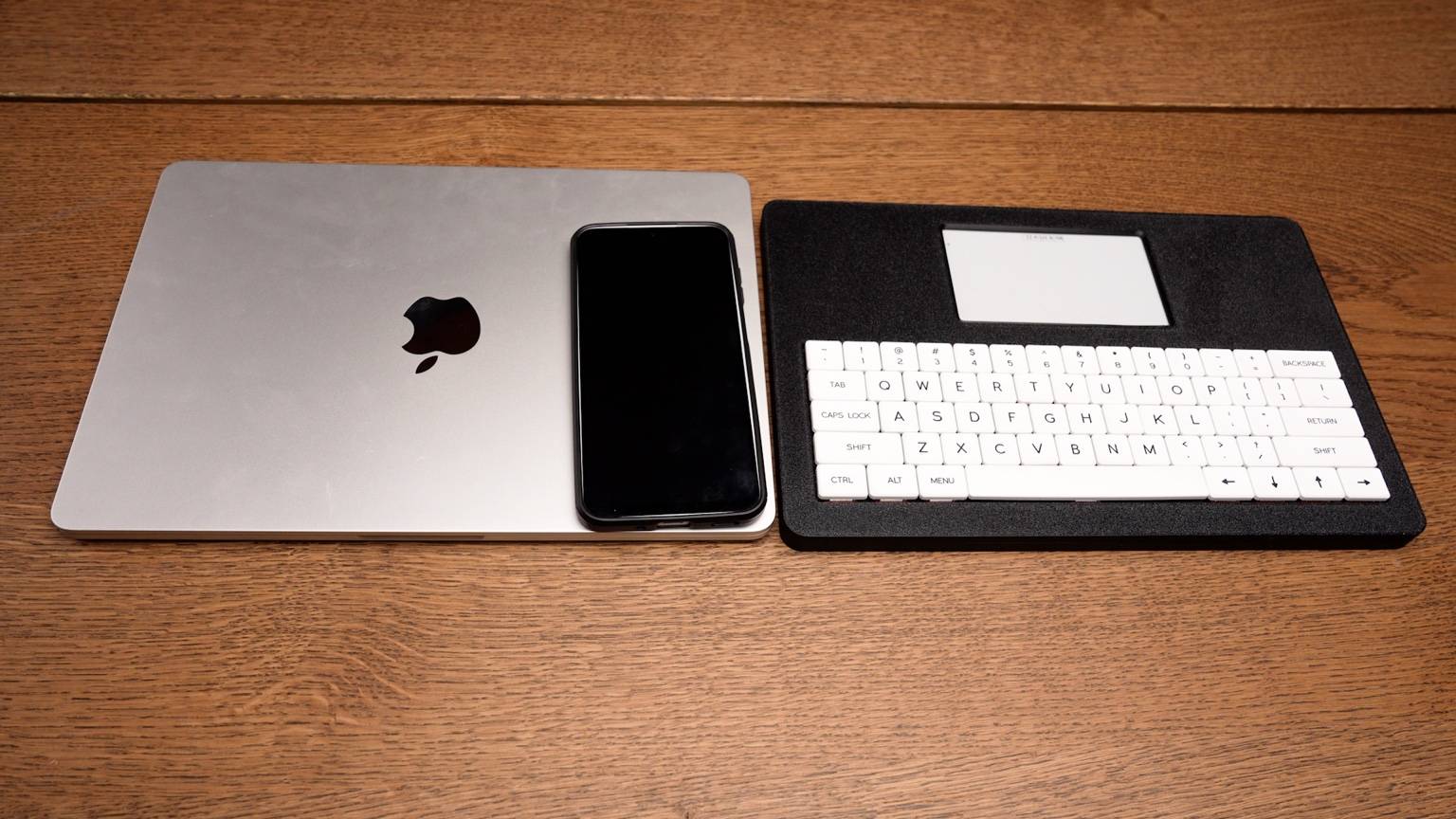
The Zerowriter is a single, rectangular piece of hardware with dimensions similar to a small laptop. Because of this, it slides easily into most bags without taking up much space. That said, it's probably not something you'll want to toss in loosely, as the build doesn't inspire a ton of confidence when it comes to being bumped around.
In terms of actual use, it works well in most settings. Whether on a desk, on your lap, or in a coffee shop, it's a fairly unobtrusive device that doesn't draw much attention.
Keyboard
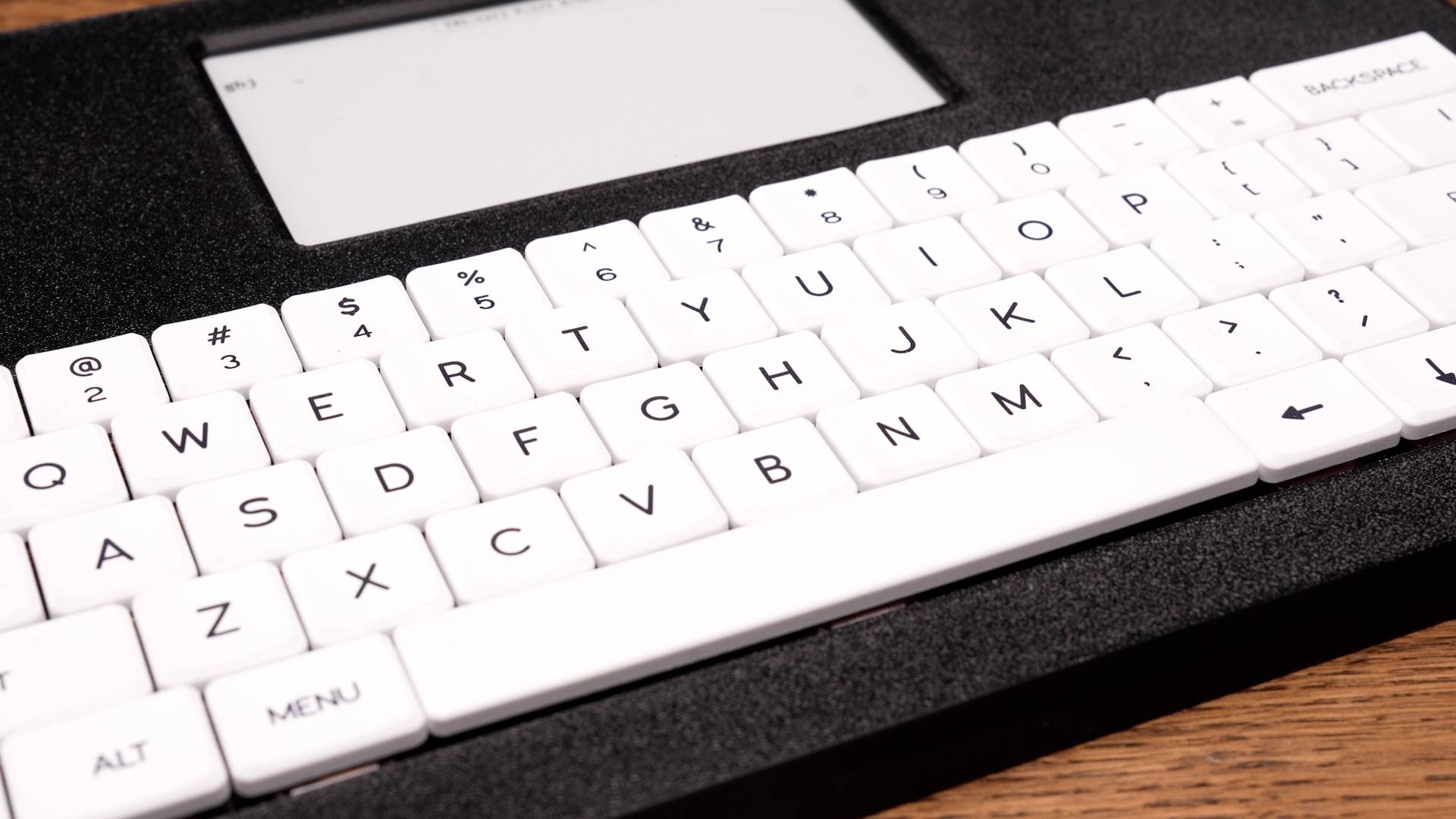
The keyboard on the Zerowriter is an interesting one. When it arrived, the keycaps weren't installed, so I had to snap them into place myself. This was fairly easy overall, aside from a few mistakes on my end.
Once everything was assembled, a couple of issues stood out. The backspace key hasn't felt as responsive as the others and has occasionally gotten stuck longer than intended. I've been able to improve this somewhat, but it hasn't fully gone away. The spacebar also feels a bit wobbly, almost like a seesaw when pressed. It still functions properly, but given how new the device is, it does raise some questions about long-term durability.
That said, the keycaps themselves feel and look quite nice, and they fit well with the overall aesthetic of the device.
Display
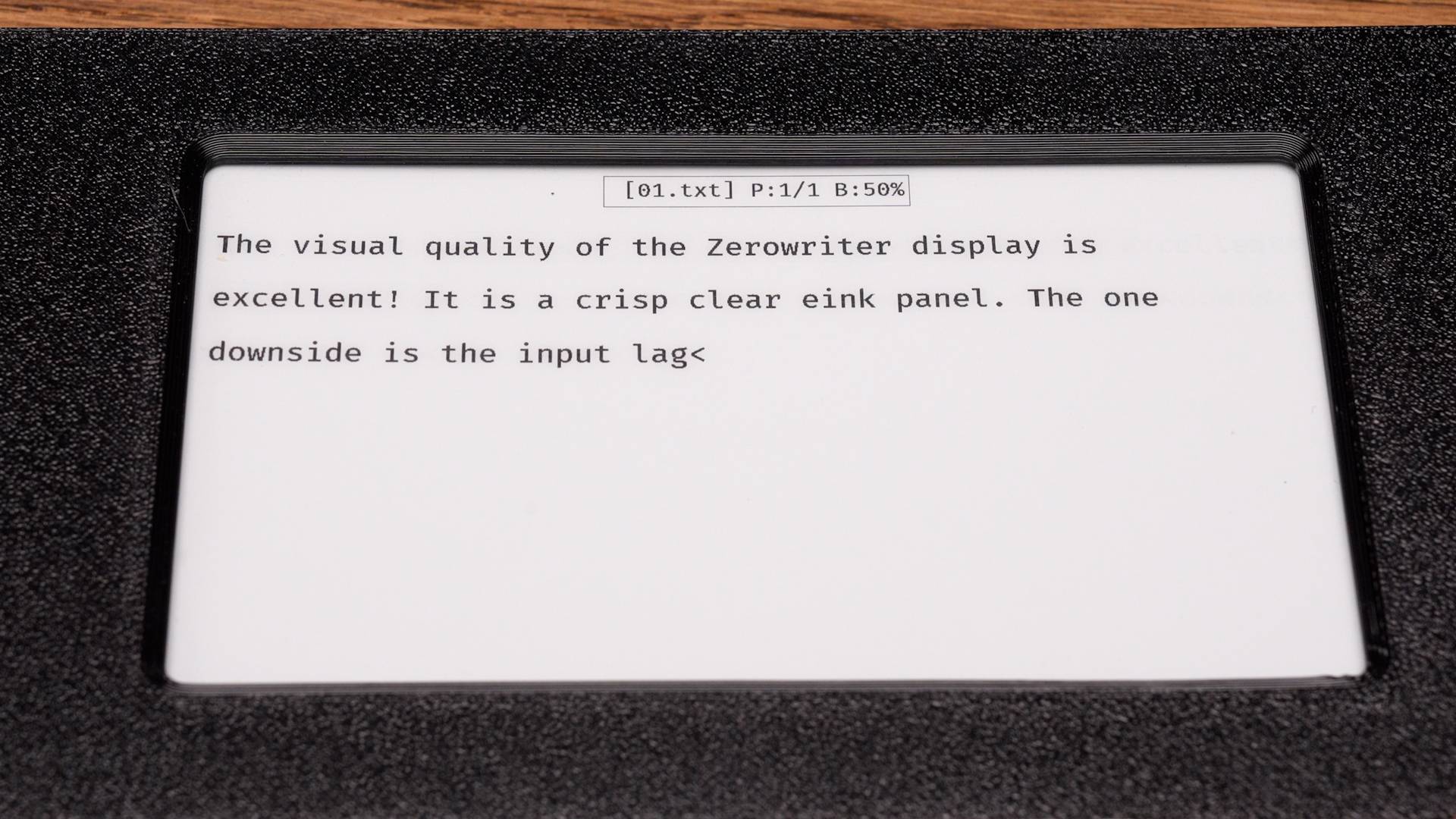
The display on the Zerowriter is very nice visually. It's a crisp E Ink screen with strong contrast and excellent viewing angles. In terms of clarity, it holds up well against the Freewrite displays.
The main drawback is input lag. The Zerowriter doesn't seem to handle this as well as the Freewrite devices, and there's a noticeable delay where letters can appear in chunks rather than one at a time. It's something you can adjust to over time, especially if you've used earlier E Ink devices, but it can be a bit jarring at first, particularly when coming from faster LCD-based setups.
The Zerowriter has no built-in light, so the screen is only as readable as the room around it. Pitch-black or very dim spaces are a poor fit unless you add a lamp or rely on daylight.
Ergonomics
The ergonomics of the Zerowriter are among the weakest in this lineup, similar to the Freewrite Alpha. You're essentially looking down at a flat screen with no ability to adjust the viewing angle.
Interface & Performance
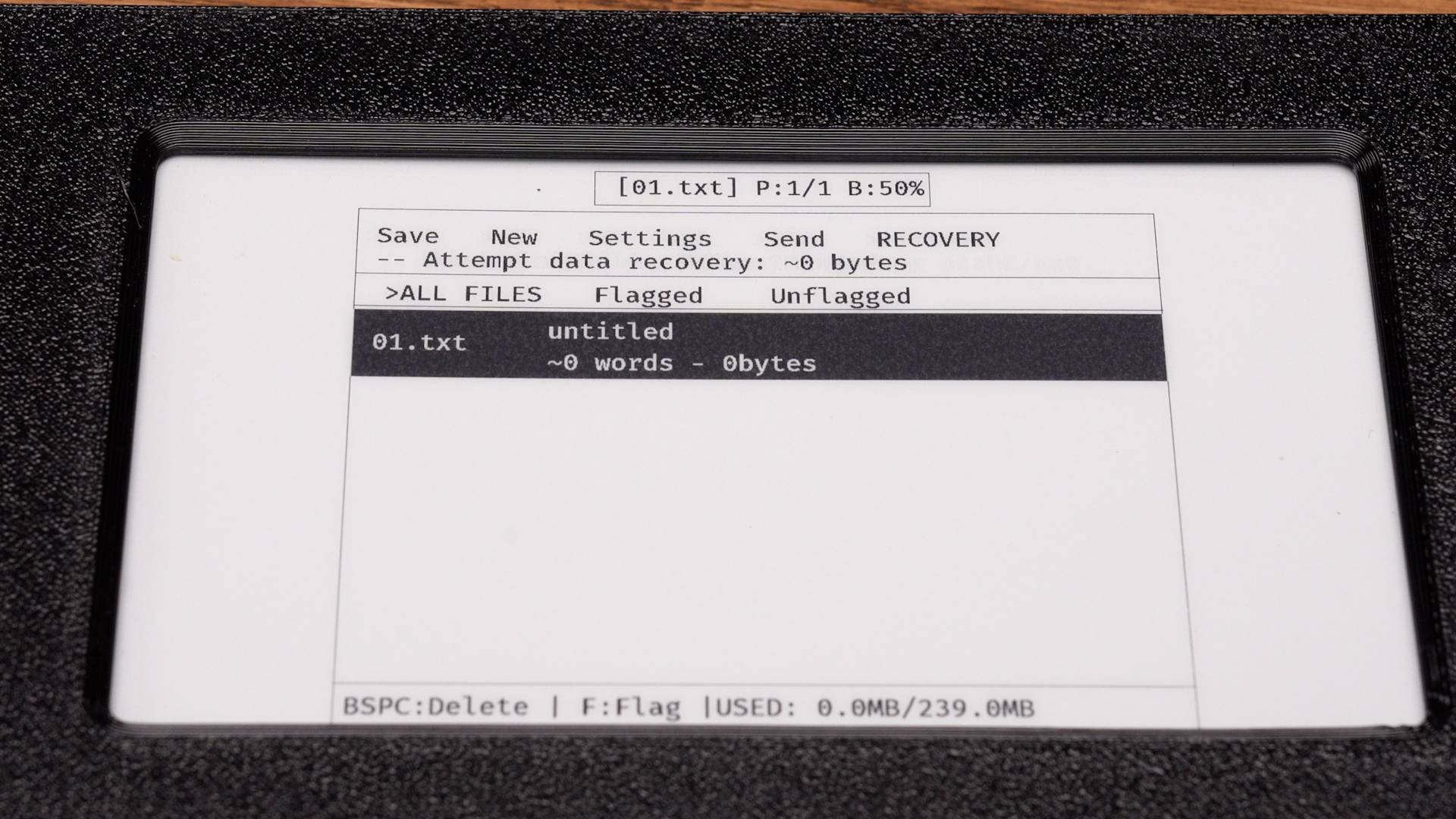
I haven't spent a great deal of time with the Zerowriter yet, as I only recently received it, so my experience with the interface is somewhat limited. From what I've seen, the menus are fairly simple and offer some basic options for organization. The creator has also released updates that expand on this, which are worth looking into, as I'm not the most reliable source on the finer details here.
The same applies to battery life. I haven't had it run out yet, which is a good sign, but I also haven't used the device extensively enough to draw any firm conclusions.
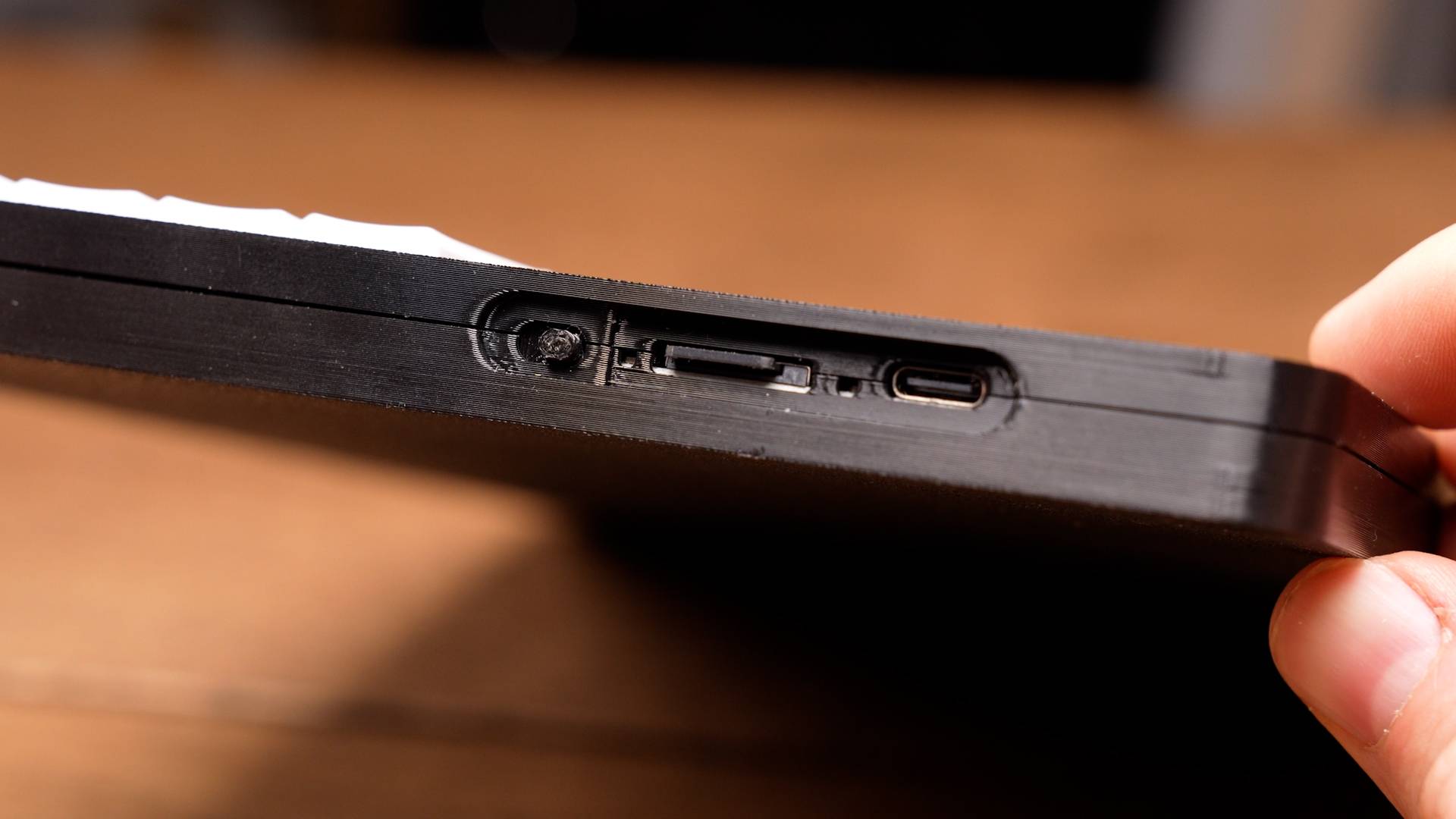
Turning the device on and off is straightforward, thanks to the physical power switch on the side, which makes it easy to jump in and out of writing sessions as needed.
Workflow Adaptability
The Zerowriter is fairly simple when it comes to workflow adaptability, but that simplicity does come with some limitations. As far as I can tell, there are no cloud-based or wireless options for transferring your writing.
Instead, your options are limited to using a microSD card or connecting the device via USB. This works, but it does make the process a bit more manual compared to some of the other devices in this guide.
Price
$279
The Zerowriter is a competitively priced E Ink device. Its lower price comes with some trade-offs, largely due to its 3D-printed construction rather than mass manufacturing. It lacks some of the polish of more established products and comes with a few quirks. For some writers, that trade-off may be well worth it to get an E Ink display at this price point, while others may prefer a more refined experience.
AlphaSmart Neo
The original distraction-free writing device, now showing its age in a growing field.
Quick Take
Best for: Writers who want a durable, proven device with a great keyboard and don't mind the cumbersome text-extraction process.
Strengths
- Excellent full-size membrane keyboard with generous travel, still responsive after 20+ years
- Highly portable and durable; easy to toss in a bag without worry
- Reflective LCD with near-instant input response, no lag
- Simple interface with one-press file buttons for up to eight files
- Battery life measured in hundreds of hours
Limitations
- Discontinued; no active company support, only available used
- Extracting text is slow and cumbersome, relying on legacy keyboard-emulation software
- No backlight; needs ambient light to read the screen
- Fixed display with minimal tilt; poor ergonomics over long sessions
- Surprisingly high prices on the secondary market for a 20+ year old device
The AlphaSmart Neo is considered by many to be the OG device in the modern distraction-free writing space. Originally designed as a tool to help students learn how to type, the lineup of AlphaSmart devices have re-emerged as a useful tool for writers seeking refuge from this ever-growing age of distractions. With several newer devices now entering the space, however, the viability of the AlphaSmart has begun to fall off, largely due to the lack of ongoing support and its more archaic methods of extracting text.
Portability
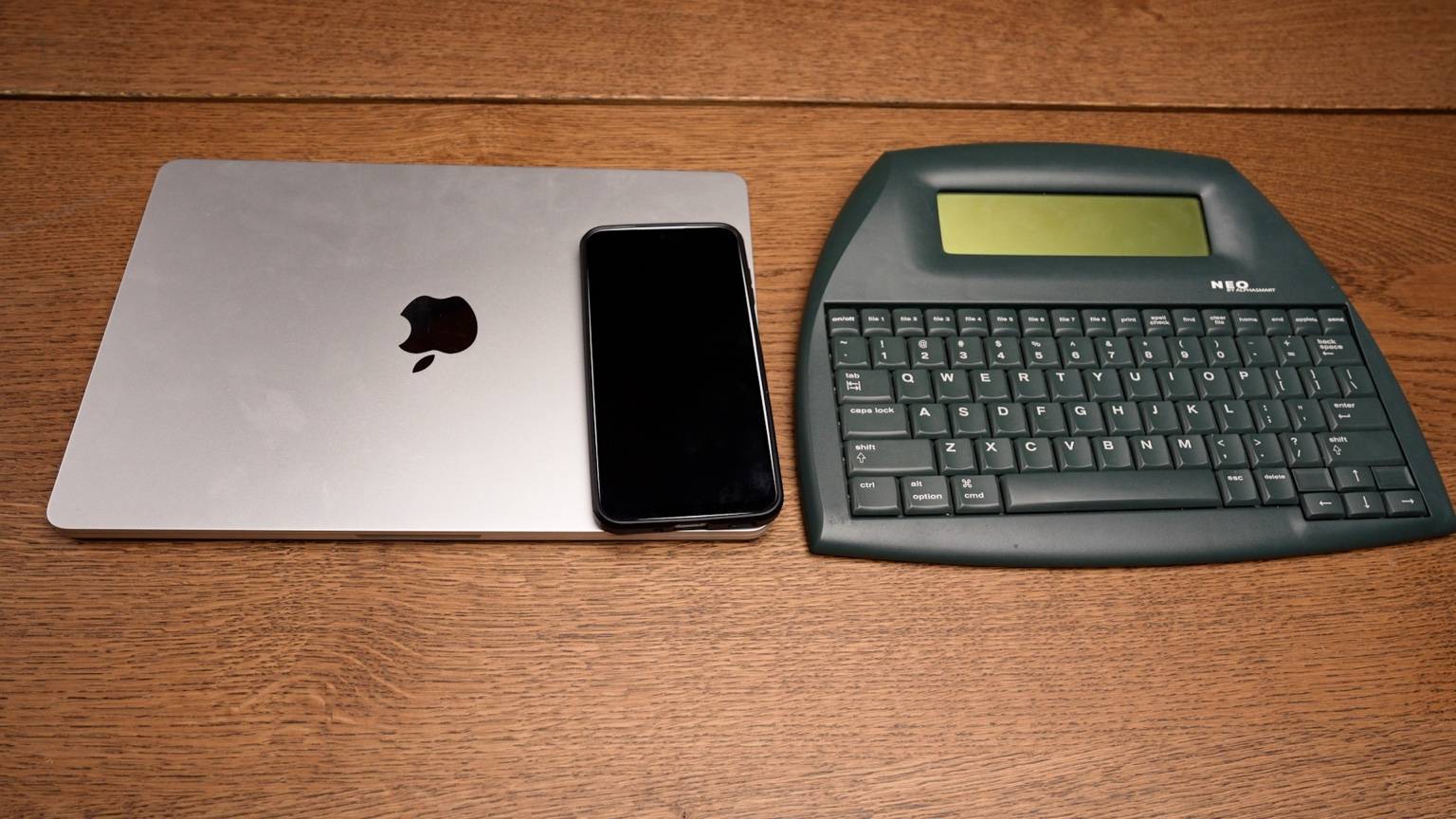
Much like the other flat, single-piece devices in this lineup, the Neo is highly portable and can be easily tossed into a bag or backpack without much concern. It's also a time-tested, durable device, so within reason, you don't have to worry about it getting knocked around.
In use, it performs well on just about any surface, whether that's a desk, a table, or your lap.
Keyboard
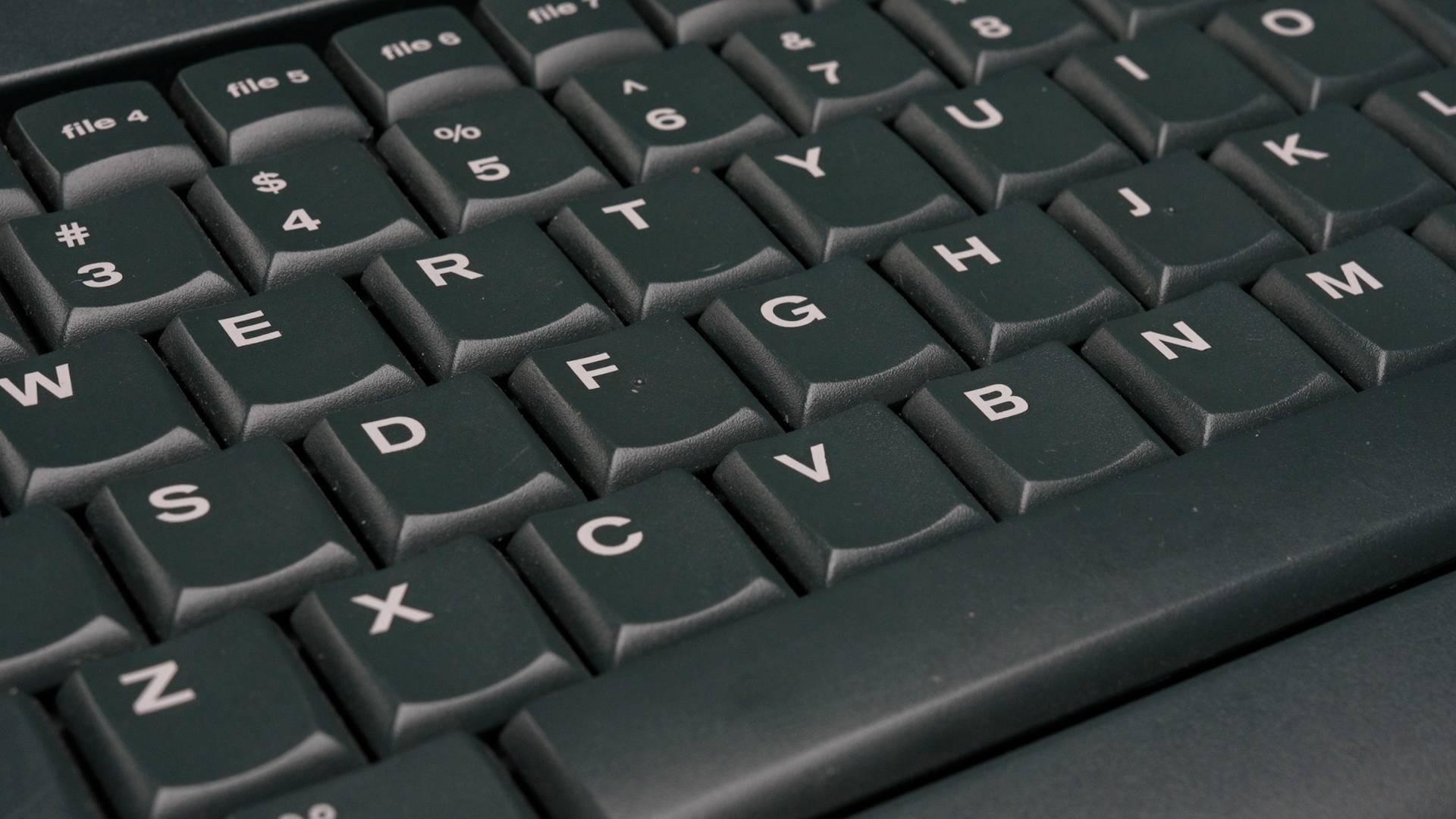
The keyboard on the Neo is widely regarded as one of its strongest features, and I can confirm that. The best way to describe it is that it has the soft, squishy feel of a membrane keyboard, but with noticeably more travel than you might expect, closer to something like an older Lenovo laptop keyboard, which many people still hold in high regard.
On my unit, which is at least 20 years old, I've had no issues with any of the keys. They're all fully responsive and in good condition, and still a pleasure to use.
Display
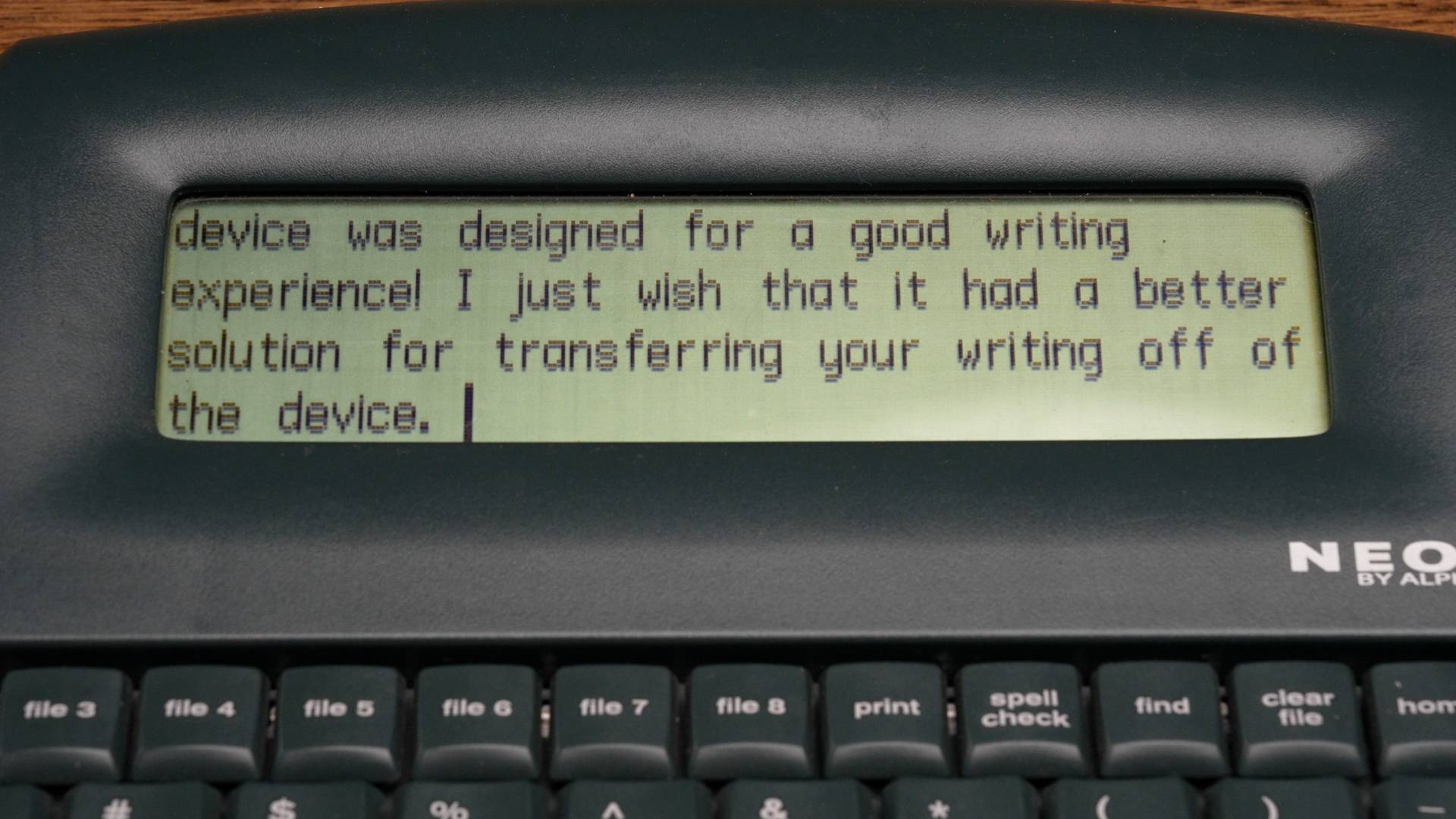
The display on the Neo was clearly designed with its purpose in mind. While it doesn't have a backlight, it uses a reflective LCD that relies on ambient light to illuminate the screen. This makes it readable across a wide range of viewing angles, with text that stands out clearly even outside of direct lighting conditions.
Despite being older technology, the display is very responsive, with near-instant input response time. This feels especially good when compared to E Ink displays, where some level of lag is typically present.
Being older technology, there is also some noticeable ghosting while typing, where characters and the cursor leave a faint trail behind them. In practice, it's not a major issue, but it's worth noting.
Ergonomics
The Neo struggles with ergonomics in much the same way as the other devices in this category. It has a fixed display, with only a slight upward tilt, so you'll still be looking down at your writing in most setups if you need to see the screen while typing.
Over longer sessions, this can become uncomfortable, especially for writers who already deal with neck or back issues.
Interface & Performance
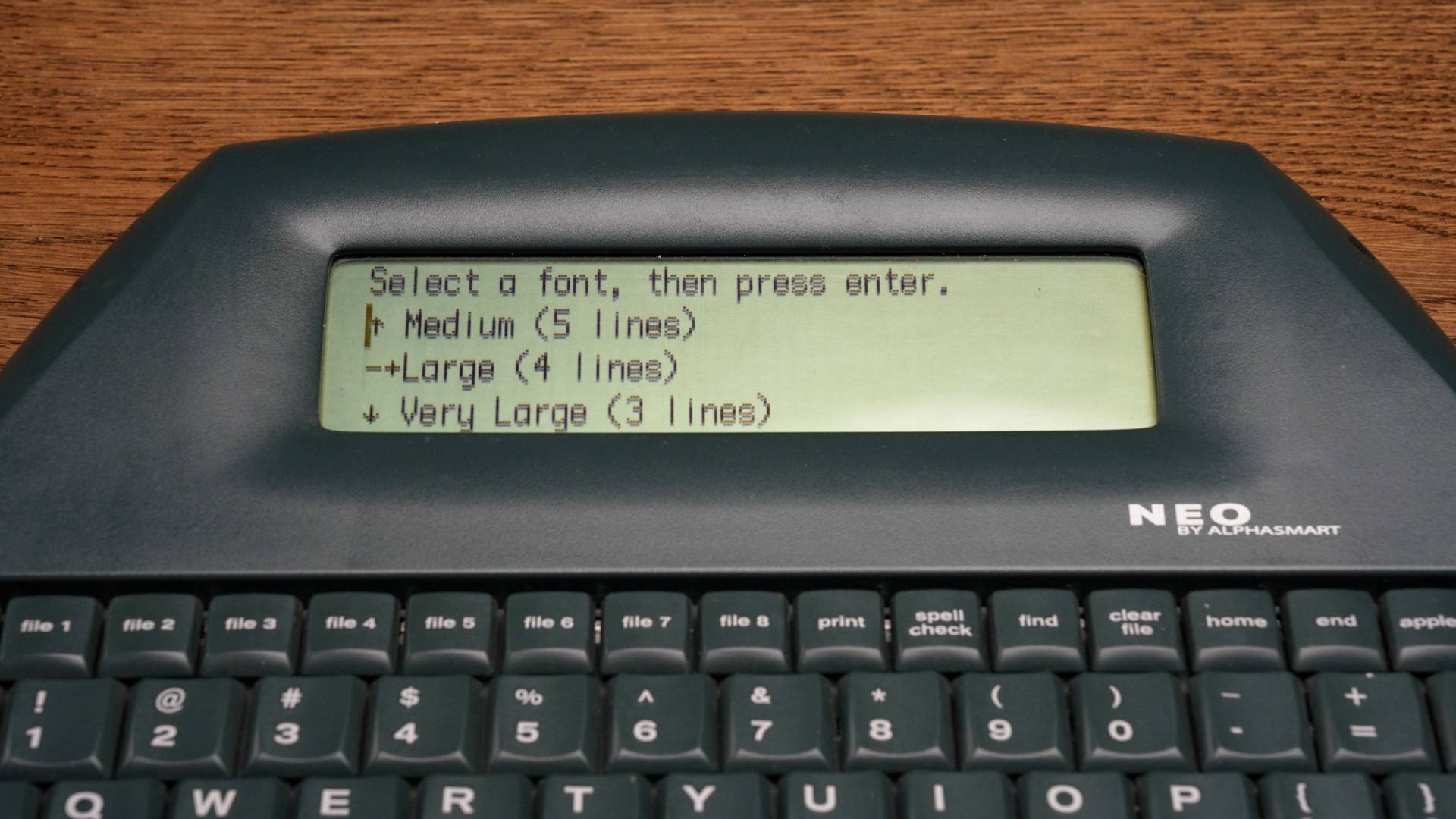
The interface on the Neo is very simple, and that's entirely by design. The main controls I find myself using are the dedicated file buttons, which let you switch between up to eight files with a single press. There are also various keyboard shortcuts that allow you to access features like font settings, where you can choose between different text sizes.
Because getting text off the device isn't particularly convenient, I tend to use the Neo more for jotting down thoughts or quick ideas within existing files rather than managing full projects on it. For writers who do plan to use it more seriously, it likely makes the most sense to write in longer sessions and then extract everything at once, rather than constantly moving files back and forth, which can be a bit cumbersome.
The Neo's battery life is nearly legendary. It runs for hundreds of hours on just a few AA batteries, and when they finally run out, you simply replace them. There's no proprietary battery to age or source replacements for, which is a surprisingly practical advantage for a device this old.
Workflow Adaptability
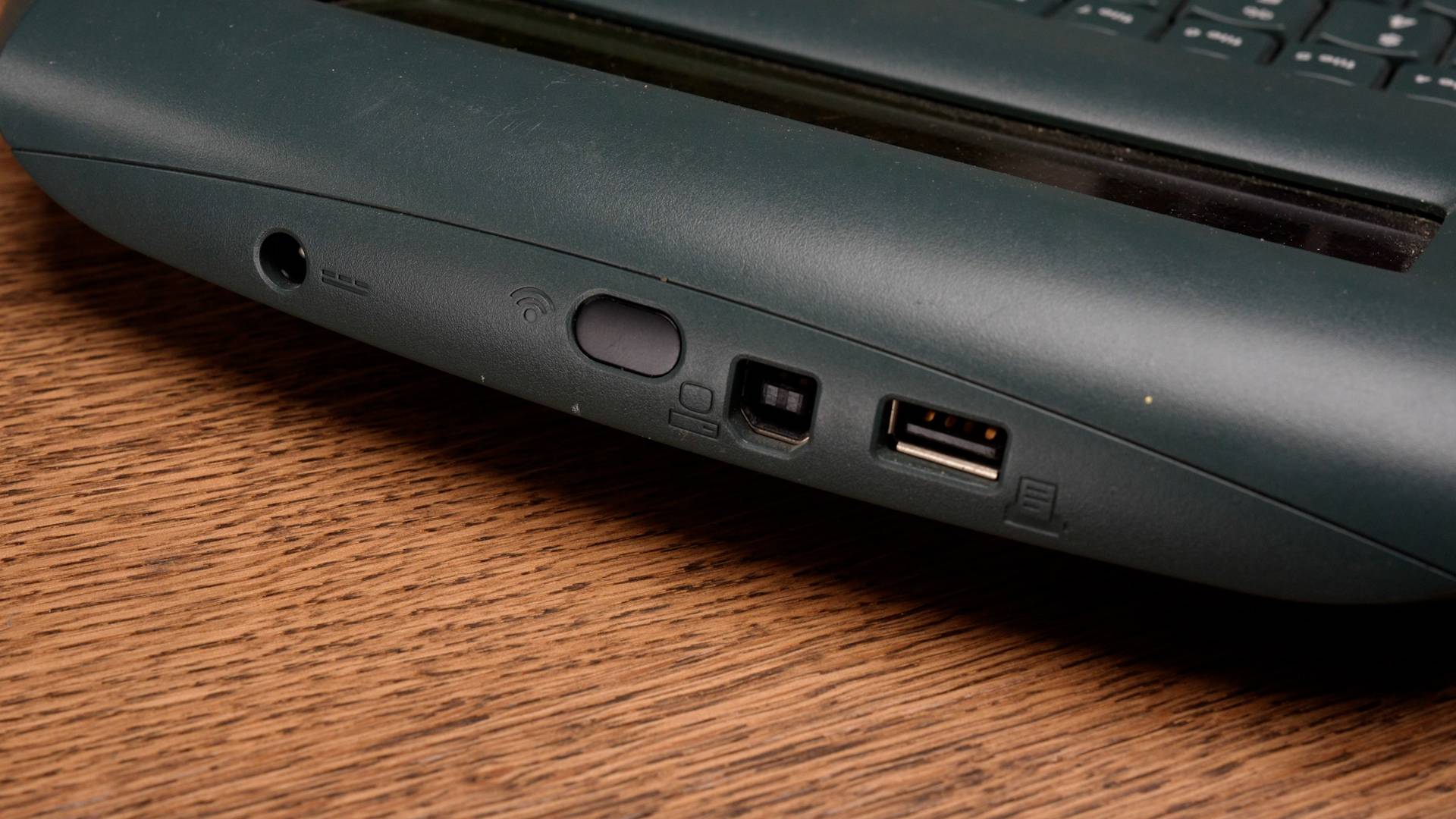
The Neo's weakest aspect, and the thing that makes it less viable today, is the process of extracting text. From what I've seen, it relies on older companion software that treats the Neo like a keyboard, essentially "typing" your document into your computer. This isn't an instant transfer. It happens in real time, as if someone were typing it out, which can become quite slow for longer documents.
There are some community-created solutions that attempt to improve this, including modified or even wireless approaches, but those require extra effort and fall more into the realm of tinkering. For some, that may be part of the appeal, but for most, it adds friction to an already cumbersome process.
Price
$80–200
Considering it's a 20+ year old device with no active company support, the price of the Neo can be surprisingly high. Outside of its workflow limitations, this is likely the main reason to pause before purchasing one. To find a unit in decent condition, you'll typically be looking at around $100 to $200 on the secondary market.
Freewrite Alpha
Freewrite's AlphaSmart-inspired entry: a polished, responsive device that trades screen real estate for speed and simplicity.
Quick Take
Best for: Writers who want a responsive, polished device with excellent battery life at a lower price than the Traveler.
Strengths
- Exceptionally responsive: zero input lag, instant power on/off, and a snappy interface throughout
- Outstanding battery life, capable of 50 to 100+ hours between charges
- Solid workflow options (USB, email, Postbox)
Limitations
- Short display limits visible text; a deliberate design choice, but one that takes getting used to
- Flat-deck form factor with no meaningful tilt, leading to a neck-down posture over longer sessions
- Mechanical keyboard feels unconventional due to square, flat-topped keys; usable after an adjustment period, but may not satisfy enthusiasts at this price
The Freewrite Alpha is Freewrite's latest entry into the writing device space, and it clearly draws inspiration from the AlphaSmart lineup. While it improves in areas like workflow and modern usability, it also makes some more questionable choices, particularly when it comes to the display.
Portability
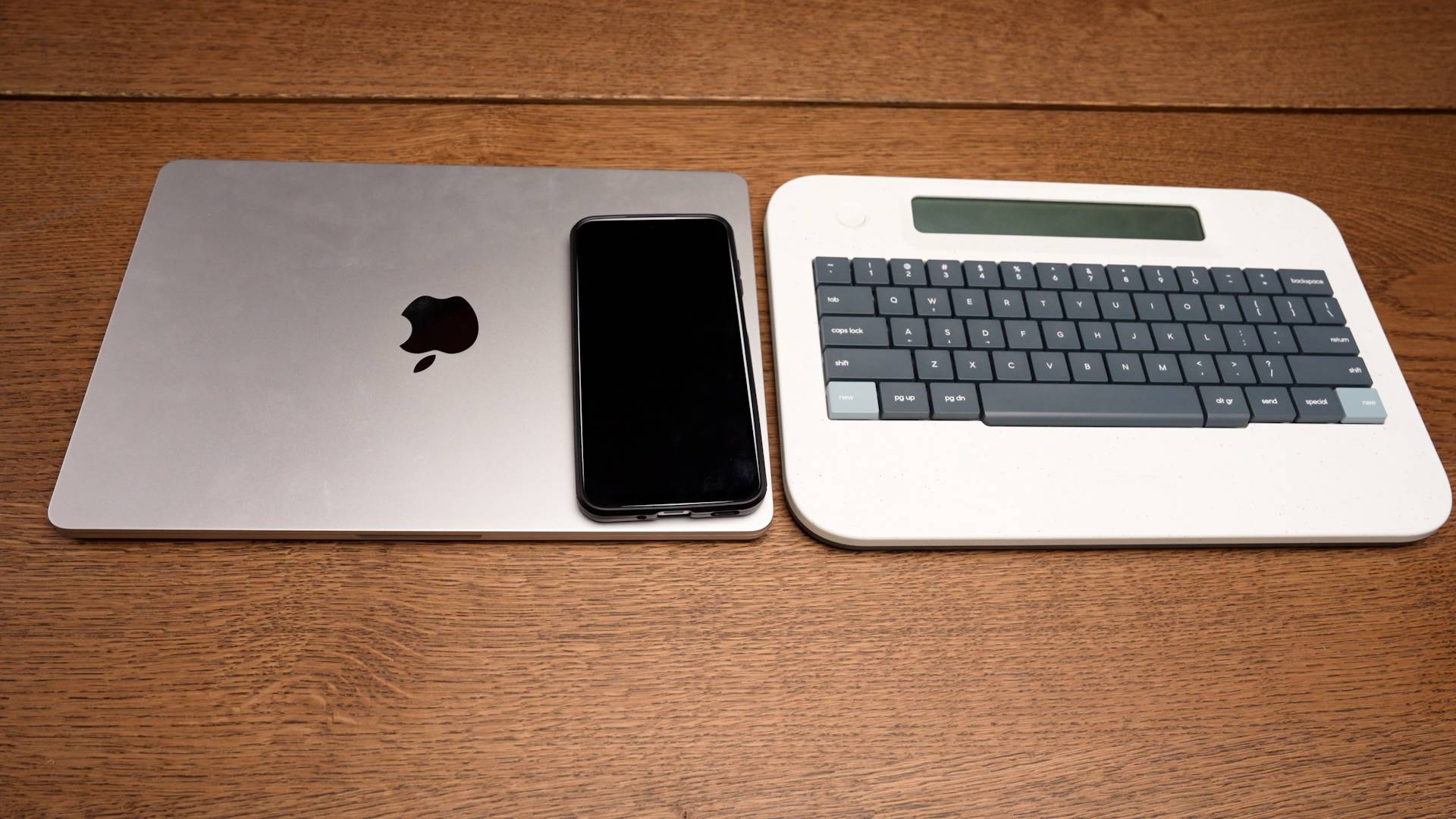
The Alpha is a very portable device with a form factor similar to the Zerowriter, though it feels a bit more durable, likely due to its mass-manufactured construction rather than a 3D-printed build. It slides easily into a bag or backpack and works well in most settings, whether on a desk, a table, or even your lap.
Keyboard
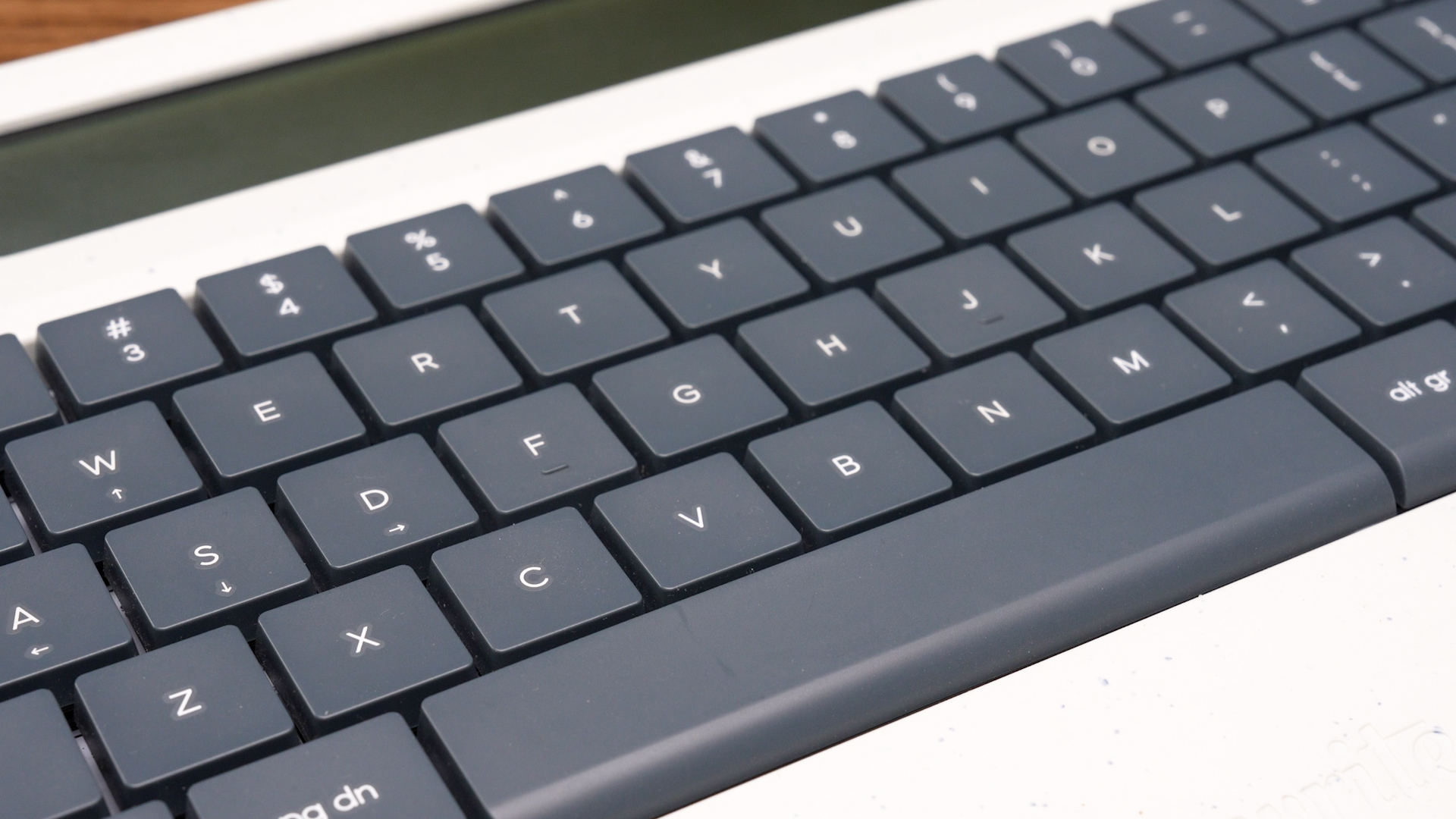
The keyboard on the Alpha is definitely an interesting one. It's a clear step up from a standard laptop keyboard thanks to its fully mechanical design, but compared to other mechanical keyboards, it feels a bit unconventional. The keys are noticeably square with flat tops, which may not seem unusual at first glance, but feels quite different once you start typing.
There is a bit of an adjustment period, but once you get used to it, it becomes a perfectly usable keyboard. At this price point, it's hard to say I'm fully satisfied with it, but I also wouldn't go as far as calling it a bad keyboard.
Display
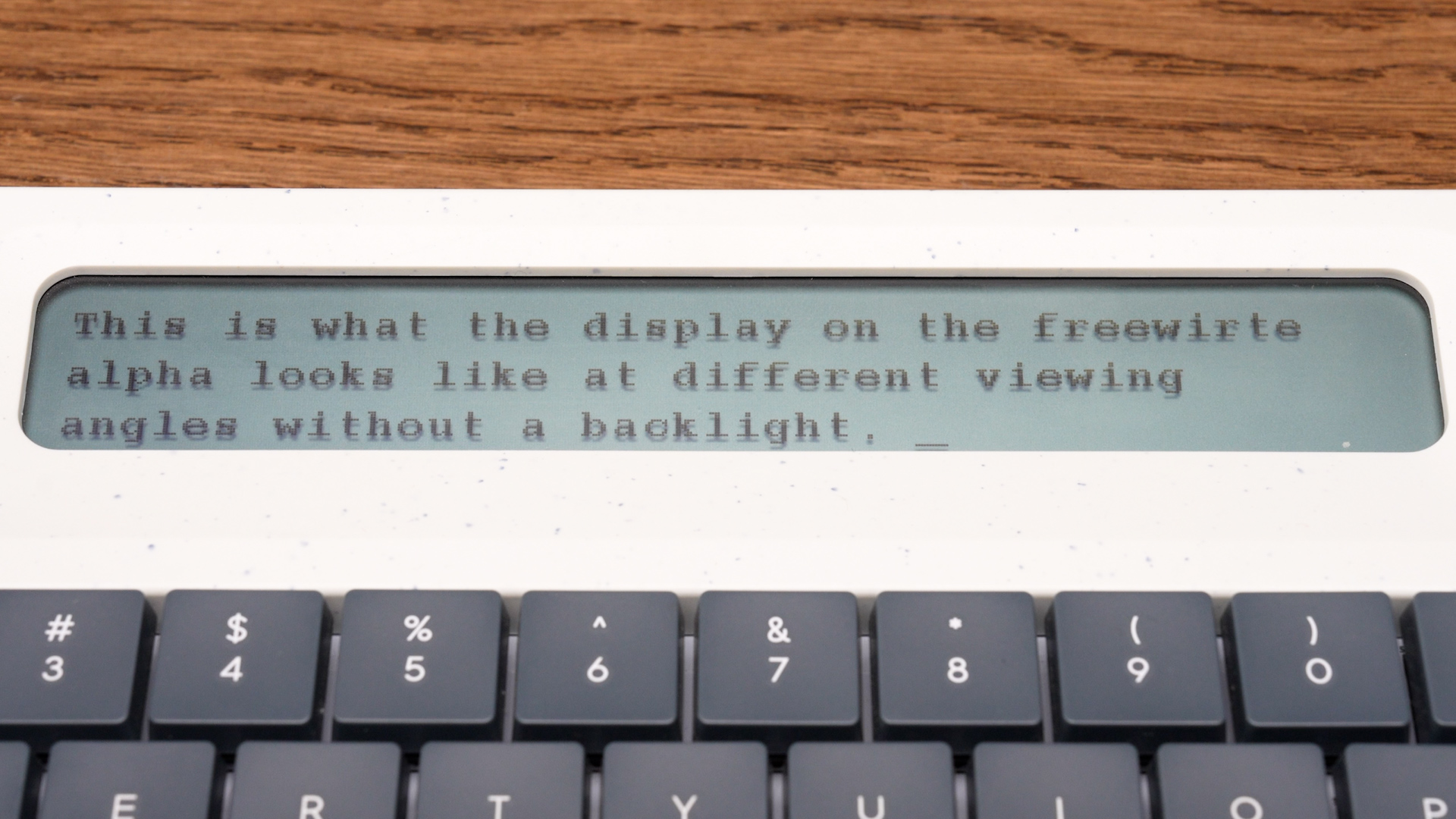
The Alpha uses an LCD display, and visually it has a nice retro quality to it. Compared to the AlphaSmart Neo, it's noticeably shorter, though slightly wider. Personally, I would much rather have the added height of the Neo, even at the cost of some width, as it allows you to see more of your writing at once.
That said, this seems like an intentional design choice. It leans into a more extreme version of drafting forward, where the goal is to focus on getting words down without rereading, and then review everything later.
Another consideration is the display's visibility. Earlier versions did not include a backlight, which made it harder to read outside of well-lit, straight-on viewing conditions. More recent versions now include a backlight, which should help address this, though it may come at the cost of some battery life.
On the positive side, input response is instant. There is no lag whatsoever when typing, which is a notable contrast to the other E Ink devices in this guide. Combined with the quick power-on and responsive interface, it makes the whole device feel like a very snappy package.
Ergonomics
Once again, ergonomics are a weak point here. Similar to the Zerowriter, the Alpha is essentially a flat deck, which means you'll be looking down at the screen and potentially straining your neck or back over time.
There is a small redeeming feature in the form of a built-in stand that can be flipped up to raise the device slightly, but in practice, it doesn't make a significant difference.
Interface & Performance
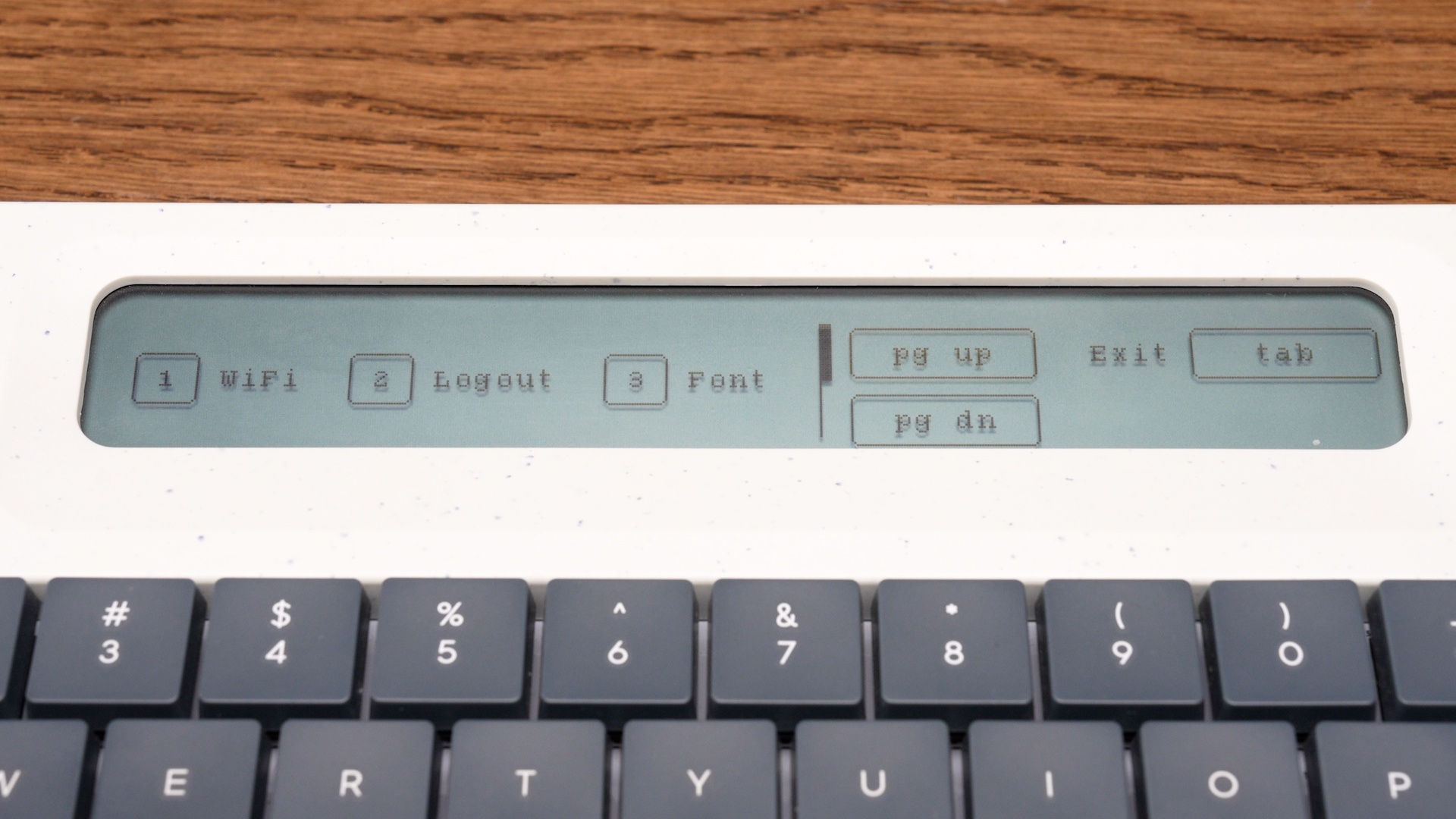
The Alpha's interface is noticeably more sparse than the other Freewrite devices, but once again, this is by design. You can access the menu by holding down the power button, which brings up options like setting up Wi-Fi, checking for firmware updates, enabling a lock screen, and adjusting the font size.
Font size is especially important here given the limitations of the display. Using the smaller font increases the visible lines of text to four, while the larger font becomes quite oversized and is likely only practical for those who need it for accessibility. In that context, it does serve as a useful option.
Battery life on the Alpha is excellent. It seems capable of running well over 50 to even 100 hours of use before needing a charge. My unit doesn't include a backlight, which likely contributes to this, but it's still impressive.
It's also a very responsive device. A single press of the power button brings it to life instantly, and another press turns it off just as quickly. This helps reduce friction when you simply want to sit down and start writing.
Workflow Adaptability
The workflow adaptability of the Alpha is in line with the other Freewrite devices. You can transfer your work via USB, send drafts to your email using the dedicated key, or sync everything to Freewrite's cloud service, Postbox.
These options provide a straightforward way to move your writing into whatever environment you prefer for further work.
Price
$349
The Freewrite Alpha comes in at a relatively high price. Compared to something like the Zerowriter, however, it's clearly the more polished and refined package. The trade-off comes down to preference. Whether you value the E Ink experience, even with some rough edges, or a more polished device with an LCD display. It's also worth noting that the Alpha does occasionally go on sale, often around the $300 range.
BYOK
A modular writing device designed to fit your workflow, not the other way around.
Quick Take
Best for: Writers who want a portable, affordable writing device that can adapt to their preferred keyboard, ergonomics, and workflow.
Strengths
- Works with the vast majority of wireless and wired keyboards, letting you choose the typing experience you want
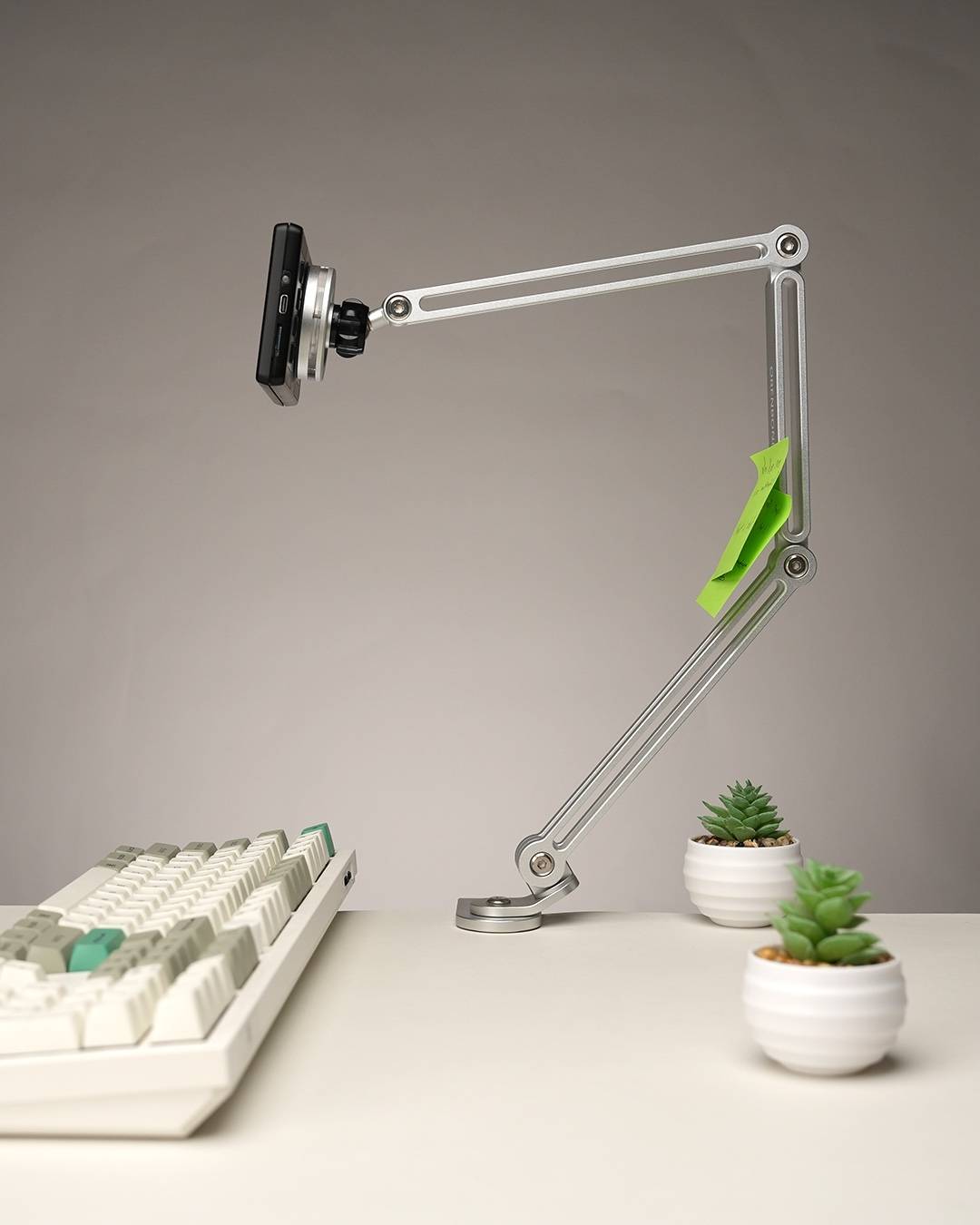
- Magnetic mount and separate screen allow for ergonomic positioning that no all-in-one device can match
- Connects to Studio, a full writing environment with planning, editing, and organizing tools; core features including two-way sync remain free
- Most affordable device in this roundup, even when factoring in a keyboard
Limitations
- Not a single, grab-and-go device; your setup will involve more than one piece
- The price is low, but you will still need a keyboard if you don't already own one
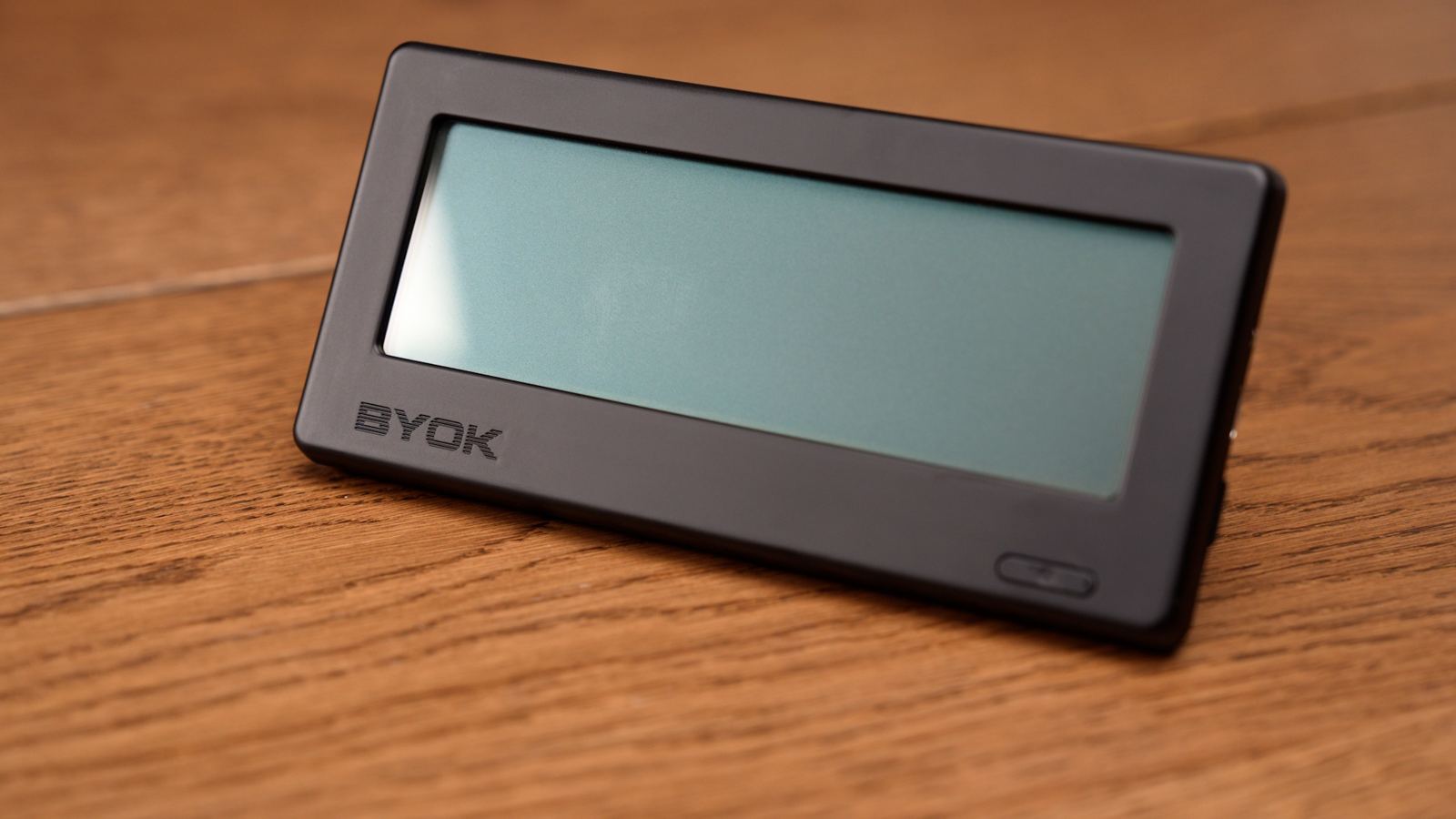
The BYOK is a newer entrant in this space, and it happens to be our own device. It was built with a different approach to distraction-free writing, with the goal of fitting into the writer's workflow rather than forcing the writer to adapt to its constraints. From its ability to pair with just about any keyboard, to its magnetic mounting system compatible with a wide range of accessories, to the writer-focused Studio software, the BYOK aims to deliver on that idea.
Portability
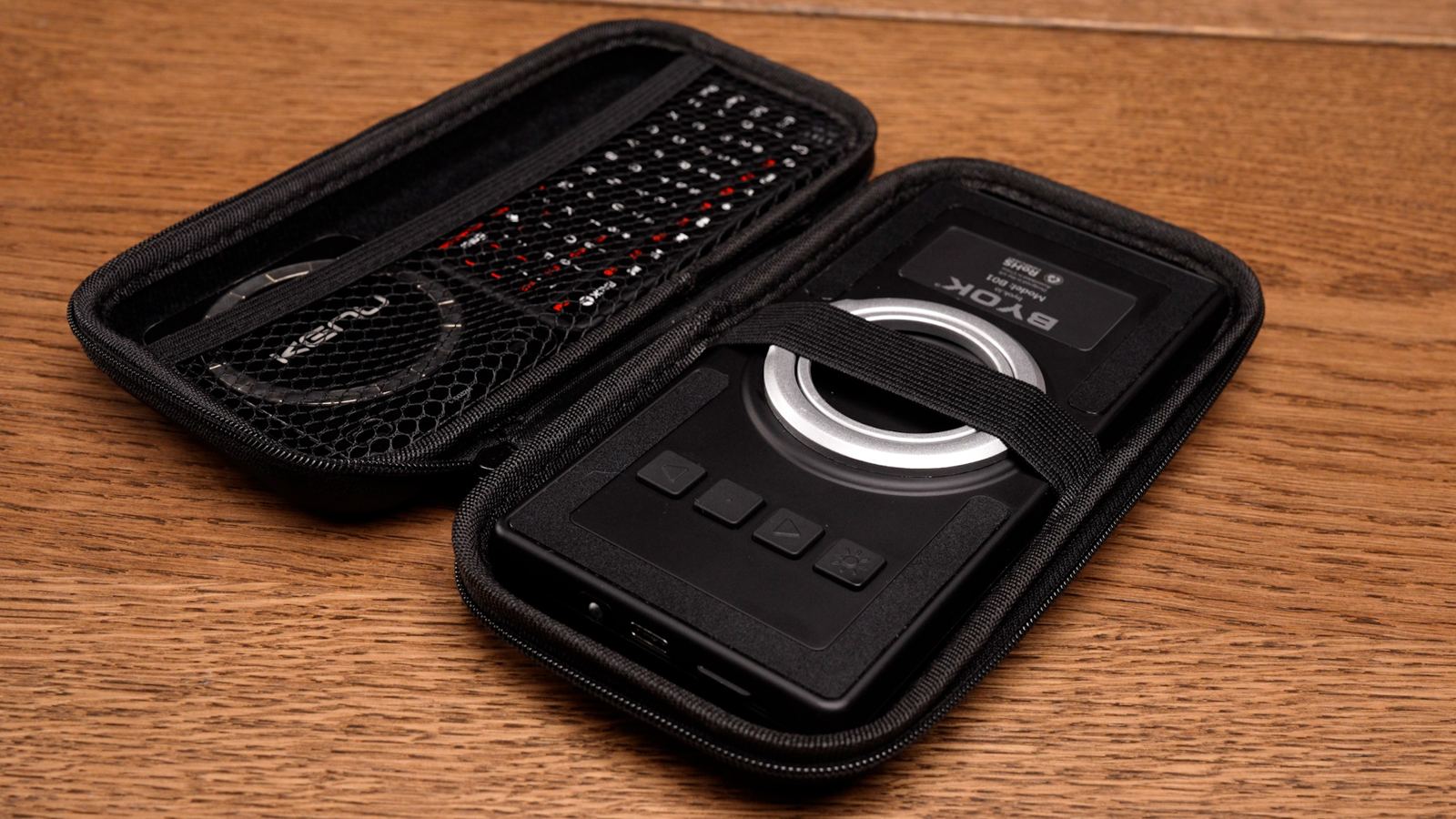
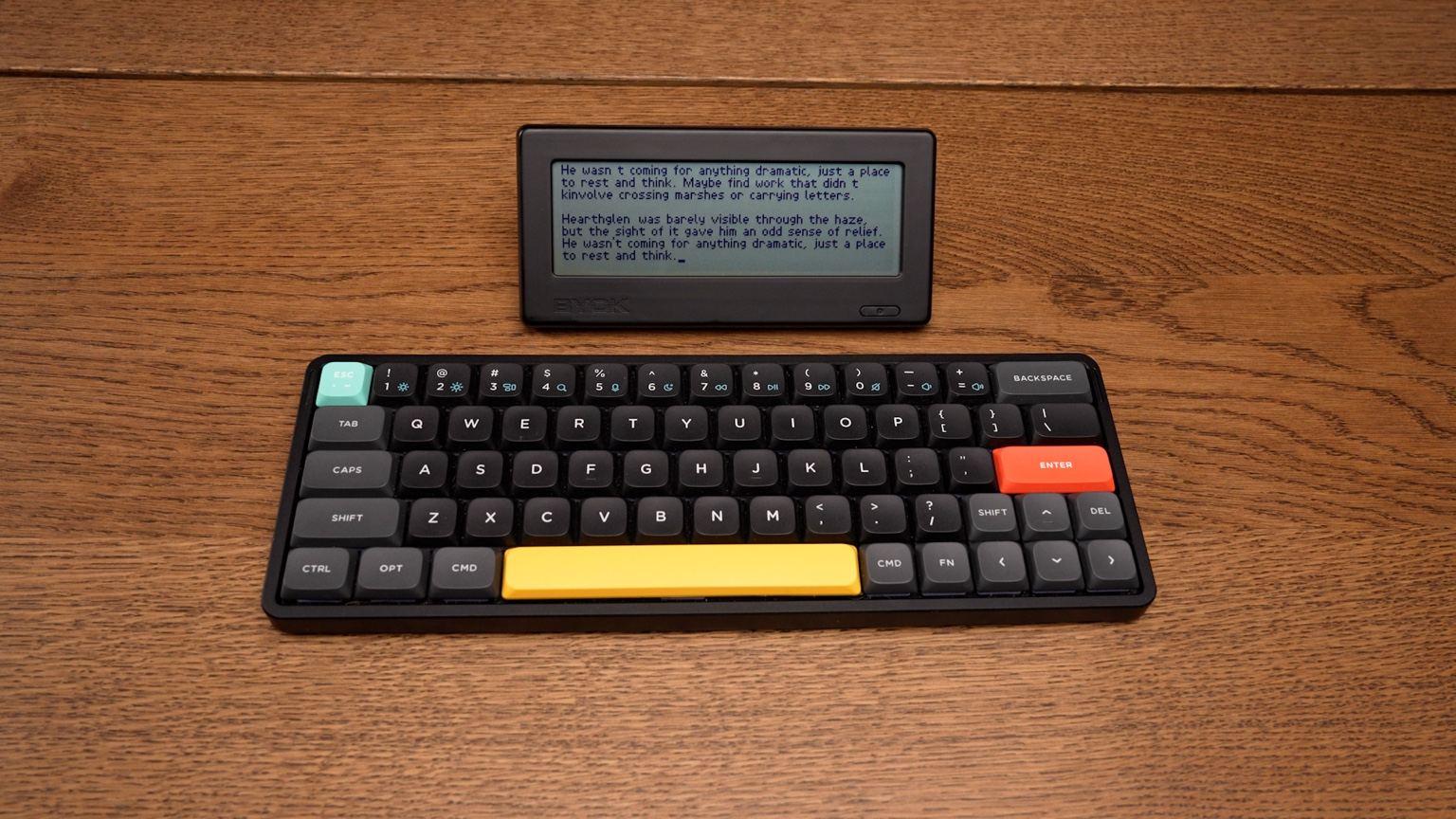
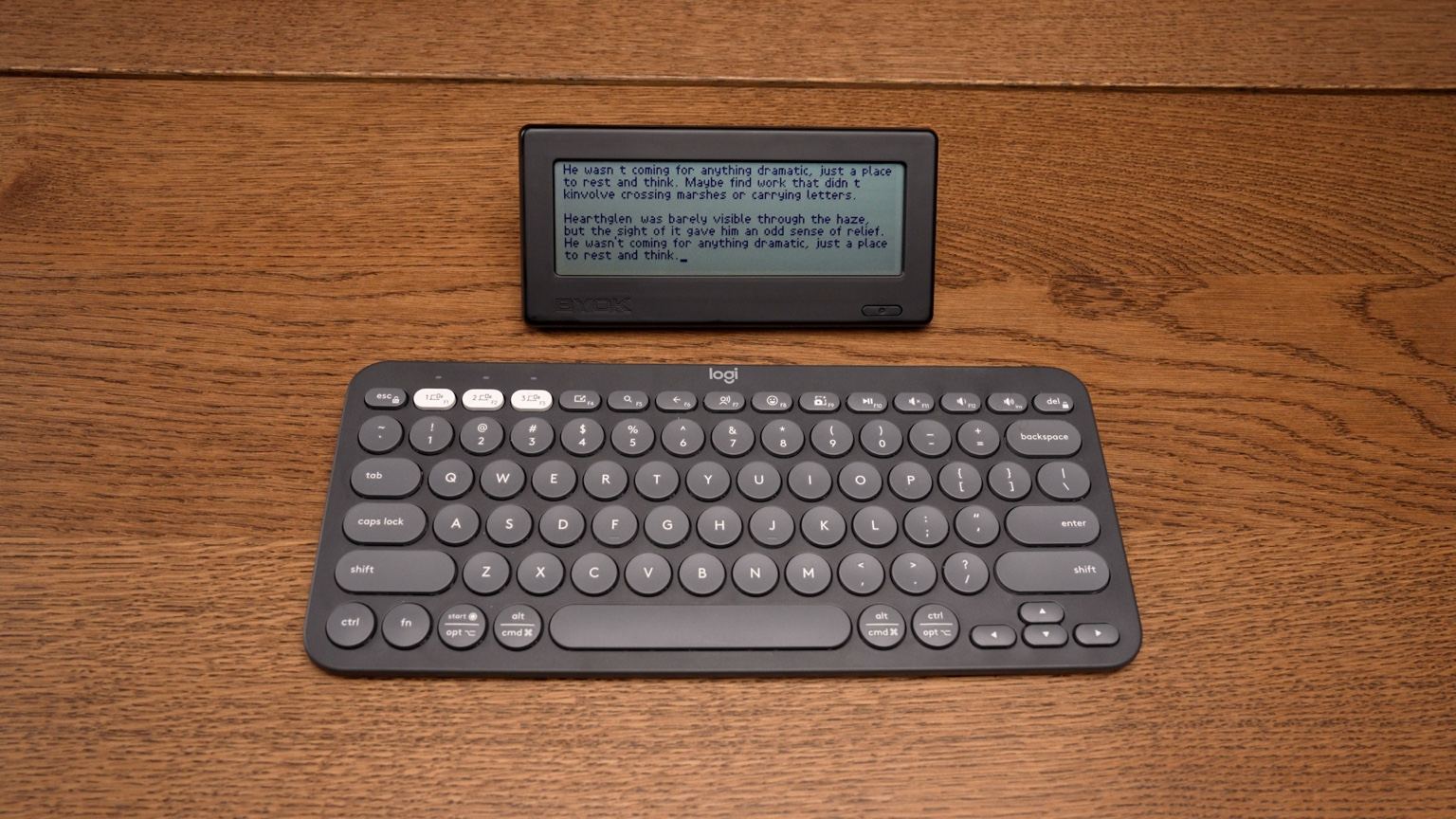
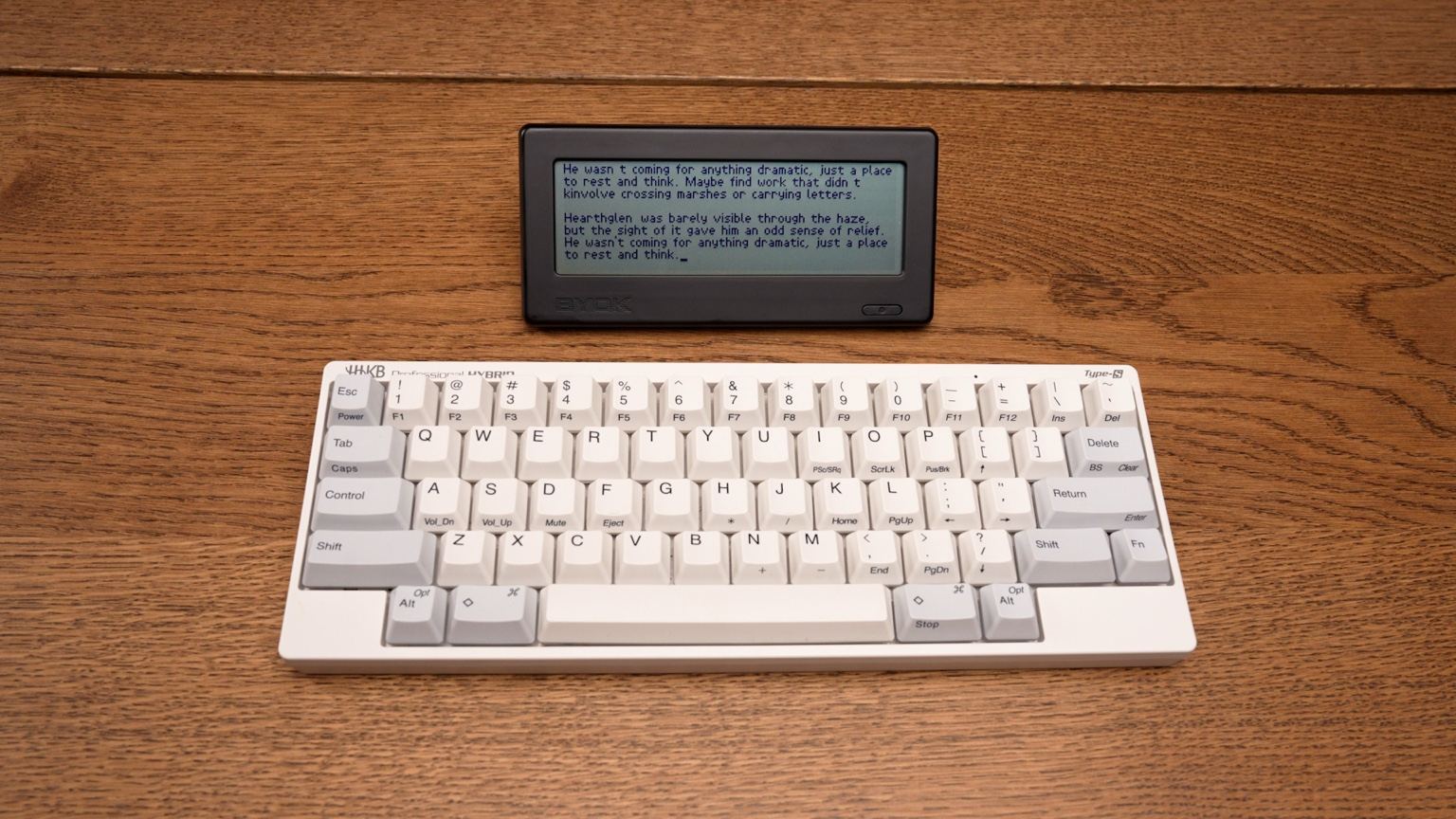
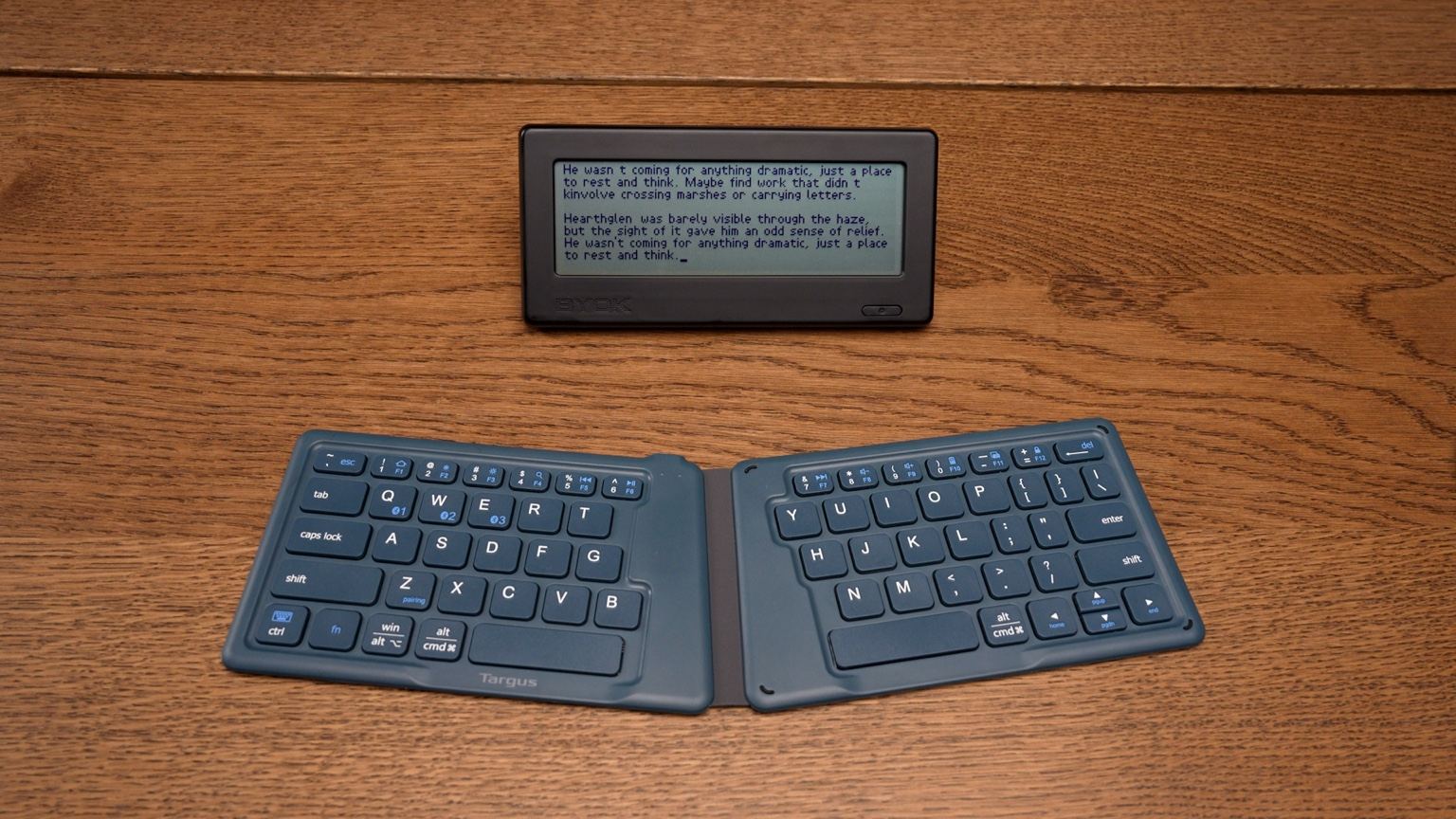
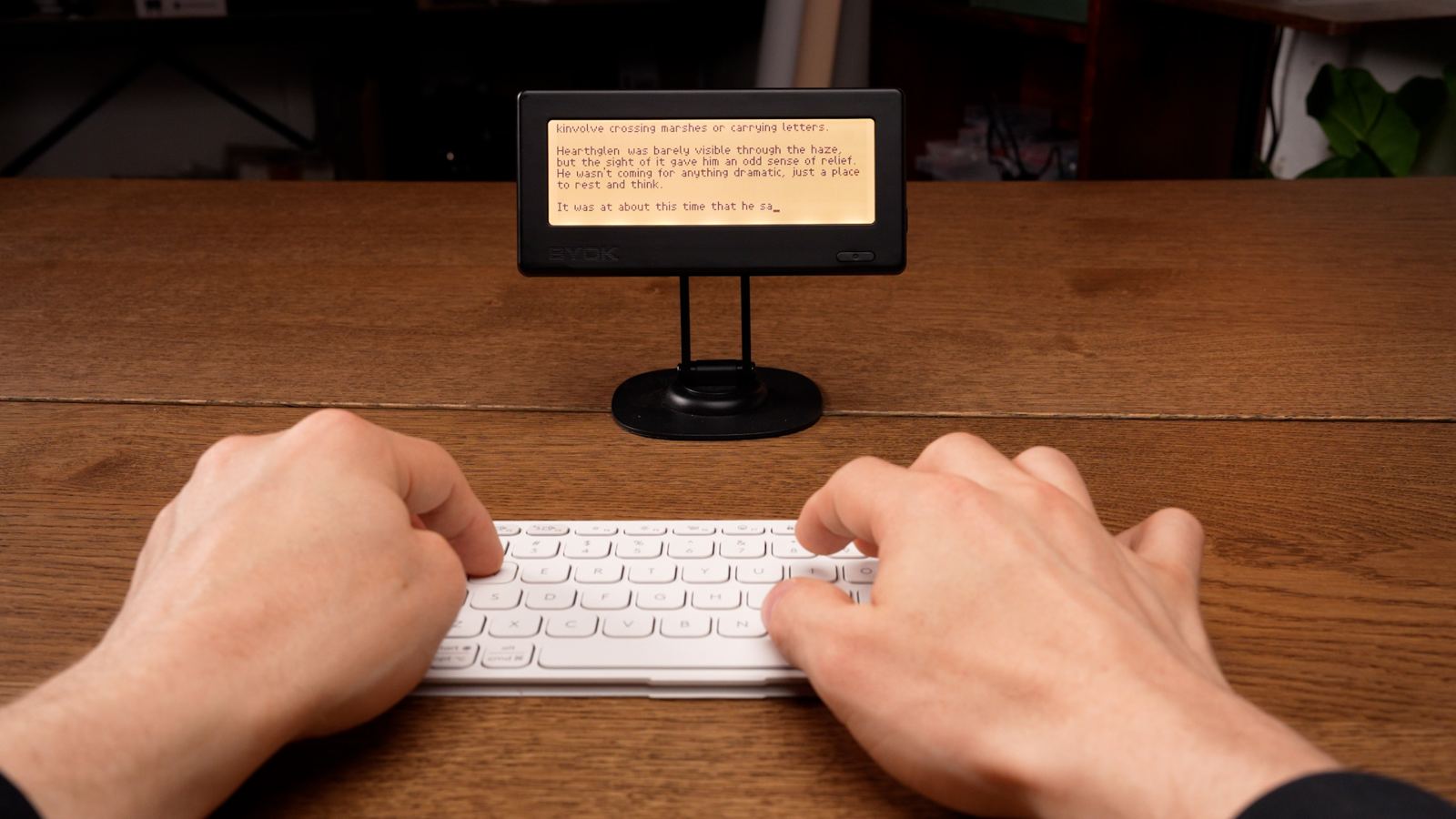
The BYOK excels in portability thanks to its small size. On its own, it can easily fit into a pocket or small carry case, making it easy to bring along wherever you go. The overall portability does depend on the keyboard you pair it with, but that flexibility is part of the appeal. You can choose anything from a compact foldable keyboard to a low-profile mechanical one, depending on your needs.
This range of options makes the BYOK adaptable to just about any environment, whether you're traveling, working at a desk, or writing in more unconventional settings. At the same time, it's worth noting that this isn't a single, all-in-one device. Unless you have it attached to a keyboard, you'll likely be carrying multiple pieces as part of your setup. Depending on your preferences, that may be a non-issue, but it's still a trade-off to consider.
Keyboard
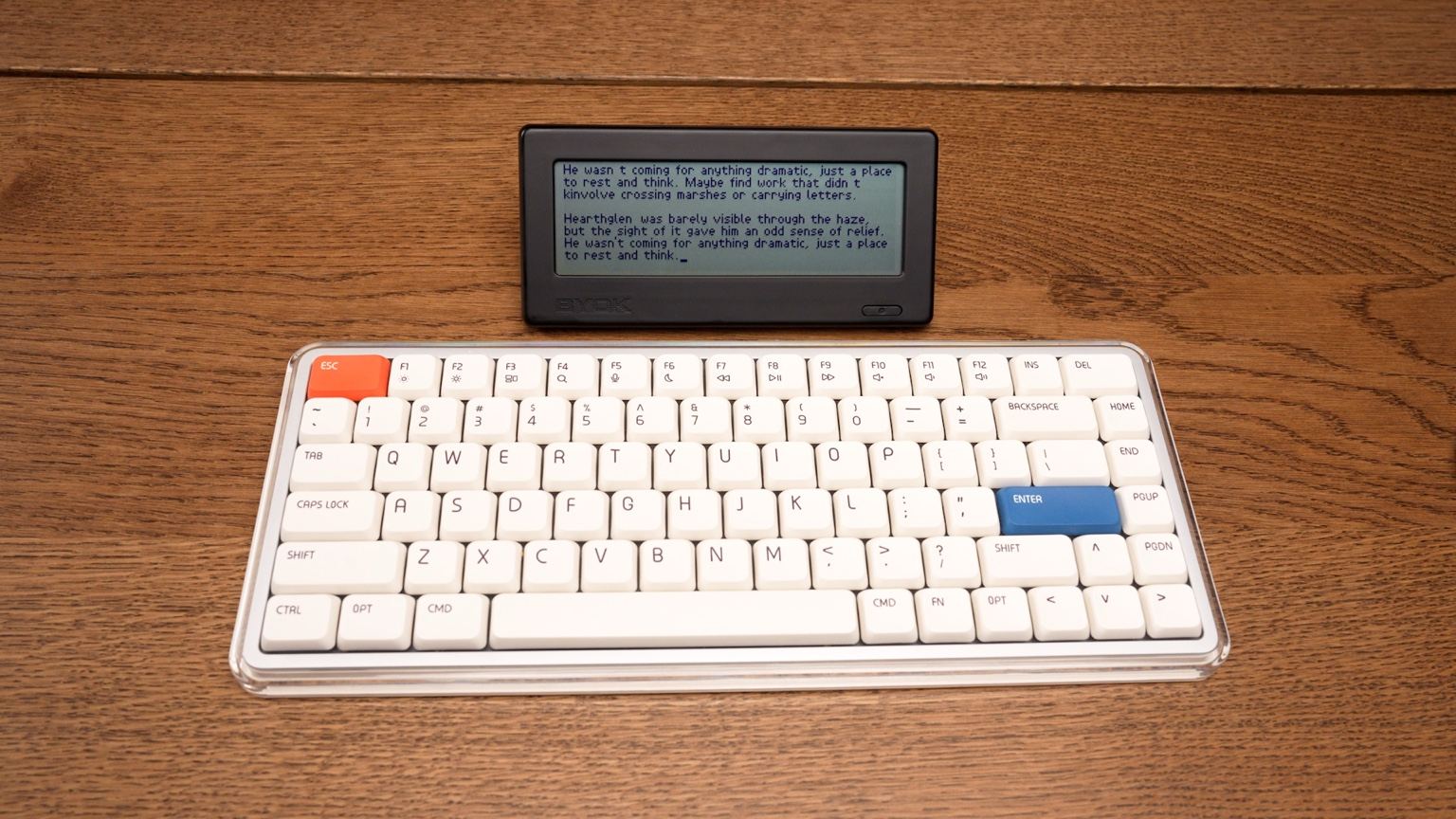
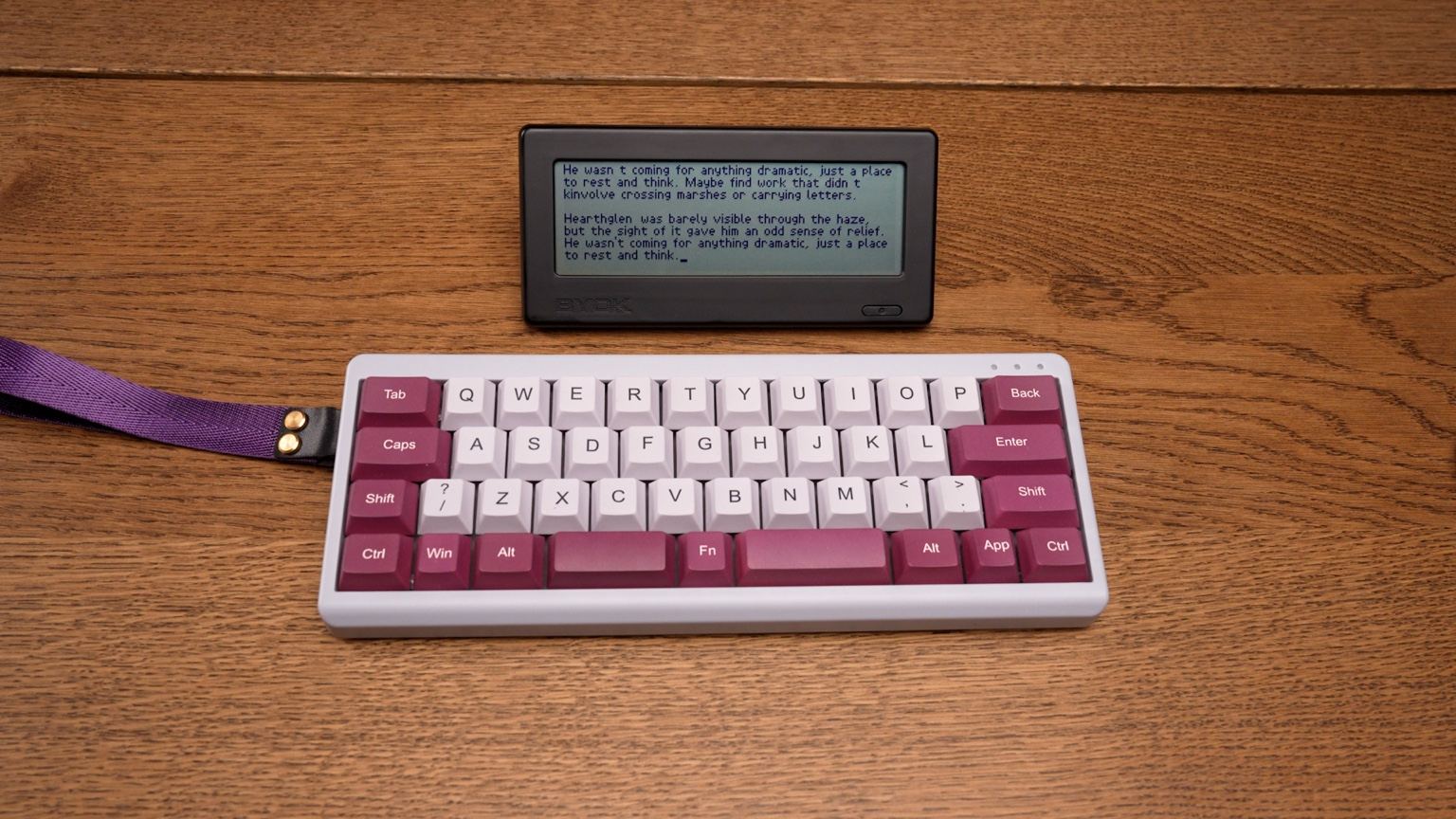
The keyboard is as good as you make it. The BYOK's defining feature is that you bring your own keyboard, and it works with the vast majority of wireless and wired options.
More importantly, the choice is entirely yours. Whether you prefer a full-size mechanical keyboard, something compact and low-profile, or even a handheld option, you can tailor the experience to fit your needs.
Display
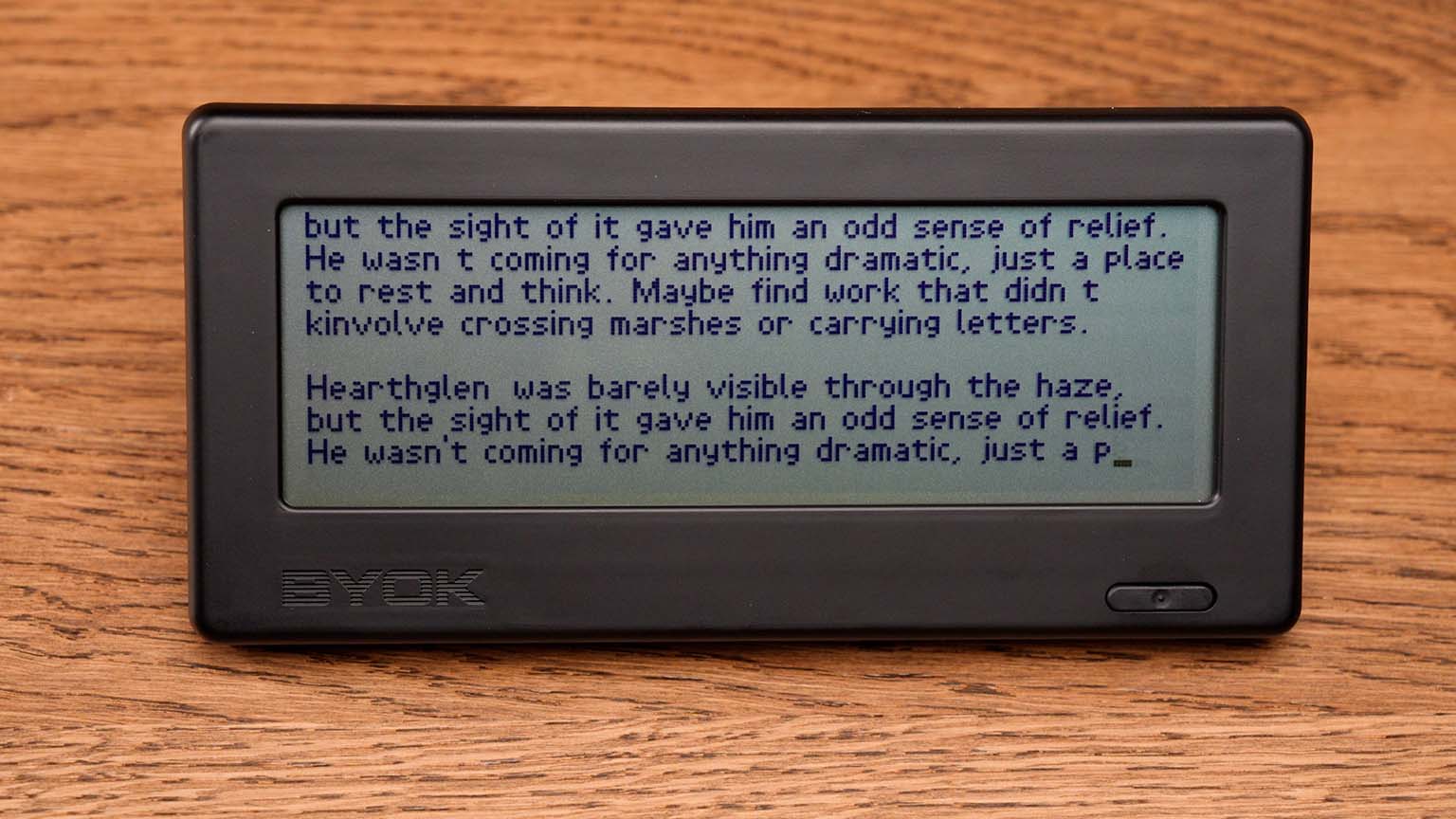
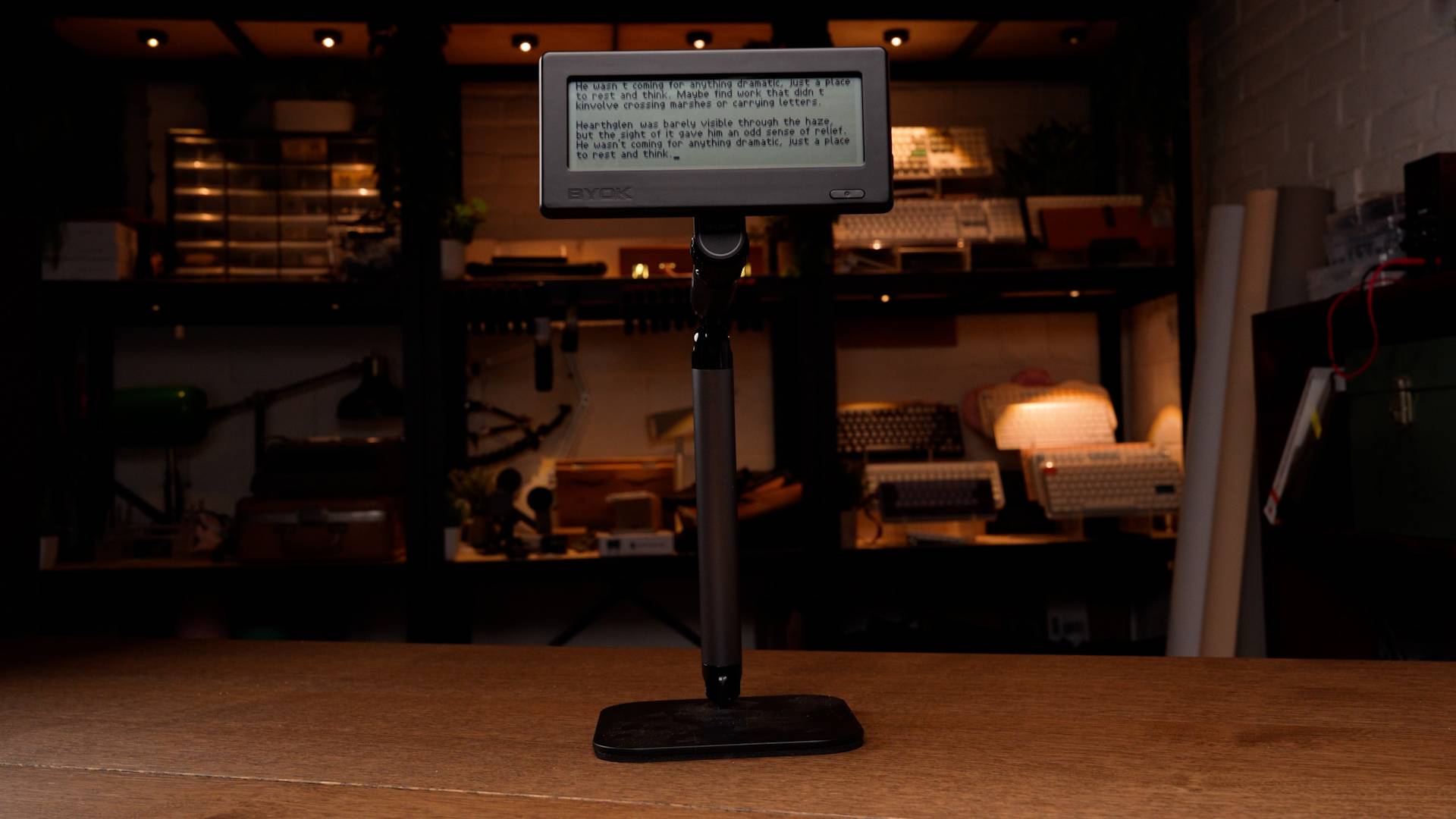
The BYOK uses an FSTN LCD display, which combines the reflective qualities of LCD to remain usable in most environments without relying on a backlight. It also includes an adjustable backlight, with multiple brightness levels and an amber tone designed to be easier on the eyes during longer writing sessions.
The display offers strong contrast and a very fast response time that feels nearly instant, similar to the AlphaSmart Neo. In terms of size, it provides a solid amount of visible text, and with smaller font settings, you can see up to around 15 lines at once, which is more than enough for a drafting-focused workflow.
Ergonomics
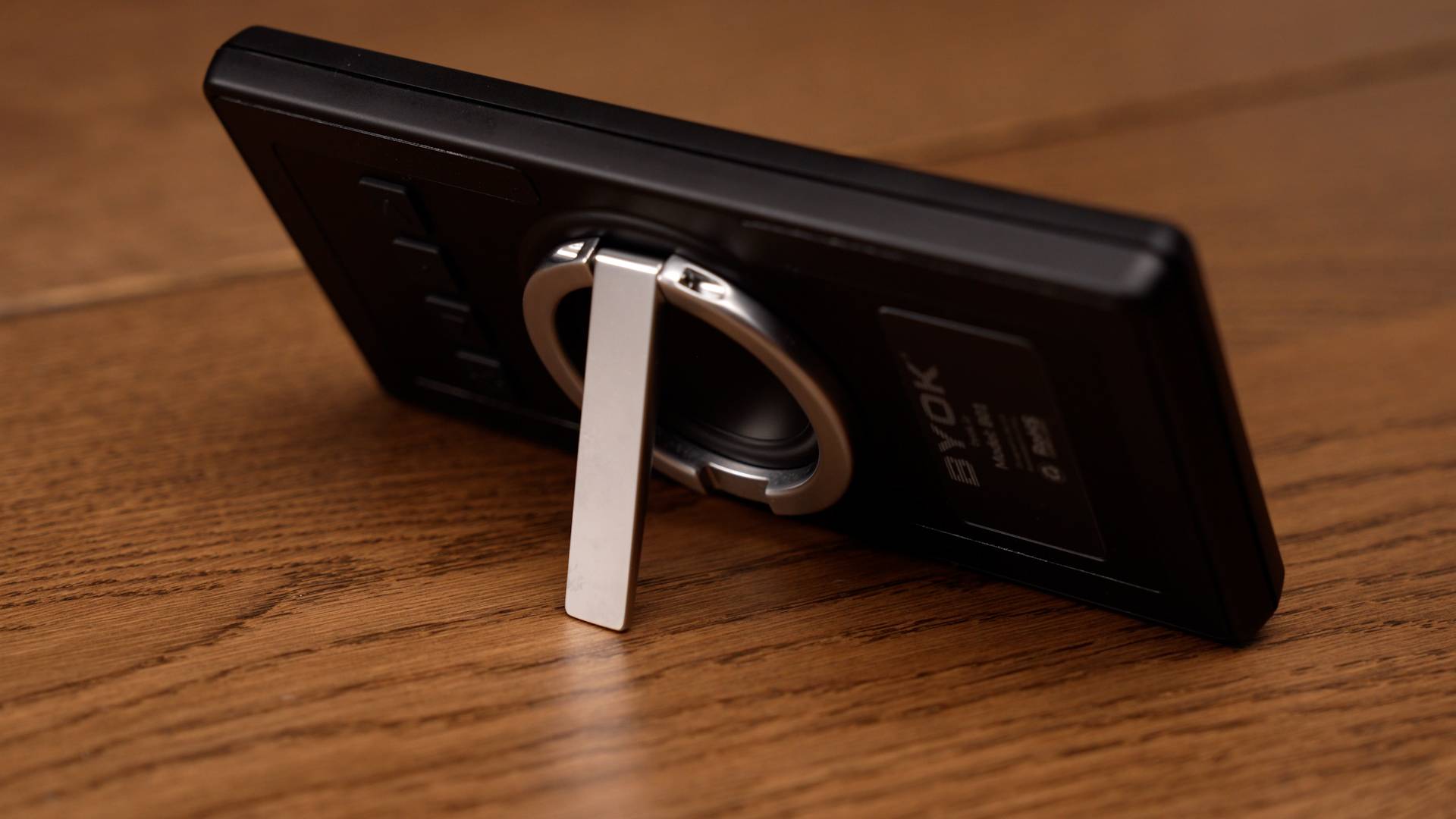
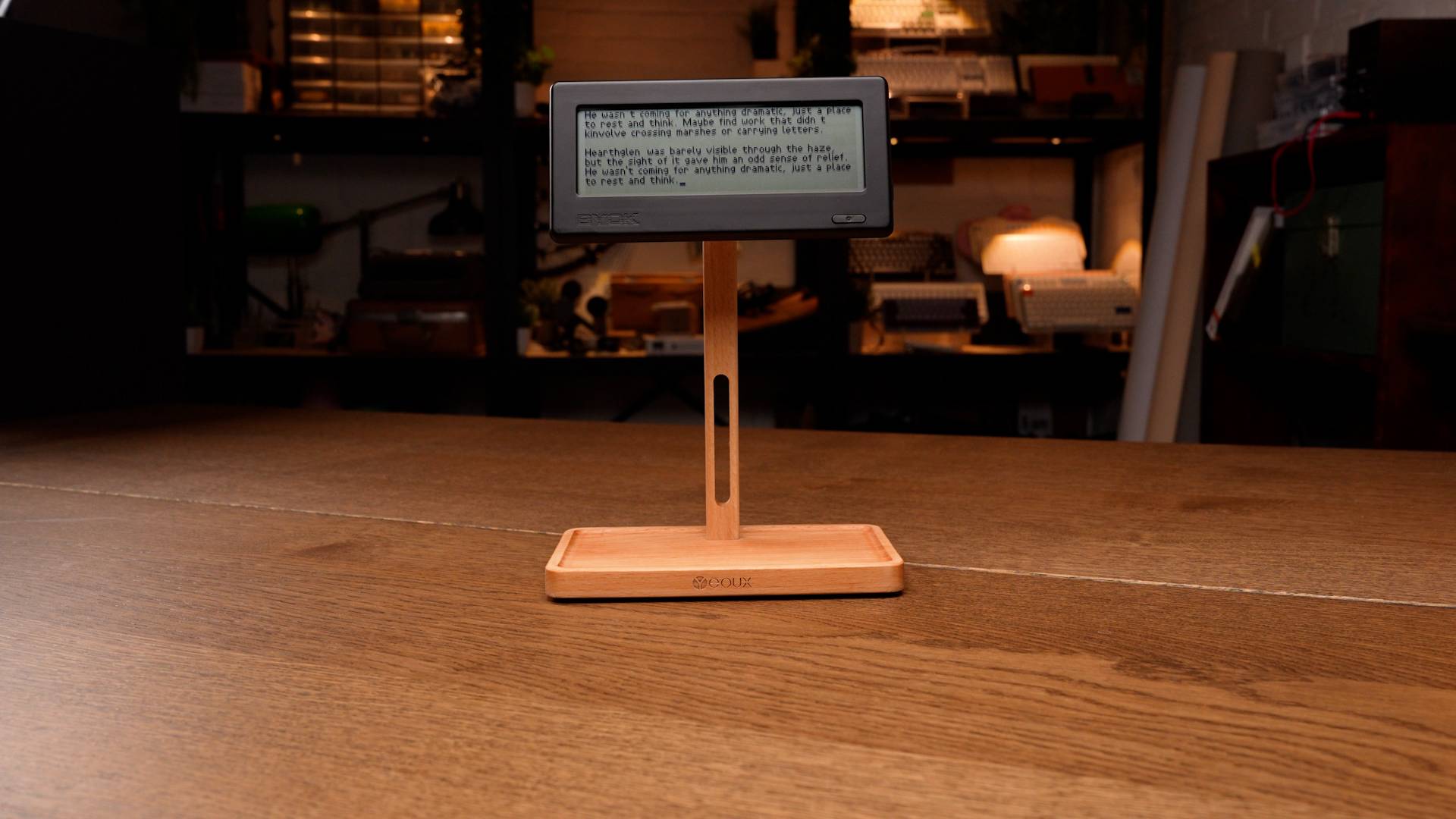
The BYOK is designed with ergonomics in mind from the start. This is largely due to the magnetic mount on the back, which allows it to attach to a wide range of stands compatible with smartphone mounts. This opens up a large number of options for customizing your setup to fit your preferred working position.
Because the screen is separate from the keyboard, you're not locked into a fixed layout. You can position the display at different heights, angles, and distances without having to compromise your keyboard placement, making it much easier to create a comfortable and sustainable writing setup.
Interface & Performance
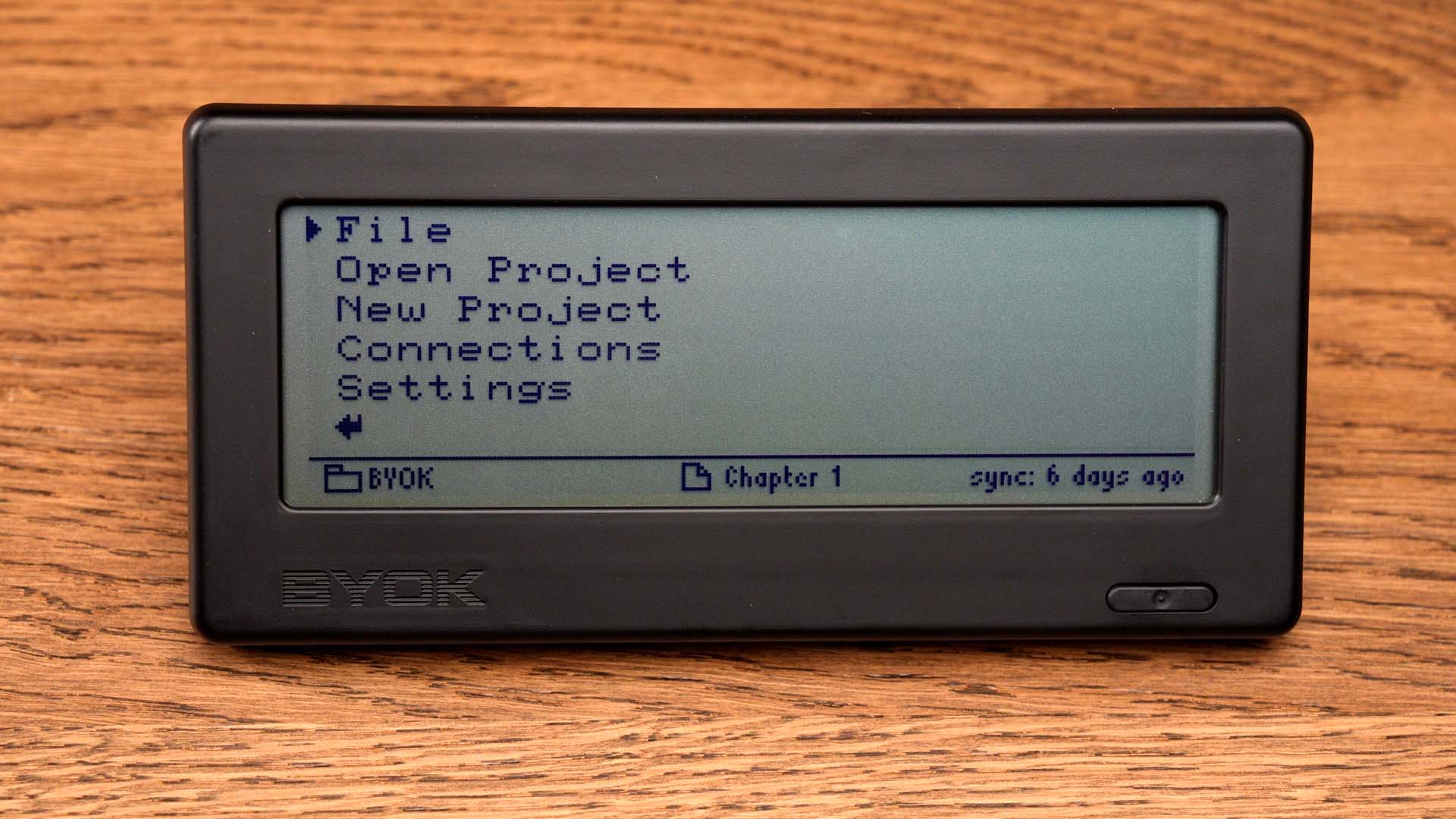
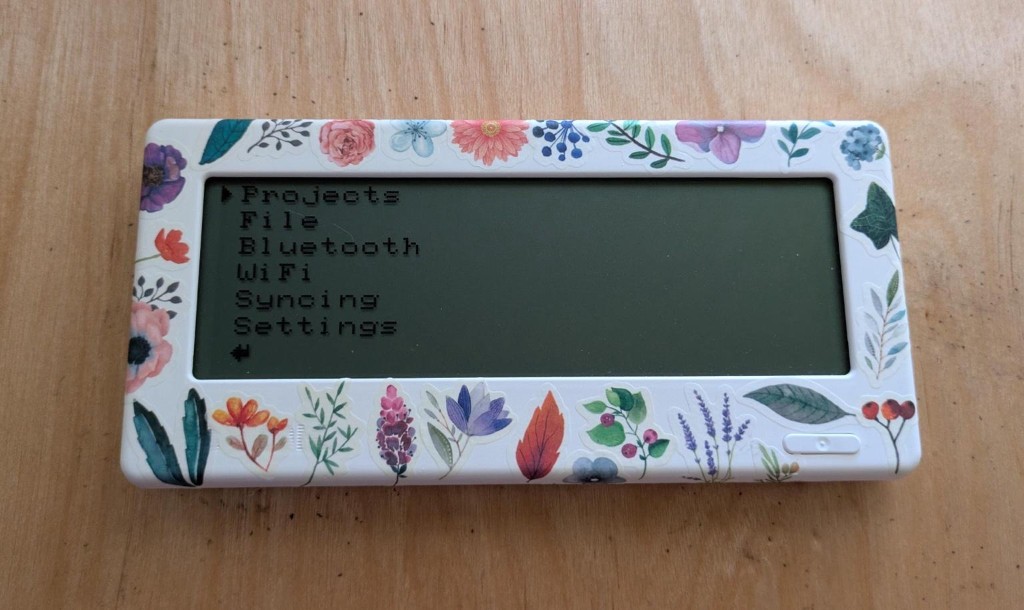
The BYOK features a recently overhauled interface and menu system. Users can create as many projects as they like, which function similarly to folders, along with as many files within those projects as needed.
Alongside general settings like contrast, keyboard layout, and cursor type, users can choose from a wide range of custom fonts available in the font library, all of which can be downloaded for free. At the time of writing, there are over 85 fonts available, with more expected to be added over time. If you don't find one you like, you also have the option to convert your own fonts.
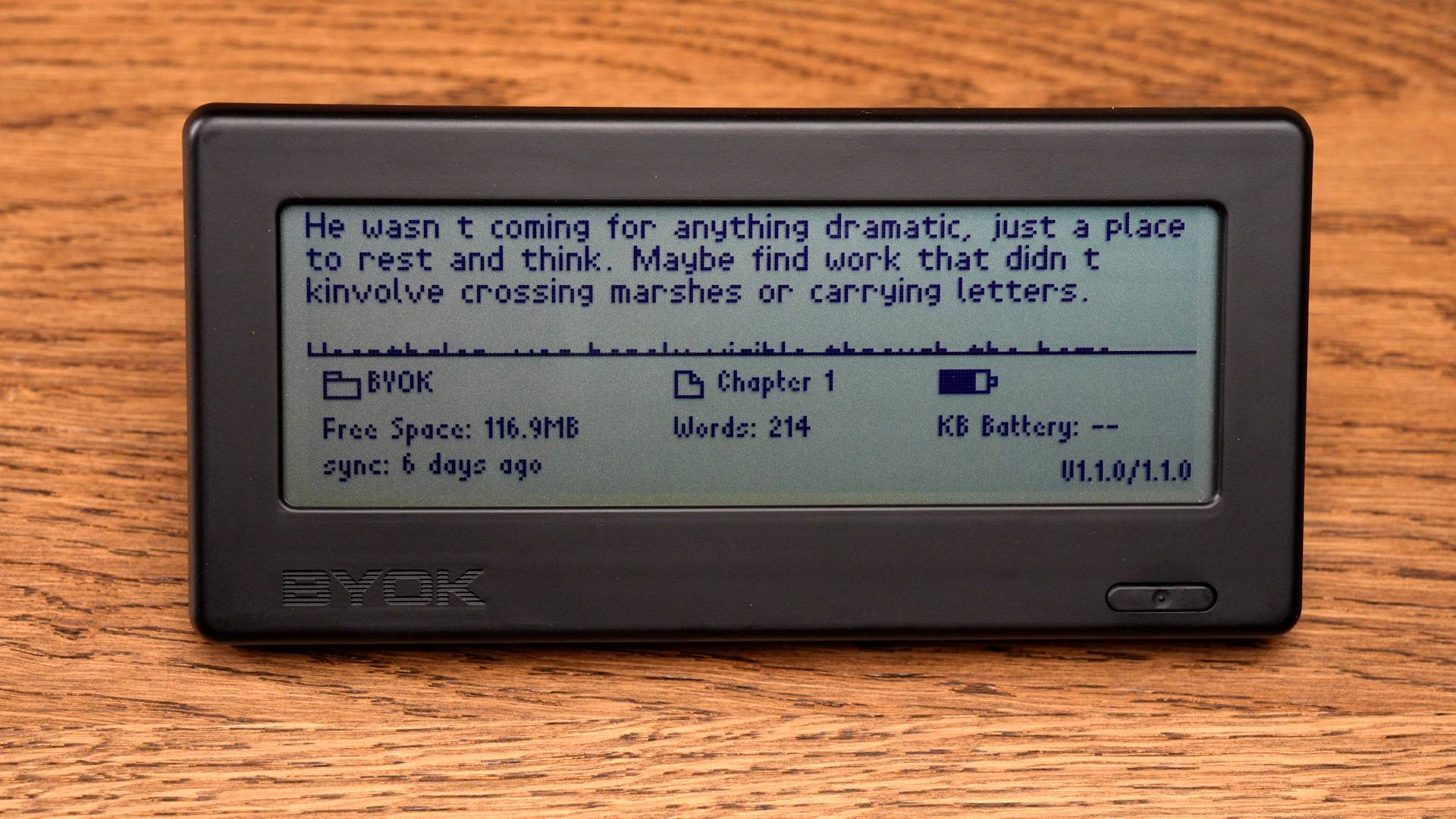
Battery life comes in at around 20 hours of active use, which for many writers translates to roughly a couple of weeks between charges, depending on usage. Thanks to the responsiveness of the LCD display, the device powers on quickly and lets you jump straight into writing without delay. While writing, a status bar provides useful information such as word count, battery level, file name, and more.
Workflow Adaptability
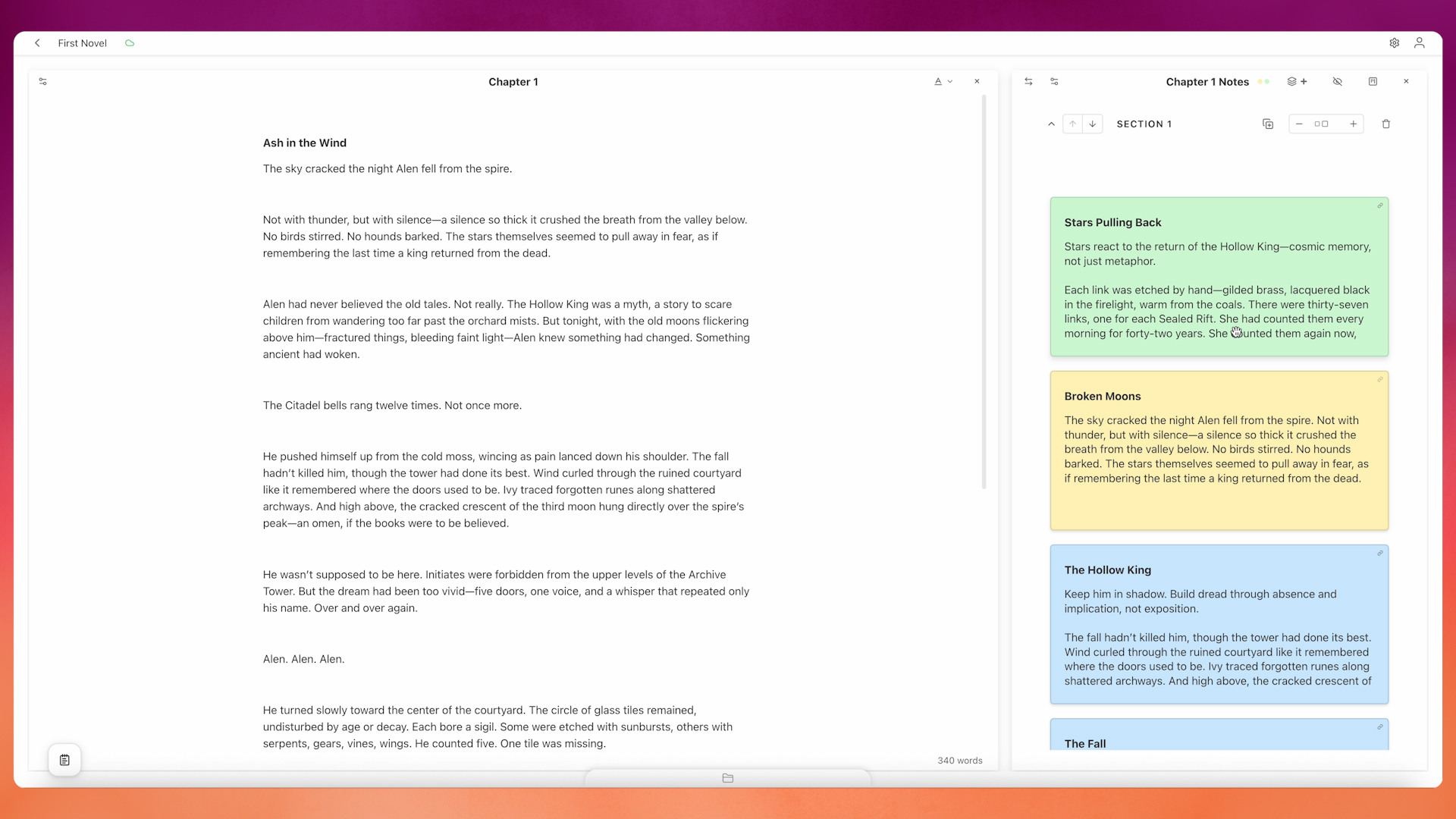
One of the foundational aspects of the BYOK is its ability to integrate into modern workflows. In addition to more traditional options like using a microSD card or transferring files via USB, it also connects to Studio, a full writing environment designed to work directly with the device. Studio goes beyond simple cloud backup, offering tools for planning, editing, organizing, and developing your writing through features like the text editor, manuscript view, cards, grid, and mind map.
Studio does include a subscription after a free trial, but a significant portion of its functionality remains free. This includes two-way syncing with the device, backup storage, text editing, and the scratchpad feature, which allows you to capture notes from the device into your Studio workspace. With a mobile app currently in development, Studio is continuing to expand as part of the overall experience.
While there's much more to Studio, we won't cover everything here. If you're interested, it's worth exploring further. At the same time, the BYOK can be used entirely offline if you prefer, with no requirement to connect to any cloud service.
Price
$199
The BYOK is the most affordable option in this lineup. While you will need to pair it with a keyboard if you don't already have one, even with a quality keyboard, it's difficult to approach the price of the next most affordable device. Once preorders come to an end, the price is expected to move to its retail level, which adds around $20, but it remains one of the more accessible options overall.
Where BYOK fits
A Different Approach to Distraction-Free Writing
After spending time with all of these devices, one thing becomes clear — they're not all trying to solve the same problem. Some are built to replace your laptop, while others are more self-contained, all-in-one writing tools. BYOK takes a different approach.
Instead of locking you into a single setup, it's built around flexibility. You bring your own keyboard, whether that's something compact for travel, something more ergonomic for longer sessions, or simply a keyboard you already enjoy using.
The device follows that same idea. With a magnetic mount that works with standard smartphone stands, you're not limited to a fixed angle or position, so it's much easier to set up something that's actually comfortable.
It also connects to Studio, which is more than just syncing your drafts. It's a full writing environment that lets you take what you start here and continue shaping it into something more complete later on.
It's a different way of approaching writing — and for the right person, that flexibility is really the point.
How Writers Use BYOK
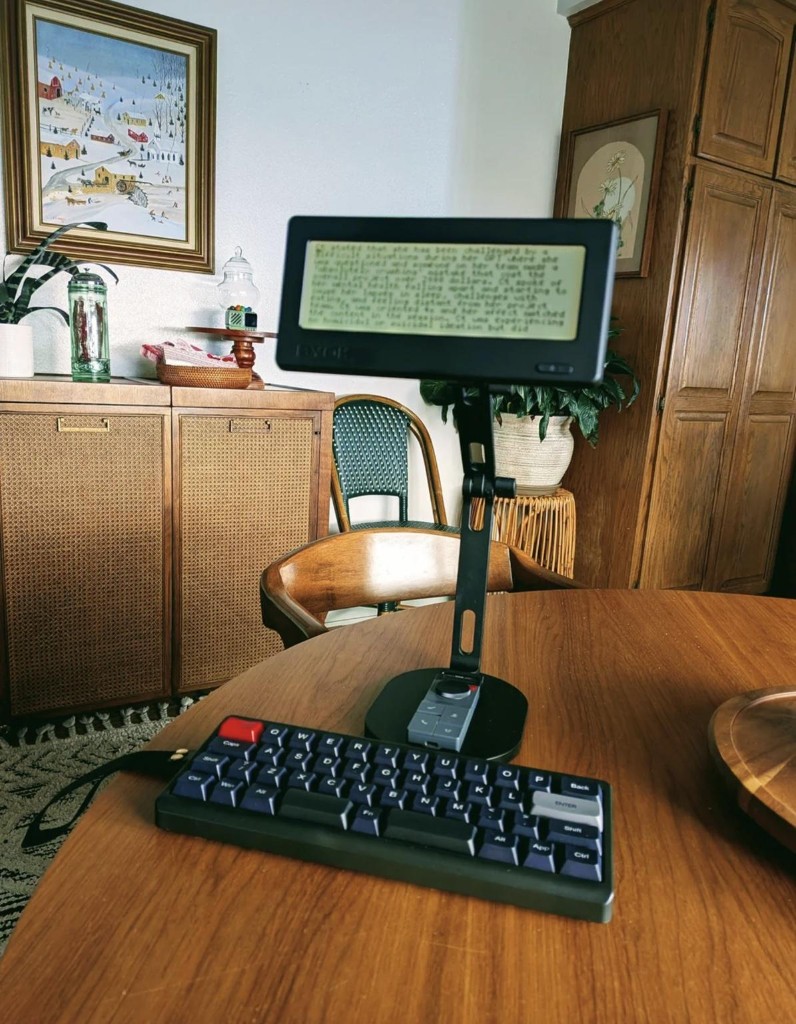
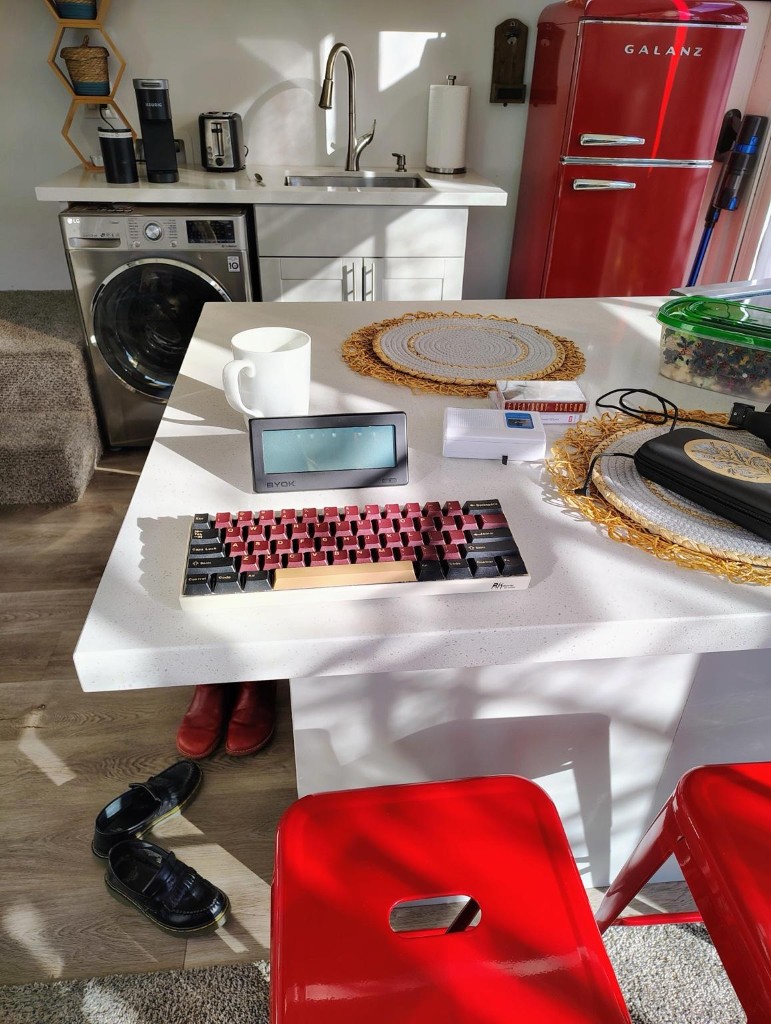
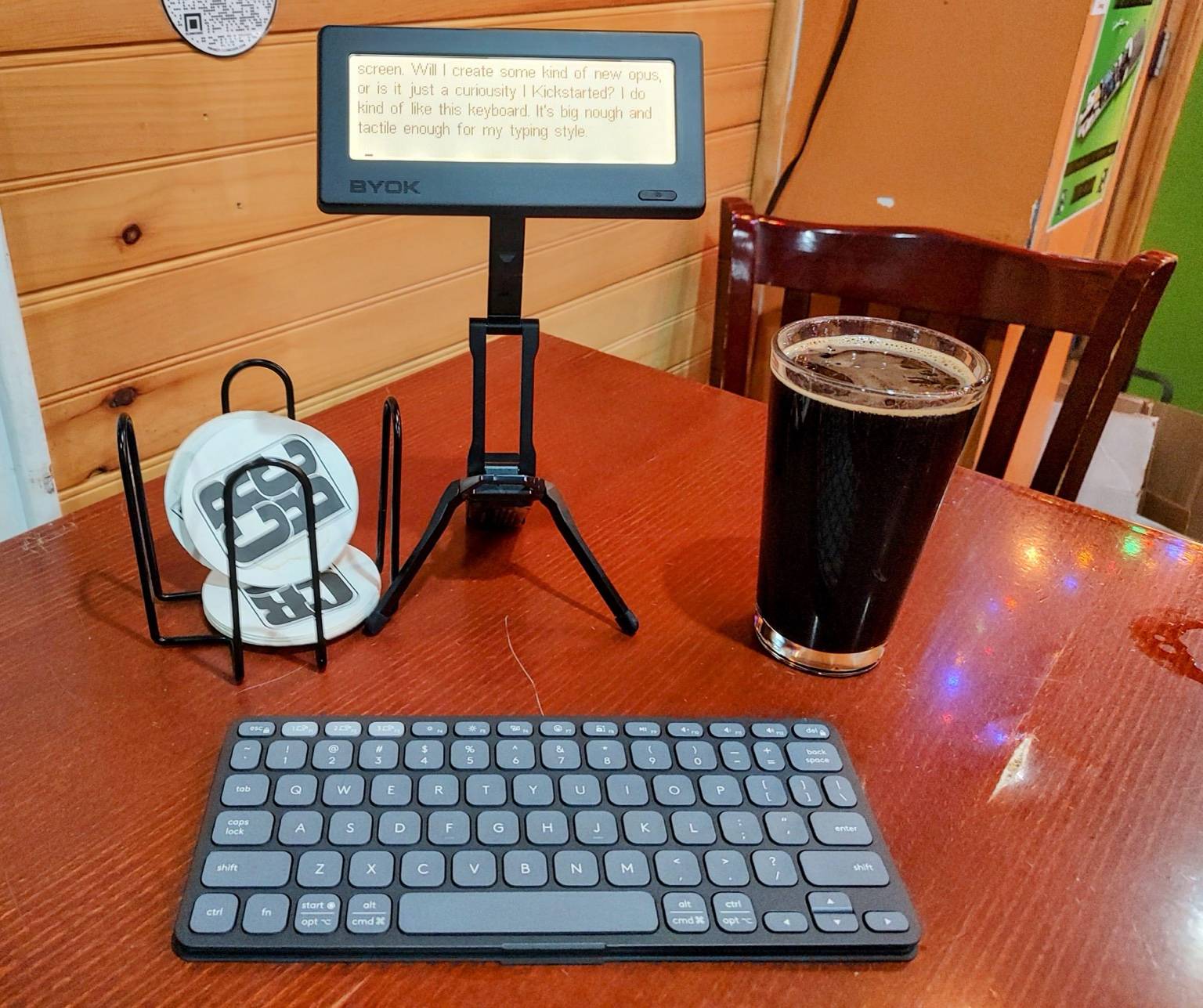
Real setups from our community. Every writer brings their own keyboard and their own style.
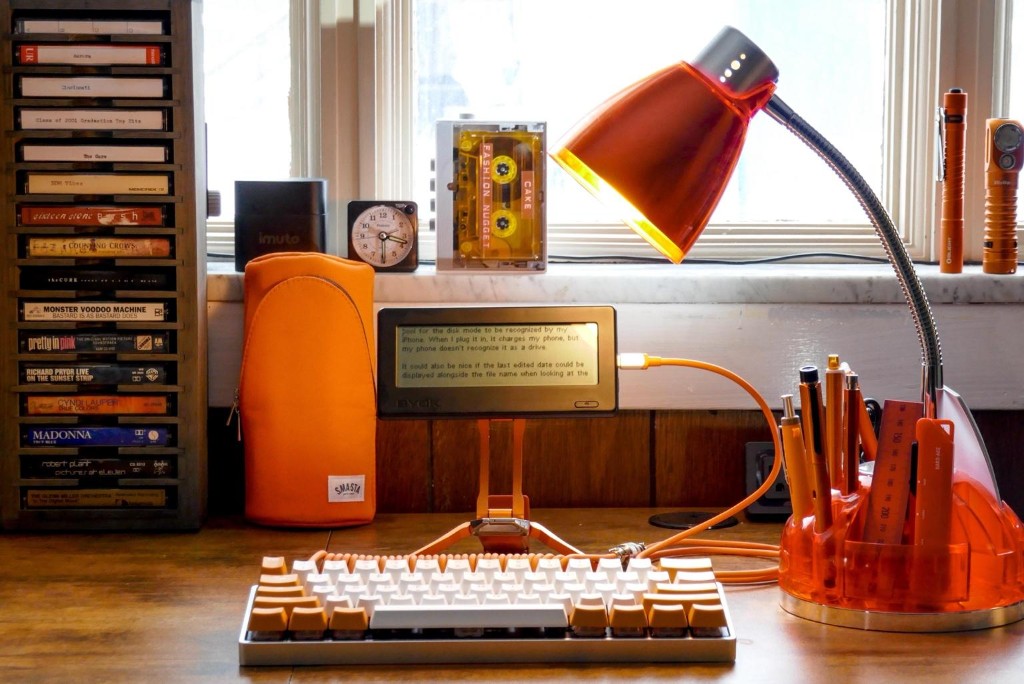
📷 u/newsINcinci
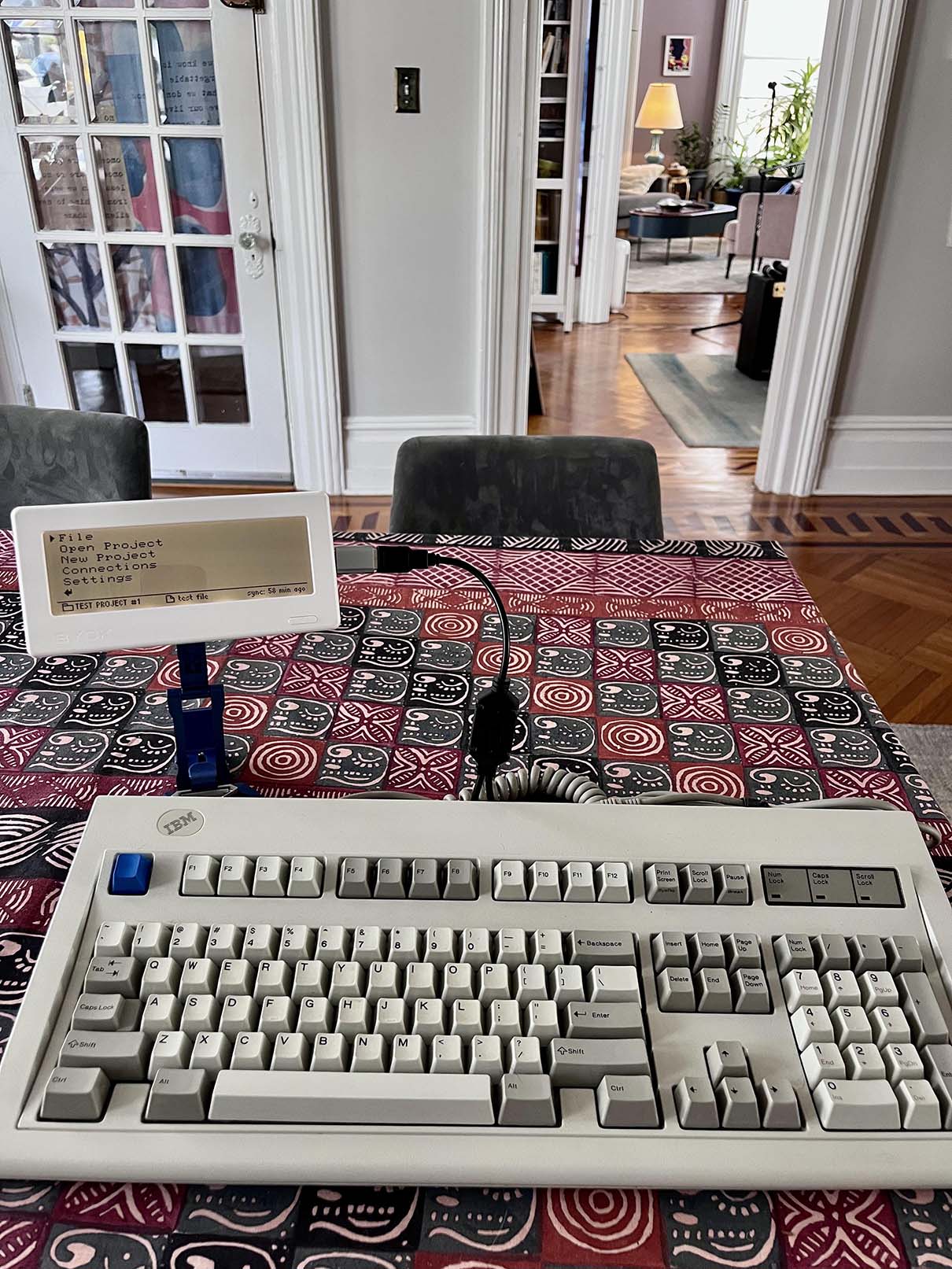
📷 u/ff-88
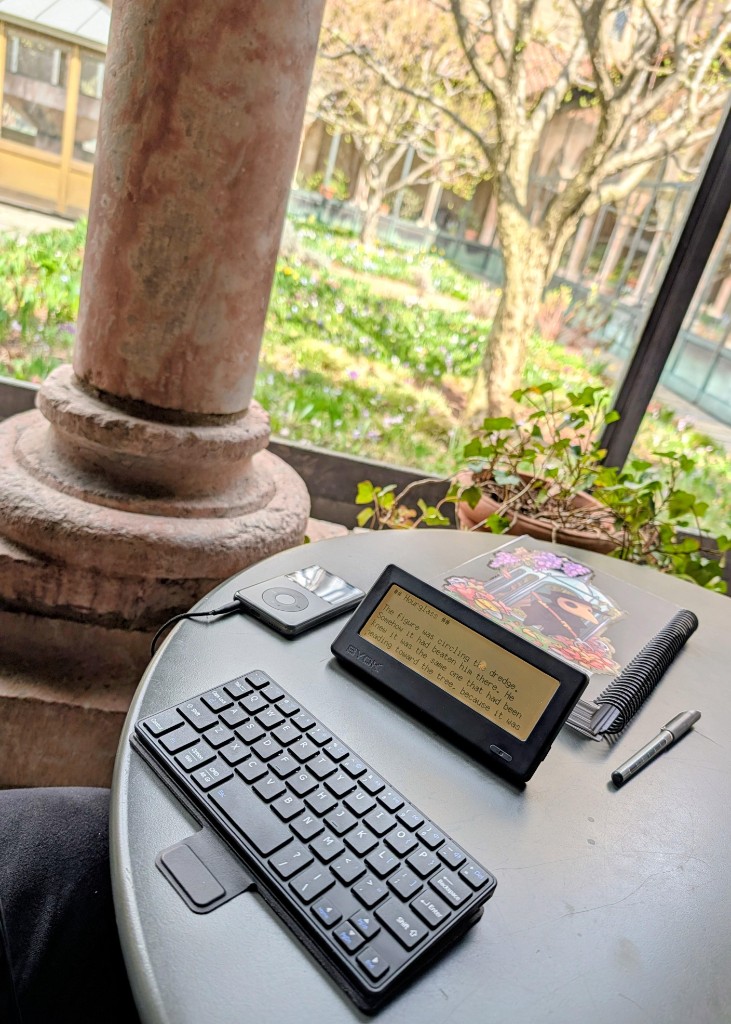
📷 u/Old-Amount-6133
📷 u/paperbackpiles
📷 u/wholivesinthewoods

📷 u/SchwartzReports
📷 u/chillbanshee
📷 u/RWWGreene
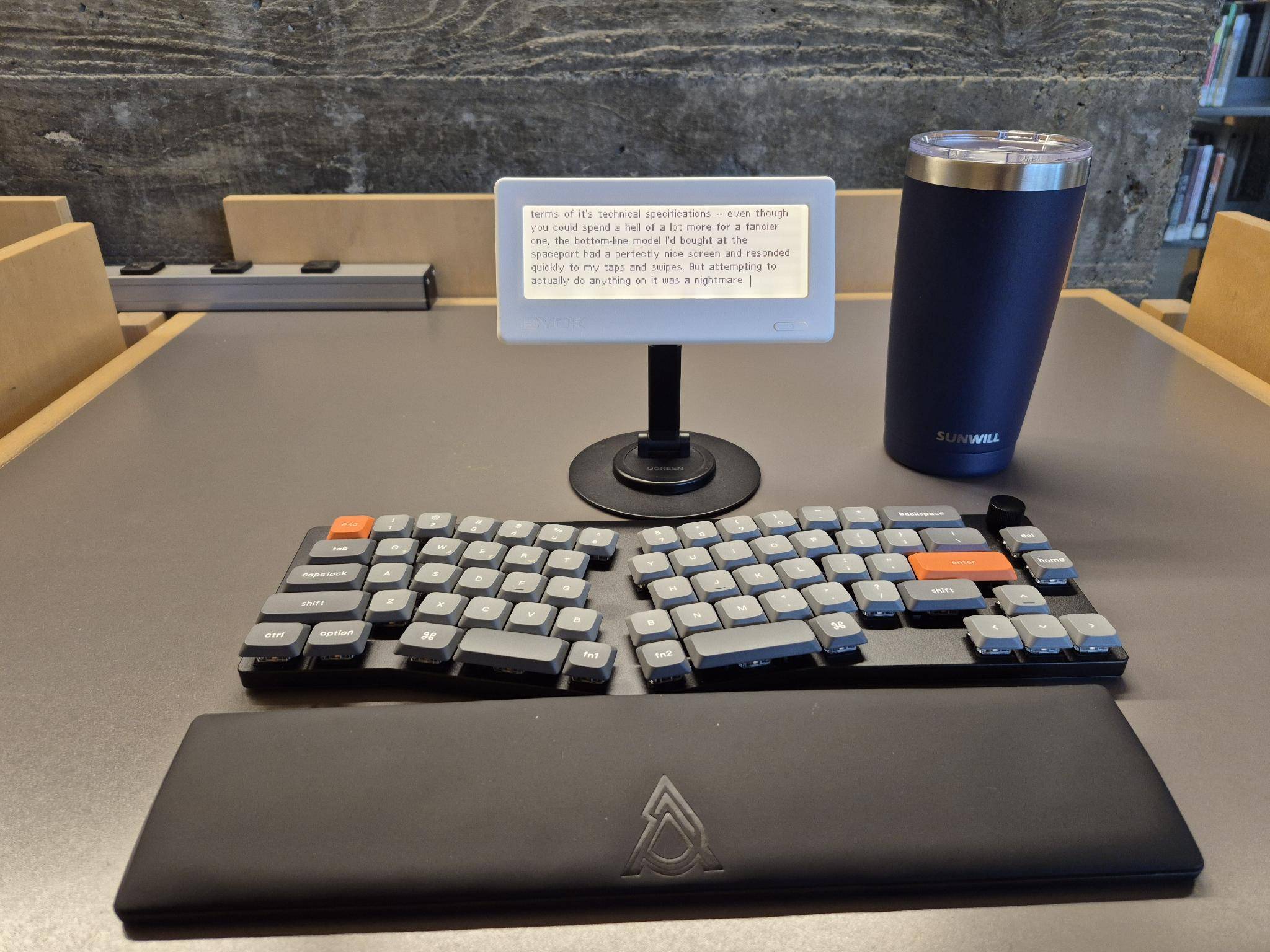
📷 u/mattyoungmark
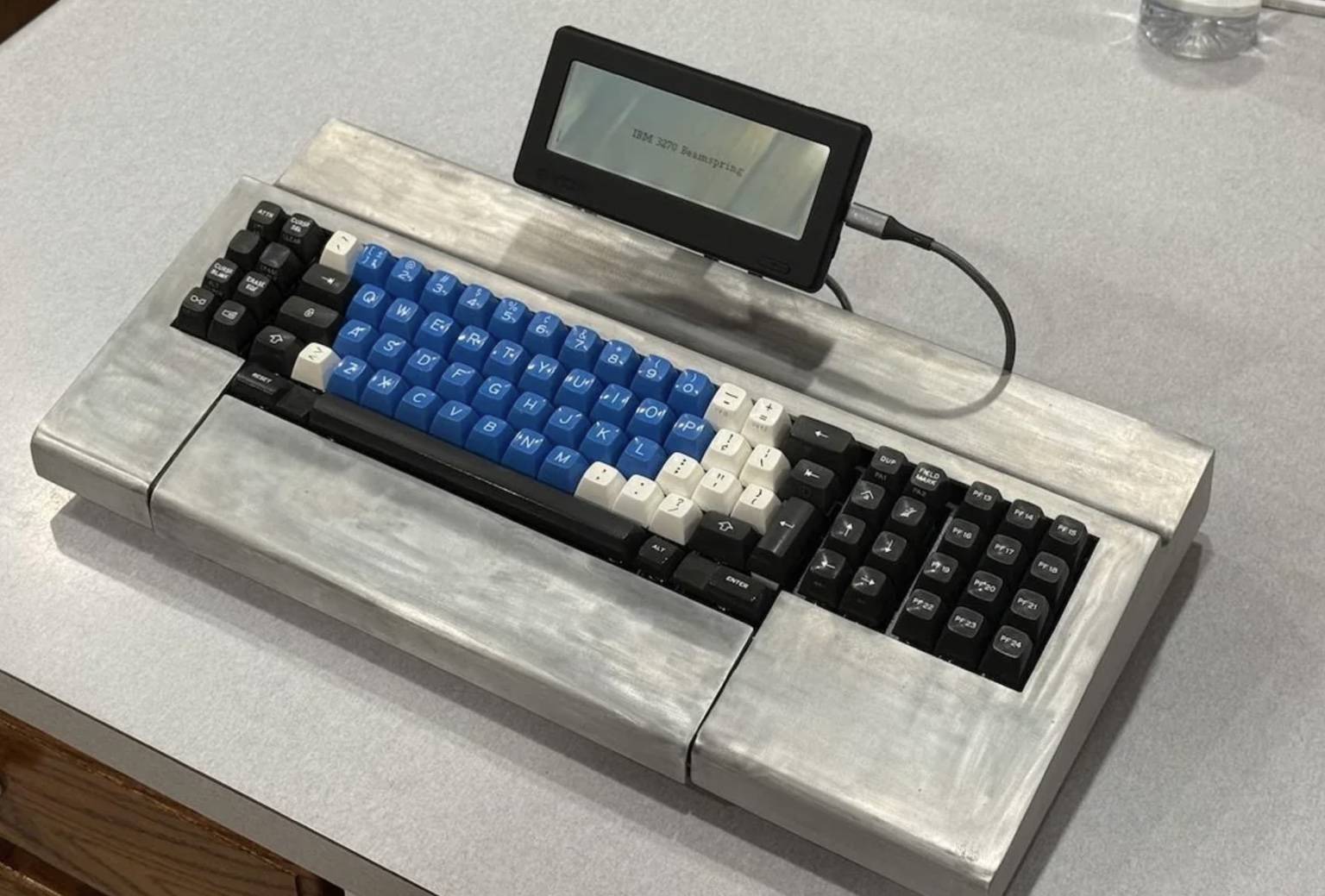
📷 u/jkreibich
Frequently Asked Questions
Common questions about distraction-free writing devices.
Want to write with fewer distractions?
Get practical writing workflow ideas, focused setup inspiration, and occasional updates from BYOK and Studio.